SteamVR on Meta Quest 2: Three Ways to Play PC VR
SteamVR on Meta Quest 2 works through Steam Link, Air Link or USB Link. Follow prerequisites, setup steps and fixes for lag, audio, black screens and USB errors.
- Intermediate
- 25 min
- Checked on Current SteamVR, Steam Link and Meta Horizon Link releases
- Last checked November 4, 2026
What you need
- Meta Quest 2 headset
- VR-capable Windows PC
- Steam and SteamVR
- 5 GHz Wi-Fi for wireless play or a USB 3 data cable for wired Link
- Steam Link or the Meta Quest Link PC app
SteamVR on Meta Quest 2 lets you play PC VR games in three ways: Steam Link over Wi-Fi, Meta Quest Air Link, or a wired Meta Quest Link connection. The downloads and current headset menu paths are written out step by step. Meta can rename interface labels in later headset software releases.
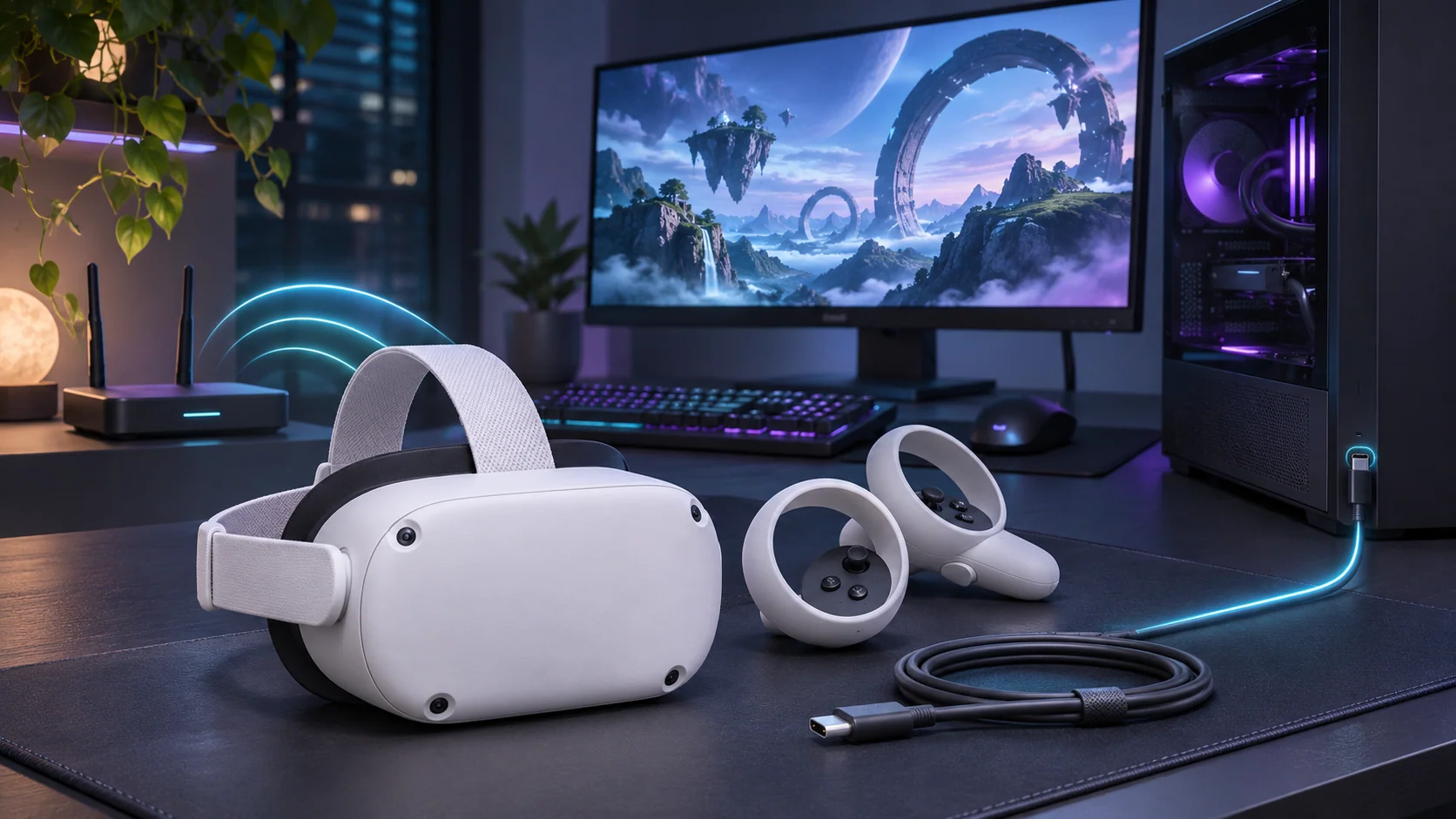
Before you start
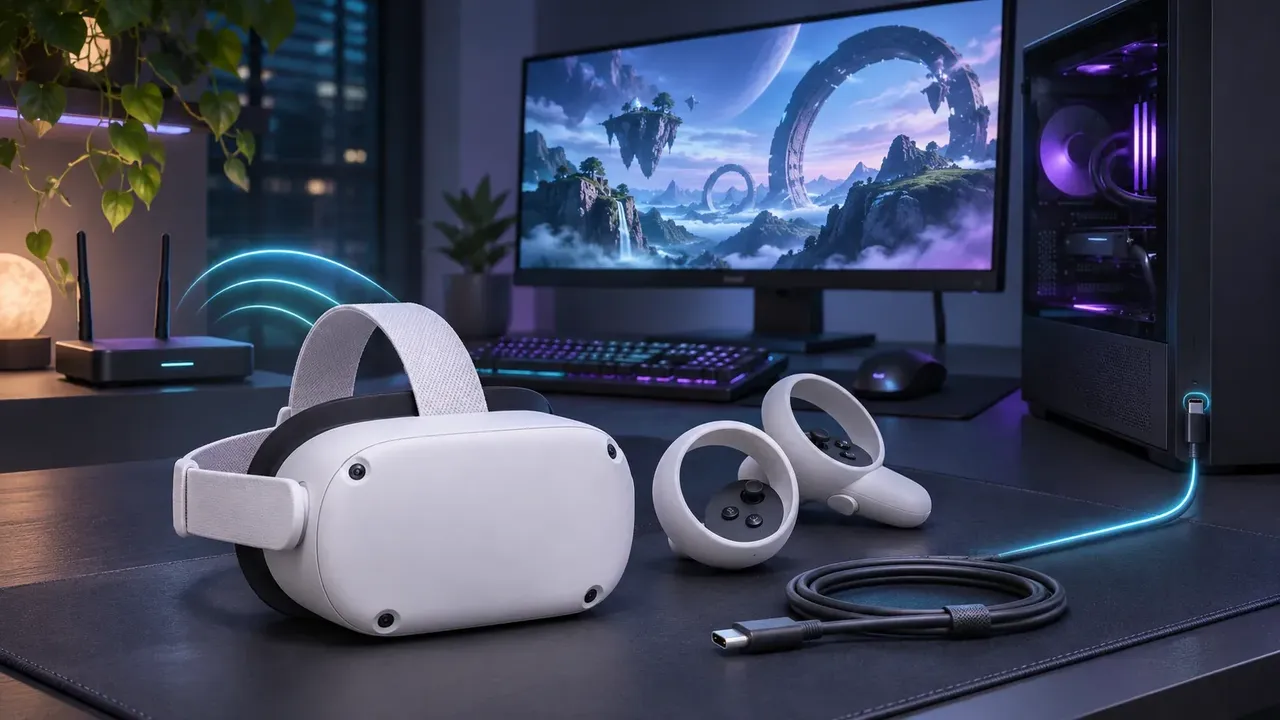
You need a Meta Quest 2, a VR-capable Windows PC, Steam for Windows and SteamVR. For wireless play, use a 5 GHz Wi-Fi network and connect the PC to the router with Ethernet when possible. For wired Link, Meta currently specifies a USB-C 3.2 cable capable of at least 5 Gbps.
Important: Steam Link is installed on the Quest 2 headset, not on the PC. On the PC, install Steam and SteamVR. Install Meta Horizon Link for Windows only when you want to use Air Link or USB Link. Meta also provides an official direct Windows installer.
Steam Link lists Windows 10 or newer, a GTX 970-class GPU or better and 5 GHz Wi-Fi 5 as minimum requirements. Recommended hardware includes a PC wired to the router, Wi-Fi 6 or Wi-Fi 6E, 16 GB RAM and an RTX 2070 or RX 6600-class GPU or better. These figures do not guarantee that every GPU or laptop is supported.
1. Download and install the required apps
On the Windows PC
- Open the official Steam download page, select Install Steam, run the installer and sign in.
- Open the official SteamVR store page, select Play Game or Install, and let Steam install it.
- If you plan to use Air Link or a USB cable, download and install Meta Horizon Link for Windows. You can also use Meta's direct installer link.
On the Quest 2 headset
- Press the Meta/Oculus button on the right controller to open the system interface.
- Open the Meta Horizon Store, search for Steam Link, then select Get or Install. You can also add it to your account from the official Steam Link listing.
- After installation, open App Library and select Steam Link.
Keep Steam running on the PC before starting a wireless or wired session. You can launch SteamVR from the Steam Library or let a compatible PC VR game start it.
2. Connect with Steam Link over Wi-Fi
Meta's Steam Link app streams Steam and SteamVR directly to Quest 2, Quest 3 and Quest Pro without the Meta Horizon Link PC app or a USB cable.
- Connect the Windows PC to your router with Ethernet when possible.
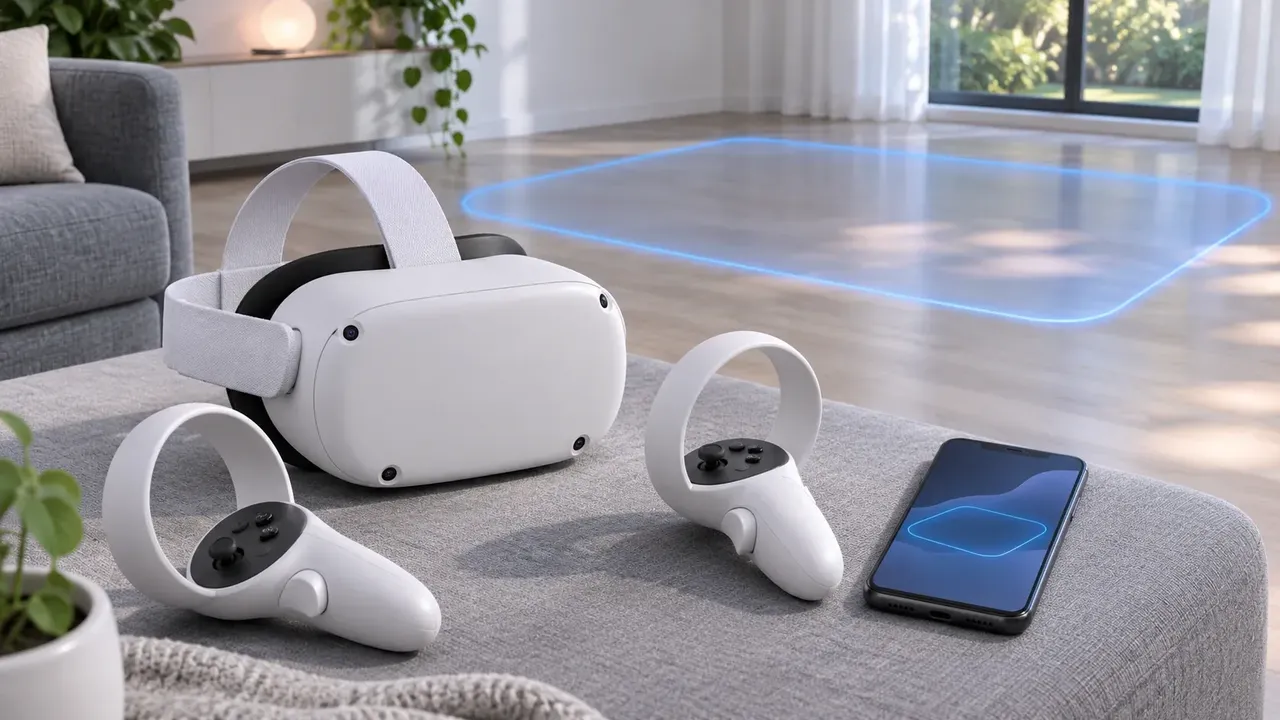
- Connect Quest 2 to the same 5 GHz Wi-Fi network as the PC.
- On the PC, open Steam and make sure SteamVR is installed.
- On Quest 2, press the Meta/Oculus button, open App Library, then open Steam Link.
- Select your PC when it appears. Follow the on-screen pairing prompts and enter or confirm the displayed code if requested.
- Start SteamVR, then choose a SteamVR game from the headset interface.
If the PC does not appear, confirm that both devices are on the same local network, Steam is open, and a firewall is not blocking Steam. Wireless quality depends on router placement, channel congestion and distance from the access point.
3. Connect with Meta Quest Air Link
Air Link uses Meta Horizon Link on the PC and the built-in Link controls on Quest 2.
- Install and open Meta Horizon Link on the Windows PC.
- Connect the PC and Quest 2 to the same 5 GHz Wi-Fi network. Use Ethernet for the PC when possible.
- On Quest 2, press the Meta/Oculus button to open Navigator.
- Select Quick controls.
- Select Link, then turn on Use Air Link.
- Select your computer, then select Pair.
- A pairing code appears in the headset. Confirm that it matches the code displayed in the Meta Horizon Link app on the PC, then select Confirm on the PC.
- Return to the headset and select Launch.
- Inside the PC VR environment, open Steam, launch SteamVR and select a game.
If Link is hidden or disabled, use this headset path: Meta/Oculus button → Quick controls → Settings → Link, then turn Link on. Meta may rename interface labels in future software releases.
4. Connect with a USB Quest Link cable
Wired Meta Quest Link avoids Wi-Fi variables, but the cable must carry data. Meta currently calls for a USB-C 3.2 cable capable of at least 5 Gbps; a charging-only USB-C cable will not work for Link.
- Install and open Meta Horizon Link on the Windows PC.
- Plug the USB-C 3.2 cable into a compatible USB 3.2 port on the PC and connect the other end to Quest 2.
- In Meta Horizon Link on the PC, open the cable or connection test and confirm that it recognizes a suitable data connection. If the test fails, try another USB 3 port or known data cable.
- Put on the headset and press the Meta/Oculus button to open Navigator.
- Select Quick controls.
- Select Link.
- Select the connected computer, then select Launch.
- Inside the PC VR environment, open Steam and select Library → SteamVR → Play.
- When SteamVR opens, choose the game you want to play.
If Link is turned off, use Meta/Oculus button → Quick controls → Settings → Link and enable it. If the headset is not detected, try another compatible USB 3 port and a known 5 Gbps data cable.
5. Launch SteamVR and choose OpenXR only when needed
Some PC VR software needs an OpenXR runtime selected before it starts correctly. Change that setting only when a game or application specifically requires it. Do not change the runtime as a general first step, and do not assume every SteamVR title needs the same setting.
6. Fix lag, black screens, audio and USB problems
Stutter, lag or unstable streaming
- Use 5 GHz Wi-Fi for Steam Link or Air Link.
- Connect the PC to the router with Ethernet.
- Move the headset closer to the access point.
- Check for channel congestion and competing network activity.
- If one wireless method remains unstable, test the other method under the same network conditions.
- Use USB Link if wireless performance remains inconsistent.
Black screen or SteamVR does not start
- Confirm that Steam is open and SteamVR is installed on the PC.
- Reconnect the selected method: Steam Link, Air Link or USB Link.
- For Air Link or USB Link, confirm that Meta Horizon Link is installed and running.
- Select an OpenXR runtime only if the affected software requires it.
- Restart the connection after updating SteamVR, Steam Link and Meta Horizon Link.
Audio comes from the wrong device
Check audio routing on both the PC and headset after the connection starts. If sound remains on the PC, review the selected Windows output and the active headset or Link audio option.
USB connection fails
A charging-only cable cannot provide the required data connection. Try a USB-C 3.2 cable rated for at least 5 Gbps and another suitable USB 3.2 port.
7. Check which version of a game you own
Native standalone Quest games and PC SteamVR games are separate purchases in most cases. You may need to buy the Steam version and the standalone Quest version separately. Cross-buy applies only when the publisher explicitly offers it for the relevant stores.
Frequently asked questions
Can Meta Quest 2 play SteamVR games without a cable?
Yes. Use Steam Link on the headset or Meta Quest Air Link on a suitable 5 GHz network. For better results, connect the PC to the router with Ethernet.
Where do I install Steam Link?
Install Steam Link on the Quest 2 headset from the Meta Horizon Store. On the Windows PC, install Steam and SteamVR. Meta Horizon Link is only needed for Air Link or USB Link.
Do I need to buy SteamVR games again on Quest?
Usually, the Steam PC version and the standalone Quest version are separate purchases. Cross-buy applies only when the publisher explicitly offers it for the relevant stores.
Can I use the Quest 2 charging cable for Quest Link?
Only if the cable supports adequate USB data transfer. Run the cable or connection test in Meta Horizon Link; a charging-only USB-C cable will not work for Link.
Which connection method is the most predictable?
A good wired USB Link connection avoids Wi-Fi congestion and distance problems. Steam Link and Air Link are more convenient, but their performance depends on the router, PC Ethernet connection and wireless environment.
Official sources and downloads
- Download Steam for Windows
- Install SteamVR from Steam
- Install Steam Link on Quest 2
- Download Meta Horizon Link for Windows
- Meta Horizon Link direct Windows installer
- Meta: set up Meta Horizon Link and Air Link
- Steam: Steam Link for Meta Quest setup
- Meta Horizon OS device and PC VR support comparison
- Meta Quest Link cable and connection-test guidance
Questions & answers
Can Meta Quest 2 play SteamVR games without a cable?
Yes. Use the Steam Link app or Meta Quest Air Link on a suitable 5 GHz network. For best results, connect the PC to the router with Ethernet.
Do I need to buy SteamVR games again on Quest?
Usually Steam and standalone Quest versions are separate purchases. Cross-buy only applies when the publisher explicitly offers it for the relevant stores.
Can I use the Quest 2 charging cable for Quest Link?
Only if the cable supports adequate USB data transfer. Some USB-C cables are charging-only; use the connection test in the Meta Quest Link PC app.
Which method has the lowest latency?
A good wired USB Link connection is the most predictable. Wireless quality depends heavily on the router, channel congestion, PC Ethernet and distance from the access point.