How to fix Meta Quest 2 controller tracking problems
Fix drifting, jumping or disappearing Quest 2 Touch controllers by checking batteries, lighting, camera visibility, pairing and headset software in the right order.
- Beginner
- 15 min
- Checked on Meta Horizon OS for Quest 2 (menus may vary by release)
- Last checked November 4, 2026
What you need
- Meta Quest 2 headset
- Quest 2 Touch controllers
- Fresh AA batteries
- Clean dry microfiber cloth
- Evenly lit indoor room
- Meta Horizon mobile app
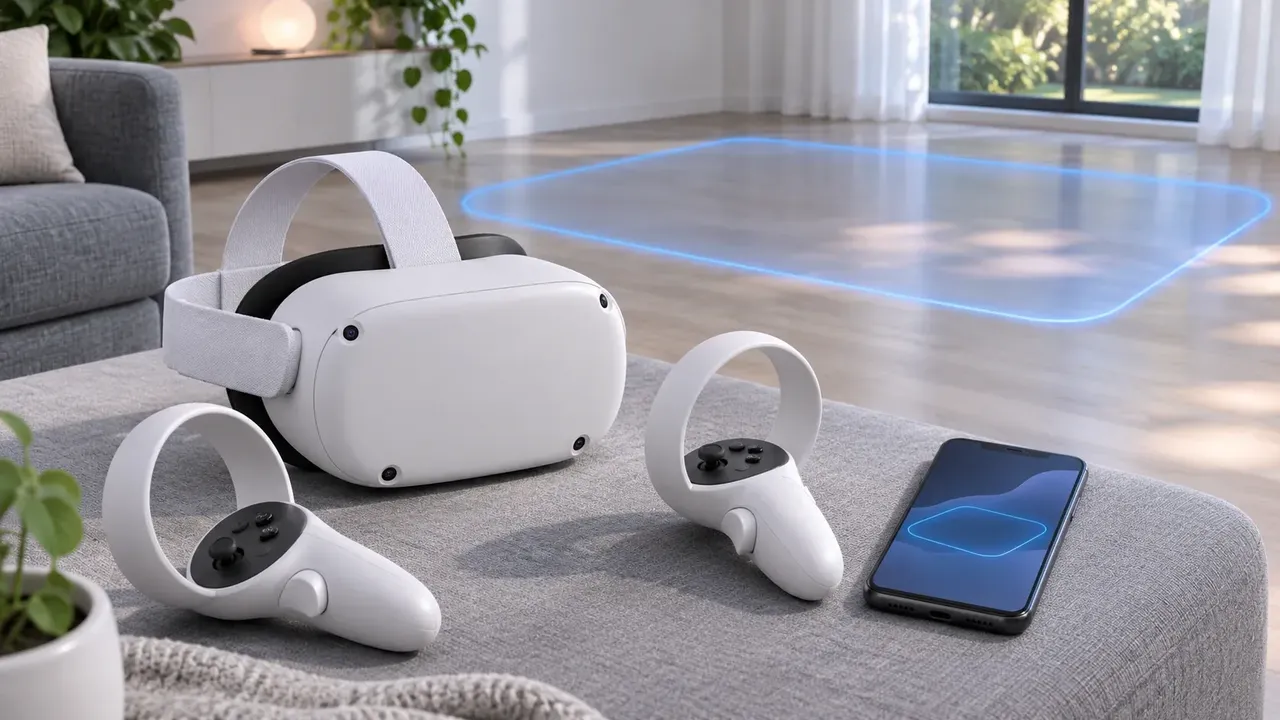
If a Quest 2 Touch controller drifts, jumps, freezes or disappears, work through the checks below in order. Oculus Quest 2 is now called Meta Quest 2. Spatial tracking loss is different from joystick drift: tracking loss changes the controller's position or orientation in VR, while joystick drift moves a menu or character when you are not touching the thumbstick.
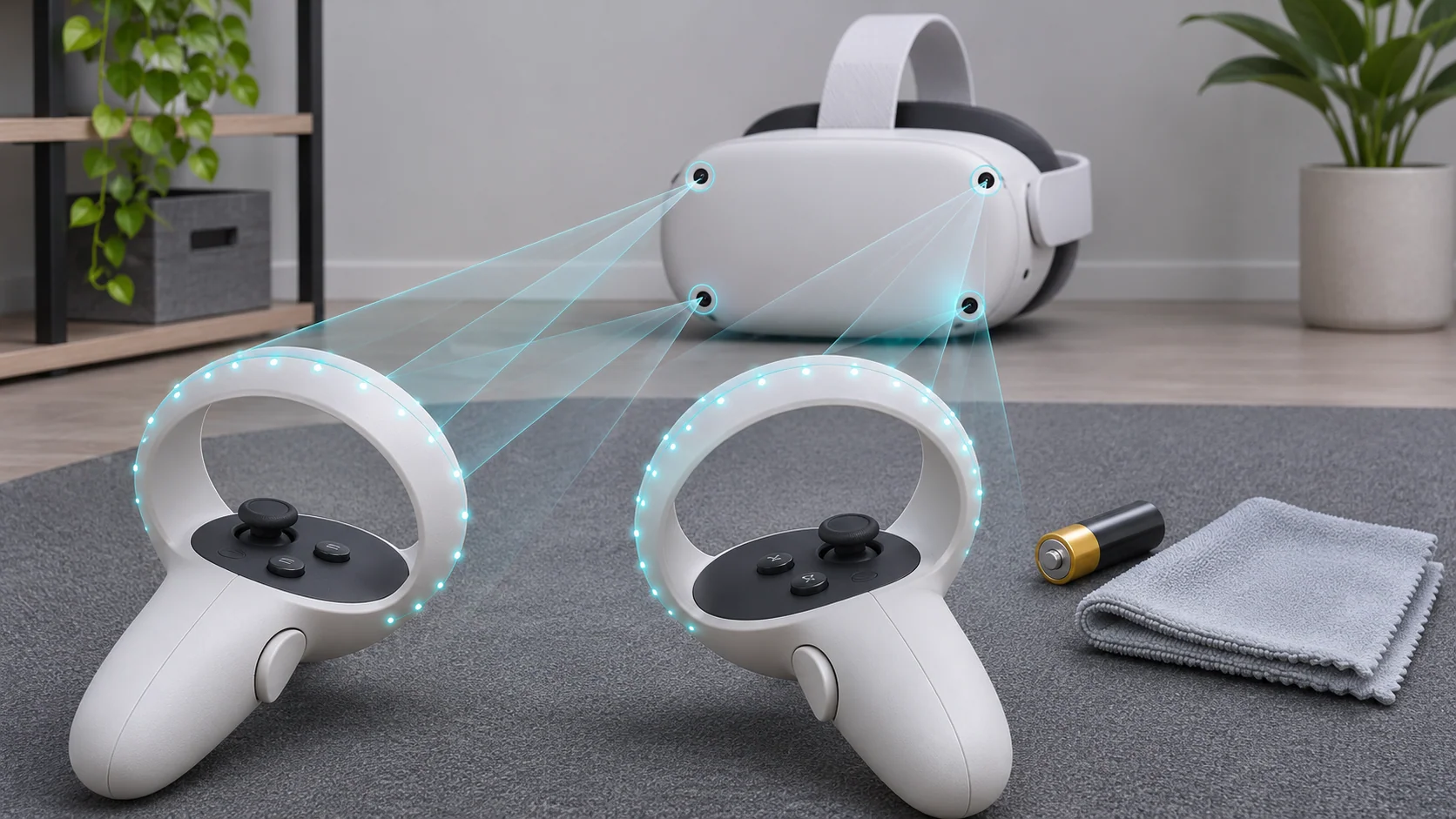
This guide follows Meta's explanations of Quest inside-out controller tracking, difficult lighting conditions and the Meta Quest software update tool.
Before you start
- Get two fresh AA batteries, a clean dry microfiber cloth and the Meta Horizon mobile app.
- Move to an evenly lit indoor room.
- Remove controller covers or accessories that may hide the tracking rings.
- Do not use liquid or harsh cleaner on the headset cameras, and do not open the controllers.
1. Identify tracking loss, not joystick drift
- Open the Quest system interface or a simple app.
- Hold the controller still and watch its virtual position.
- If the controller jumps, freezes, rotates incorrectly or disappears, continue with this guide.
- If only a menu selection or character moves by itself while the controller remains in the correct place, troubleshoot joystick drift instead.
2. Replace and reseat the AA batteries
- Remove the battery cover from the affected controller.
- Take out the AA battery and check that the contacts are clear.
- Insert a fresh AA battery in the marked direction.
- Close the cover, wake the controller and test it again.
- Repeat for the other controller if both are affected.
Testing with fresh batteries removes low or unstable power from the diagnosis. Test one controller at a time so you know whether the fault affects one side or the whole tracking environment.
3. Keep the tracking rings visible
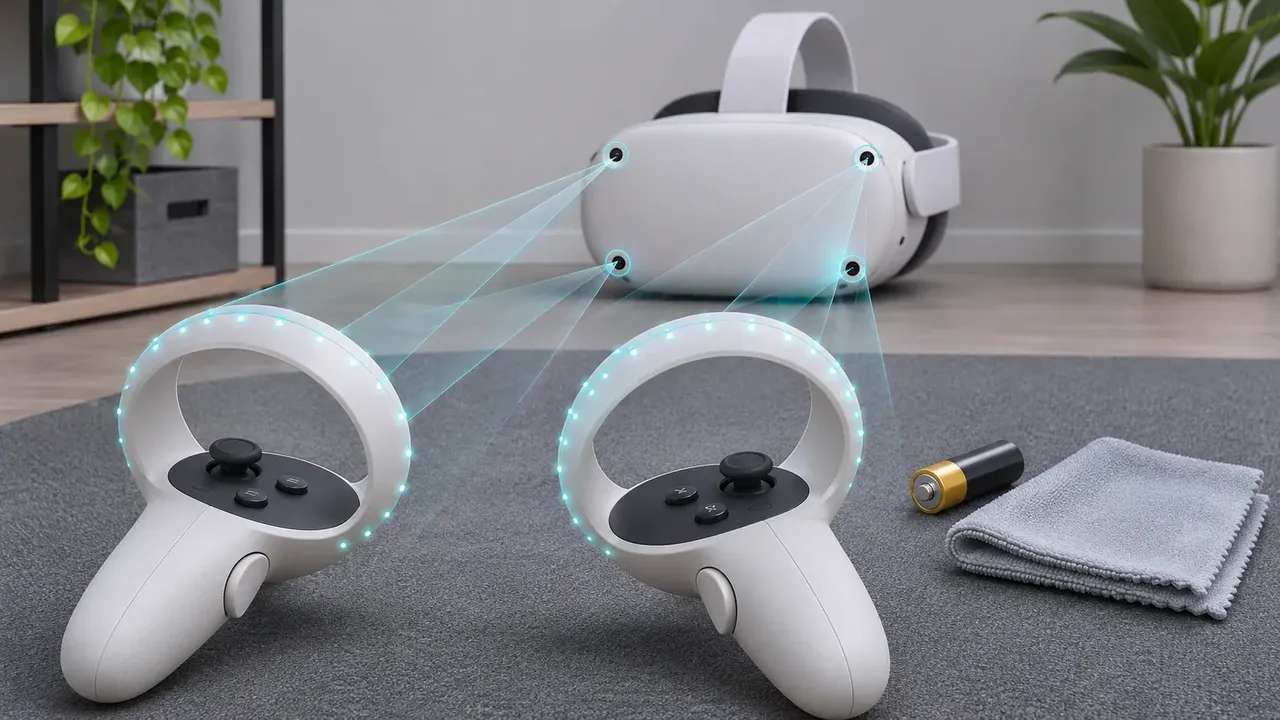
- Remove silicone grips, covers or straps that overlap the controller's circular tracking ring.
- Make sure the wrist strap does not wrap over the ring.
- Hold the controllers where the headset cameras can see them.
- Test slow movements first, then normal movements.
Quest 2 cameras detect infrared LEDs in the controller rings. A ring hidden by your hand, an accessory or your body can reduce the observations the headset needs to calculate position.
4. Fix the room lighting
- Use even indoor lighting: not a dark room and not harsh glare.
- Close blinds or move away from a bright window if tracking fails near it.
- Turn off flashing decorative lights, dense strings of lights or a bright chandelier near the play area.
- Move or cover a mirror or strong reflective surface for the test.
- Test tracking again in the changed room.
Meta has documented that clusters of bright lights can compete with the controller LEDs. Changing one environmental factor at a time helps reveal the cause.
5. Clean the headset tracking cameras
- Turn off the headset.
- Use only a clean, dry microfiber cloth.
- Gently wipe the external tracking-camera windows.
- Check that no sticker, cover or dirt blocks a camera.
- Turn Quest 2 back on and retest both controllers.
6. Restart and update Quest 2
- Restart the headset from its power menu.
- After it starts, test the controllers before opening a game.
- Check for an available Meta Horizon OS update and let it finish while the headset is charged.
- If normal updating is unavailable, use Meta's official software update tool with the required computer storage and USB-C cable.
Exact menu labels can vary by Meta Horizon OS release. Follow the matching control on the current headset interface rather than relying on a fixed menu path.
7. Unpair and pair the affected controller again
- Open the Meta Horizon app on the phone paired with the headset.
- Select the Quest 2 and open its controller settings; labels can vary by app version.
- Choose the affected left or right controller and unpair it.
- Use the app's pairing flow to add that controller again.
- Test it in the system interface before opening a game.
8. Reset the boundary or tracking history if available
- Open the current boundary or physical-space settings on Quest 2.
- If the OS offers a clear-boundary or clear-tracking-history option, use it.
- Restart the headset.
- Create a new boundary in the evenly lit, clear play area.
- Test both controllers again.
Skip this step if the current Quest 2 software does not expose the option. Do not invent or follow a menu path for a different headset version.
9. Isolate hardware before considering a factory reset
- Test the affected controller in another evenly lit room.
- Test one controller at a time and note whether only one side fails.
- Remove third-party accessories and repeat the test.
- If tracking still fails after batteries, lighting, cleaning, restart, update and re-pairing, contact Meta support or the controller seller with the results.
A factory reset should not be the first controller-tracking fix. Back up supported app data before any reset, and use it only after the lower-risk checks above.
Frequently asked questions
Why does my Quest 2 controller disappear in VR?
The headset cameras may not see enough of the controller's infrared tracking ring because it is occluded, outside the camera view or competing with difficult lighting.
Can room lighting affect Quest 2 controller tracking?
Yes. Meta has documented problems from dense clusters of lights; bright windows, glare and overhead lights can also create difficult tracking conditions.
Should I factory-reset Quest 2 for controller tracking?
Not first. Try batteries, visibility, lighting, camera cleaning, restart, updates and re-pairing, then back up supported app data before considering a reset.
Questions & answers
Why does my Quest 2 controller disappear in VR?
The headset cameras may not see enough of the controller's infrared tracking ring because it is occluded, outside the camera view, or competing with difficult lighting.
Can room lighting affect Quest 2 controller tracking?
Yes. Meta has documented problems from dense clusters of lights, and bright windows or overhead lights can also create difficult tracking conditions.
Is controller tracking loss the same as joystick drift?
No. Tracking loss changes or loses the controller's position in 3D space. Joystick drift moves a menu or character even when you are not touching the thumbstick.
Should I factory-reset my Quest 2 for controller tracking?
Not first. Try batteries, lighting, camera cleaning, restart, updates and re-pairing before considering a factory reset, and back up supported app data first.