How to fix PS VR2 tracking and controller problems
Fix PS VR2 tracking loss and PS VR2 Sense controller problems with Sony's official steps: lighting, camera cleaning, calibration, pairing and reset.
- Beginner
- 20 min
- Last checked October 31, 2026
What you need
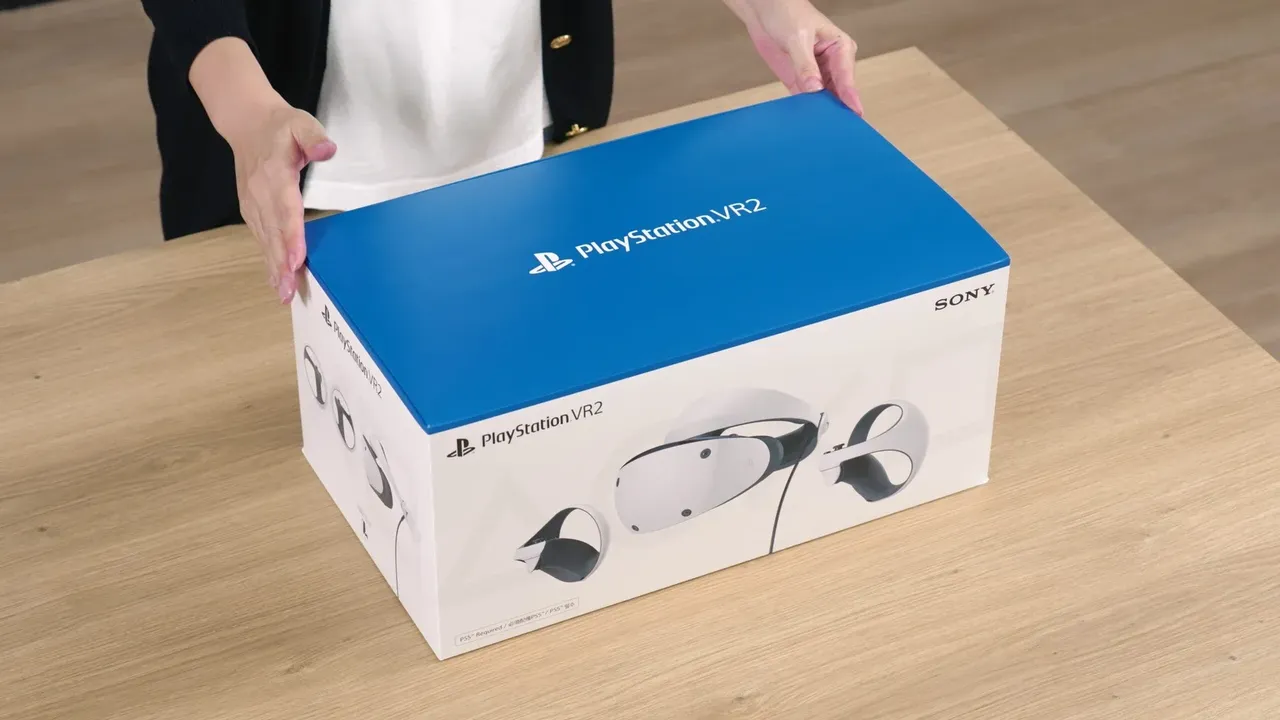
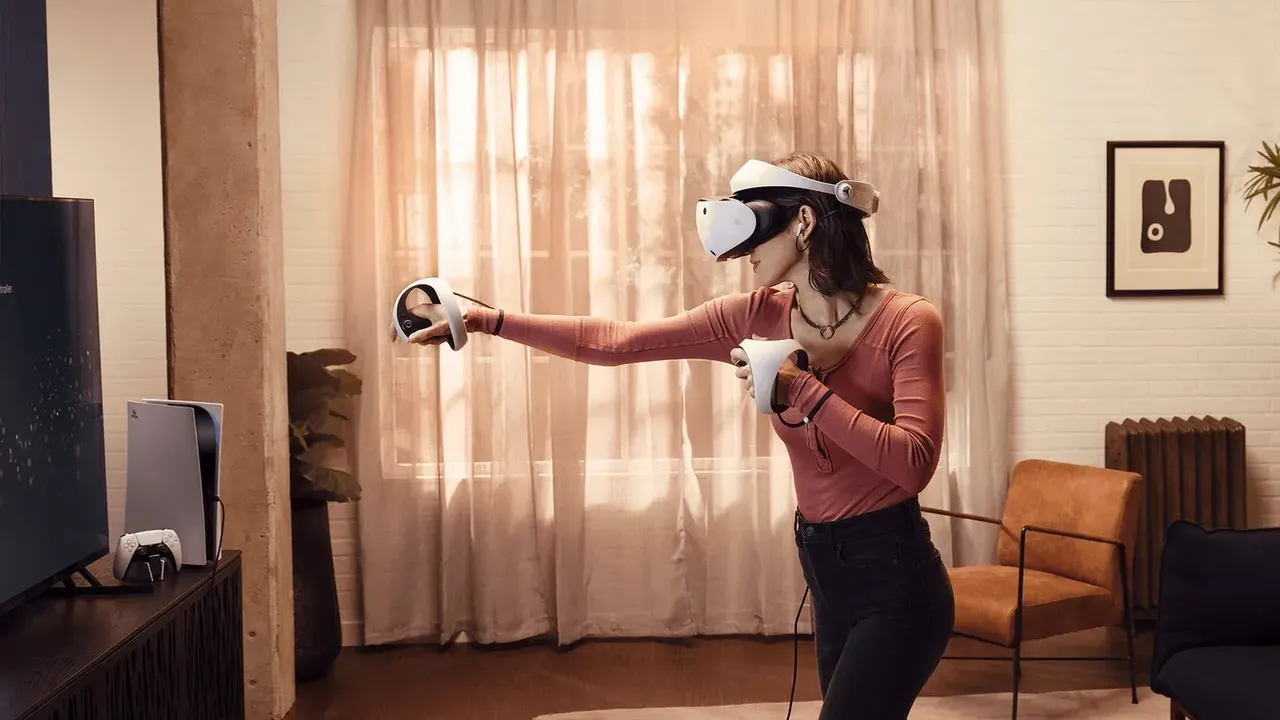
- PlayStation VR2 connected to a PS5 console
- Both PS VR2 Sense controllers and the included USB cable
- A soft, dry lens cleaning cloth
- A pin or similar tool for the controller reset button
This guide walks you through Sony's official fixes for a PlayStation VR2 that loses tracking, drifts, or has PS VR2 Sense controllers that will not connect. The steps follow PlayStation Support's articles on troubleshooting PS VR2, setting up PS VR2 Sense controllers, setting up PS VR2 and troubleshooting PS VR2 on PC. Work through them in order, testing after each one. If you have not finished the first-time setup yet, see our guide to setting up PlayStation VR2 on PS5.
1. Update your PS5 system software
Sony asks you to keep the console up to date, and PS VR2 Sense controller software updates arrive with PS5 system software updates.
- Go to Settings > System.
- Select System Software > System Software Update and Settings. Update Available appears if there is a newer version.
- Select Update System Software.
After the console updates, connect each controller with its USB cable and follow the on-screen instructions to update it.
2. Fix the lighting in your room
PS VR2 uses cameras on the headset to track your surroundings. This is called inside-out tracking, and it needs to see the room clearly. Sony's setup article says to:
- Turn on the lights in your room so the headset can track your surroundings.
- Keep curtains closed to avoid direct sunlight.
Sony's PC troubleshooting article adds a few more tips for headset tracking that also make sense on PS5: play in a well-lit place, close blinds or curtains to keep direct sunlight off the headset cameras, and hang some posters or pictures if your walls are plain.
3. Clean the tracking cameras and lenses
Dirt on the headset cameras can upset tracking. Sony recommends you:
- Disconnect the headset from your PS5 and turn off the controllers before cleaning.
- Wipe the headset tracking cameras and lenses only with a soft, dry cloth made for cleaning lenses.
- Do not use paper towels or tissues unless they are made for lenses. Water droplets or dirt left on the lenses can cause damage.
- Do not use thinner, benzine, alcohol, or wipes and cloths treated with such chemicals.
For more general advice, see our guide on cleaning VR lenses safely.
4. Recalibrate the tracking camera and reset your play area
If tracking is still unstable, go to the home screen and select Settings > Accessories > PlayStation VR2.
- Select VR Headset > Tracking Camera Calibration and follow the prompts. This calibrates the camera so it can accurately track your surroundings.
- Back in the PlayStation VR2 menu, select Play Area > Set Play Area to scan the room again.
- If your game still does not behave as expected after resetting, select Clear Play Area Data, then Set Play Area again.
When you scan, Sony suggests looking at every part of the room, including the ceiling and floor. Check the space against your play style: roomscale needs at least 2 m by 2 m (6 ft 7 in. by 6 ft 7 in.), while sitting and standing need at least 1 m by 1 m (3 ft 4 in. by 3 ft 4 in.). You can also open Set Play Area from the PlayStation VR2 card in the control center.
5. Check headset fit and eye tracking
A loose or badly placed headset can make the image look wrong and confuse eye tracking.
- Press the PS button to open the control center and select the PlayStation VR2 card.
- Select Adjust Visibility and follow the on-screen instructions.
- Move the headband and scope until the image is clear, then turn the headband adjustment dial to lock the position. Sony says the headband should sit close to your ears; the headset is not stable if worn high on your head.
If eye tracking seems off, go to Settings > Accessories > PlayStation VR2 > Eye Tracking and select Adjust Eye Tracking.
6. Charge and re-pair your PS VR2 Sense controllers
Each controller is paired separately over USB:
- Turn on your PS5 console.
- Connect one controller to the console with the included USB cable.
- Press the PS button on the controller. It is assigned to the user who is logged in.
- Repeat for the other controller, then unplug the cable to play.
A controller can pair with only one PS5 at a time, so re-pair it if it was used on another console. While charging over USB, the status indicator slowly blinks white and turns off when charging is complete. You cannot use a controller while it is charging. Check battery levels under Accessories in the control center.
7. Reset a controller that still misbehaves
- Turn off your PS5 console.
- Find the small reset button on the back of the controller.
- Press it with a pin or similar tool (not included).
- Connect the controller to the PS5 with the USB cable and press the PS button.
8. If you play on a PC
With the PC adapter, controllers connect over your PC's Bluetooth. Sony's PC article recommends making sure the controllers are charged, turning off a PS5 they are paired with, turning off other Bluetooth devices, and keeping a clear line between the controllers and the Bluetooth adapter. For headset tracking on PC, turn off the headset, close SteamVR, open the PlayStation VR2 App and select Delete play area data. Our guide on using PS VR2 on a PC covers the setup.
9. Contact PlayStation Support
If nothing above helps, open Sony's PS VR2 troubleshooting page and select your issue, such as a Sense controller problem, headset movement not detected properly, or a tracking camera issue. Each option leads to PlayStation Repairs, where you can get further help or arrange a repair.
Questions & answers
Why does my PS VR2 keep losing tracking?
PS VR2 tracks using cameras on the headset, so it needs a well-lit room. Sony recommends turning on the lights, keeping curtains closed against direct sunlight, and wiping the tracking cameras with a soft, dry lens cloth.
How do I reset a PS VR2 Sense controller?
Turn off your PS5, press the small reset button on the back of the controller with a pin, then connect the controller to the PS5 with the USB cable and press the PS button.
Can I use my PS VR2 Sense controllers on two PS5 consoles?
A PS VR2 Sense controller can pair with only one PS5 console at a time. To use it on another console, pair it again with that console over USB.
How do I update my PS VR2 Sense controllers?
Controller software updates come with PS5 system software updates. Update the console, then connect each controller with the USB cable and follow the on-screen instructions.
What should I do if my game misbehaves after resetting the play area?
Go to Settings > Accessories > PlayStation VR2 > Play Area, select Clear Play Area Data, then select Set Play Area to scan your room again.