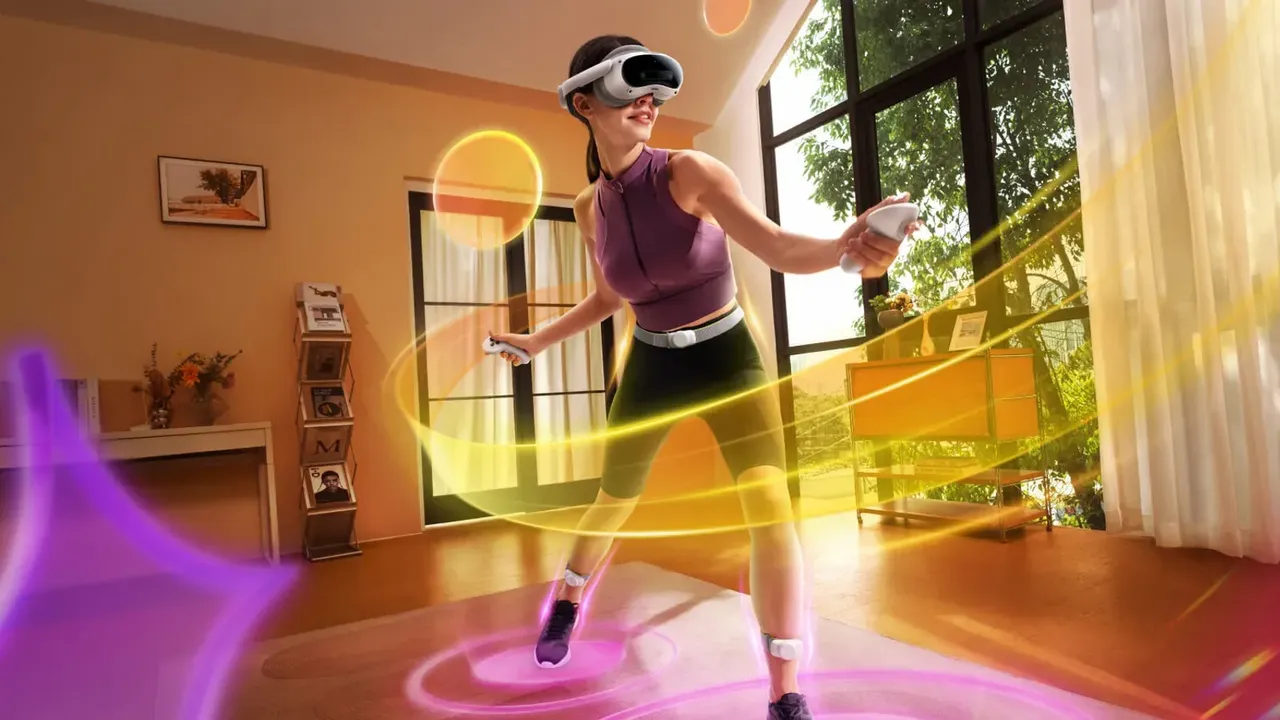
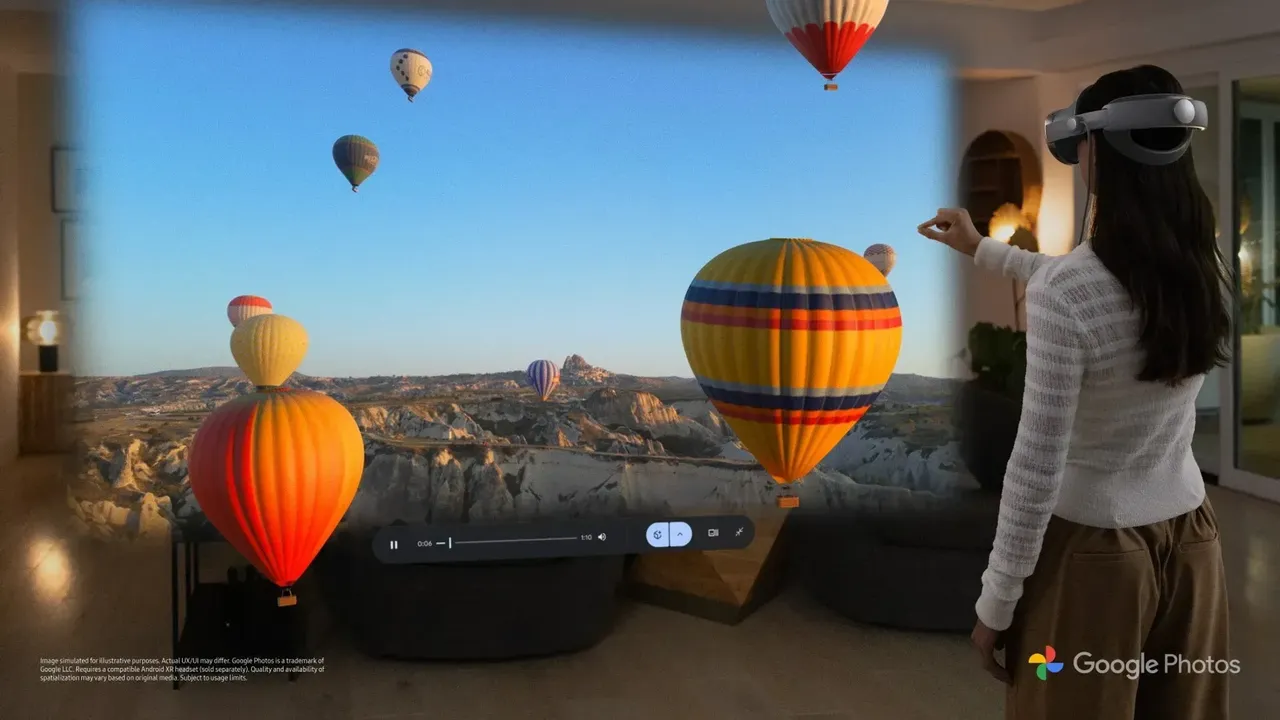
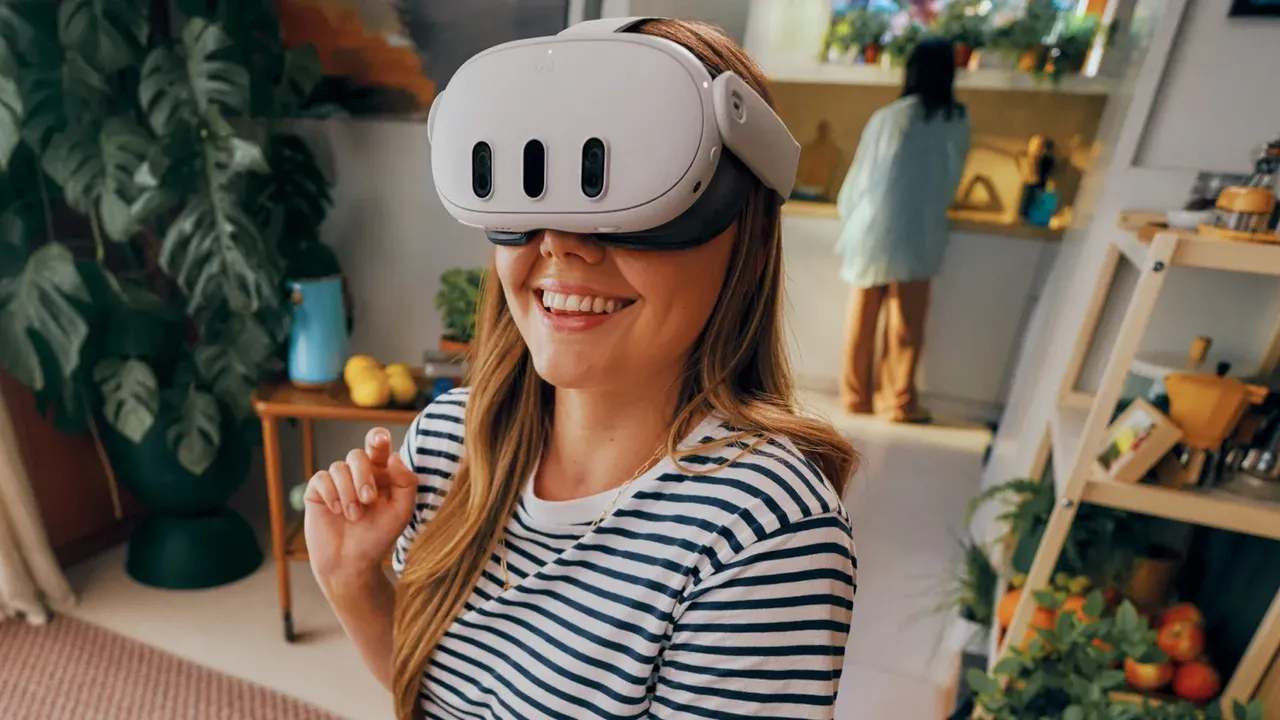
How to set up the Valve Steam Frame for the first time
Set up a Valve Steam Frame: first charge, fit and IPD, Guided Tour and Steam sign-in, controller pairing, Playspace, and pairing the wireless adapter for PC streaming.
- Beginner
- 30 min
- Checked on SteamOS 3
- Last checked October 31, 2026
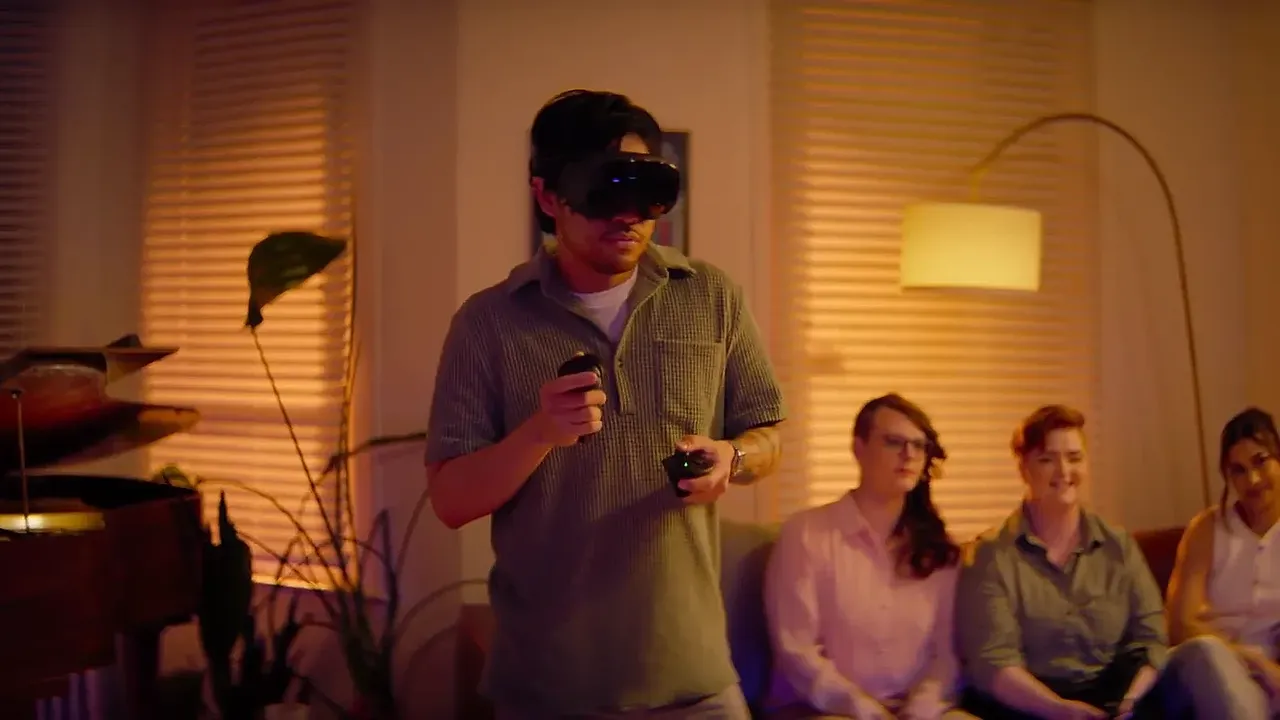
What you need
- Valve Steam Frame with its controllers (one AA battery each) and the included wireless adapter
- A USB-C power supply (Valve recommends 45W; at least 27W per its developer notes)
- A Steam account and a Wi-Fi network
- For PC streaming: a Windows PC with Steam and SteamVR, ideally with a free USB 3 port
This guide takes you from a new, boxed Valve Steam Frame to playing your first game, either stand-alone or streamed from your PC. The steps follow Valve's Steam Frame Feature and Troubleshooting Guide, its Steam Frame LEDs reference, the Steam Frame product page and Valve's Steamworks setup notes. Valve also has walkthrough videos on its Steam Hardware Getting Started page, including Unboxing & Turning On, Fit & Comfort, Adjusting the IPD, Signing in to Steam and Streaming & Using the Wireless Adapter.
1. Check what you need
The box includes the headset, two Steam Frame controllers and a 6GHz wireless adapter for your PC. Each controller runs on one replaceable AA battery, which Valve rates at about 40 hours. You will also need:
- A Steam account. You can sign in or create one during setup.
- A Wi-Fi network. Setup asks you to connect so you can sign in and download updates.
- For PC streaming, a Windows PC with Steam and SteamVR installed. Valve says full support for SteamVR and streaming through the wireless adapter is currently Windows only.
2. Charge the headset before you turn it on
Steam Frame arrives in a battery-saving shipping mode. Plug it into power through the USB-C port on the rear headstrap before you power it on. Valve recommends a compatible 45W power supply if you have one, which recharges the headset in about 1.5 hours. Charging from a PC or a lower-power USB adapter is possible but takes about 3.5 hours. Valve's developer notes add that the power adapter should supply at least 27W.
The headset LED shows the state: dim solid white means charging, dim solid green means fully charged, and solid yellow means the power source is only providing limited power.
3. Put it on and set the fit
Valve's Fit & Comfort and Adjusting the IPD videos show how to wear and adjust the headset. Valve lists an IPD target range of 60mm to 70mm, and there is an IPD lock switch under the magnetic face gasket, near the brow of the headset. Our guide to adjusting IPD and lens fit explains how to find your sharpest image.
The top strap and light blocker come in Valve's separate Ergonomic Accessories Kit, which also has its own install video. If you wear glasses, Valve lists prescription inserts by Zenni as a Steam Frame Compatible accessory, and our prescription lenses guide covers your options.
4. Follow the Guided Tour: Wi-Fi, updates and Steam sign-in
On first start, Steam Frame runs a Guided Tour. Valve says it covers signing in to (or creating) your Steam account, pairing the controllers and learning to move around the interface. Steam Frame uses built-in Wi-Fi 7, and you will be asked to connect to your network during setup.
After setup, install any remaining updates under Steam Settings > System > Updates in the VR Dashboard. To change networks later, use Steam Settings > Internet. You can replay the Guided Tour from the Help section of the Quick Access Menu, which opens when you hover over the clock in the VR Dashboard.
5. Pair the controllers
Valve says the controllers should pair automatically the first time you turn them on. Press the button with the Steam logo to turn a controller on. Valve's developer notes say to check that the tab has been removed from the battery compartment if a controller will not power on.
If a controller becomes unpaired, go to Steam Settings > Controller > Add Controller and follow the prompts. To put a controller into pairing mode, hold Steam + Menu on the right controller or Steam + View on the left. If you need to get around the menus without a controller, press the Aux button on the side of the headset to bring up a cursor that follows your head. The Aux button then works as a click.
6. Set up your Playspace
A Playspace is the clear area you play in. Open the Playspace menu from the taskbar in the VR Dashboard to set it up again, adjust the floor height or recenter to where you stand. To turn the VR Dashboard to face a new direction, hold the Steam button while facing that way and release it when the icon shows ready.
When you get close to the edge, the Chaperone grid appears. This is Steam Frame's version of a boundary, and you can change it under VR Settings > Play Area > Chaperone Style. Tracking uses cameras on the headset. Valve suggests turning off small bright lights such as Christmas lights and covering nearby reflective surfaces if tracking misbehaves.
7. Pair the wireless adapter with your PC
The included plug-and-play 6GHz adapter gives the headset a direct, low-latency link to your PC, while the headset's second radio stays on your Wi-Fi.
- Update the Steam client and SteamVR on your PC.
- Plug the wireless adapter into the PC you want to stream from. Valve's developer notes recommend a USB 3 port.
- Follow the pairing prompts that appear on the PC. In Valve's developer notes, you select Pair and then type the code shown into the headset with the virtual keyboard.
- If no prompt appears, try another USB port. You can also pair manually from Steam Settings > Remote Play > Wireless Streaming Adapter on the headset.
Valve says the adapter works best with a clear line of sight to the headset and within about 20 feet of your Playspace. The developer notes also say the headset must be signed in to the same Steam account as the PC.
8. Stream a game or play stand-alone
To stream from your PC, open your Steam Library in the headset, pick a game and choose Stream from your PC in the drop-down on the big green button. More options are under Steam Settings > Remote Play on the headset and in the Steam client's Remote Play settings on the PC. Eye tracking lets Steam Frame use Foveated Streaming, which Valve says puts the most detail where you are looking.
For stand-alone play, install a compatible game on the headset from your Library. The game's Library entry or store page shows its expected compatibility, and Valve keeps a list of Steam Frame Verified games. To trade speed for battery life, use the Performance or Playtime presets in the Performance section of the Quick Access Menu.
Questions & answers
Why won't my new Steam Frame turn on?
It ships in a battery-saving shipping mode. Valve says you must plug it into power through the USB-C port on the rear headstrap before you can power it on.
How long does Steam Frame take to charge?
Valve estimates about 1.5 hours for a full charge with a compatible 45W power supply, and about 3.5 hours when charging from a PC or other USB source.
How do I re-pair a Steam Frame controller?
Go to Steam Settings > Controller > Add Controller. Put the controller in pairing mode by holding Steam + Menu on the right controller or Steam + View on the left.
Can I stream to Steam Frame from a Mac or Linux PC?
Valve says full support for SteamVR and streaming through the wireless adapter is currently available on Windows only. Linux and Steam Machine streaming is not fully supported yet.
How far can I be from the wireless adapter?
Valve recommends staying within about 20 feet of the adapter with a clear line of sight to the headset for the best streaming.