How to set up the PICO 4 Ultra for the first time
Unbox, charge, fit and power on a PICO 4 Ultra, pair its controllers, set a safe play area, link the PICO app and add Motion Trackers.
- Beginner
- 30 min
- Checked on PICO OS V5.14.4.U
- Last checked October 31, 2026
What you need
- A PICO 4 Ultra with its controllers and the included AA batteries
- A USB-C charger (no power adapter is listed in the box)
- A clear, well-lit indoor space of at least 2 × 2 meters
- Wi-Fi, a smartphone for the PICO app and a PICO account
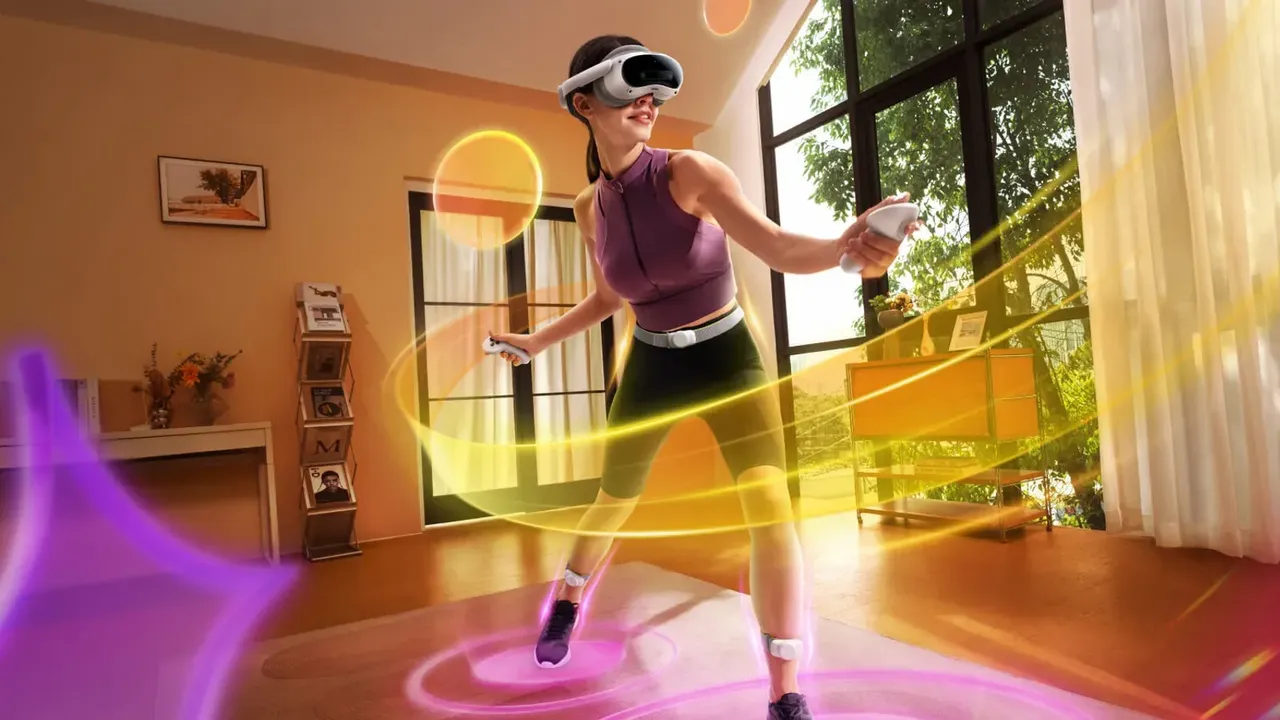
- Optional: PICO Motion Trackers
This guide takes a new PICO 4 Ultra from the box to your first app: charging, fitting the headset, powering on and pairing the controllers, setting up a safe play space, linking the PICO app and adding the optional PICO Motion Trackers. The steps follow PICO's official PICO 4 Ultra user guide, the setup videos on the PICO 4 Ultra support page and the official specs page.
1. Check what is in the box
PICO lists these items in the PICO 4 Ultra box:
- The headset and two controllers, with two wrist straps (lanyards).
- A glasses spacer and a face foam.
- Four 1.5V AA alkaline batteries for the controllers.
- A USB-C to USB-C cable.
- A Quick Guide, a User Guide and a Safety & Warranty Guide.
A power adapter is not on PICO's in-box list. The specs page says the headset supports QC 4.0 / PD 3.0 and a 45W fast charger.
2. Charge the headset before first use
PICO's setup video asks you to make sure the headset is fully charged before you first use it. The USB-C port is on the left side of the headset. The status light tells you how charging is going:
- Charging while powered off: yellow means below 98%, red means below 20%, green means charging is complete.
- Charging while powered on: white means below 98%, red means below 20%, green means charging is complete.
- A flashing red light during use means the battery is low.
Keep the lenses out of direct sunlight and UV light, including on windowsills and in cars. PICO warns this can leave permanent yellow spots on the display, and that this damage is not covered by the warranty.
3. Prepare your play space and remove the films
- Clear a clean, safe and well-lit area of at least 2 × 2 meters.
- Avoid rooms with single-colored walls, large reflective objects such as mirrors and glass panes, or moving images and objects.
- Remove the protective films from the front cameras and the lenses.
The front of the headset has four environment tracking cameras, two color passthrough cameras and a depth camera. Do not cover any of them while you play.
4. Turn on the controllers and the headset
- The controllers ship with batteries installed. For first use, pull out the insulation film in each battery case. The controllers turn on by themselves and the indicator flashes blue.
- Later, press the Home button on a controller to turn it on.
- Attach the wrist straps and wear them while you play.
- Press and hold the headset's Power button for 3 seconds until the status light turns white. The power button is on the right side, below the volume buttons on the head strap.
The headset has a proximity sensor. It wakes up when you put it on and goes to sleep when you take it off. A short press of Power also enters or leaves sleep. To turn it off, hold Power for 3 seconds. If it freezes, hold Power for 10 seconds to force a restart.
5. Put it on and adjust the fit
- Raise the rear part of the head strap and put the headset on. Move it until your view is clear.
- Buckle up the rear part of the strap and turn the strap dial clockwise until the headset feels secure.
- Fine-tune the top strap to take pressure off your forehead.
- Adjust the lens spacing in Settings > Display. Tap + or - until the image is sharp. PICO lists a range of 58-72 mm.
The rear battery acts as a counterweight, so the weight is split between your forehead and the back of your head. The headset does not correct vision. You can wear most glasses with a frame width under 150 mm. If your glasses touch the lenses, fit the included glasses spacer behind the face cushion. See our guides to adjusting IPD and lens fit and wearing glasses in VR.
6. Follow the on-screen setup and set your safety area
PICO's user guide tells you to set up your environment by following the instructions in the headset. Stay aware of your physical space and respect the boundary whenever you see it. PICO notes that the Safety Area feature cannot guarantee your safety, so keep at least 2 × 2 meters clear around you.
If no controller is connected, use Head Control Mode. Move your head to point the crosshair at an item, then press the Volume Up or Volume Down button on the headset to select it. To recenter the view, look straight ahead and hold Home on a controller for at least 1 second.
7. Pair a controller again if needed
The headset connects up to two controllers, one left and one right. To add a new controller or reconnect one:
- Go to Settings > Controller and select Pair.
- Hold the controller's Home and Trigger buttons together until its light flashes red and blue in turn.
- Follow the instructions in the headset.
A steady blue light means a firmware update. Flashing blue means it is connecting. Flashing red means the batteries are too low to turn on. To swap batteries, toggle the battery case button so the case pops out. PICO recommends 1.5V AA alkaline batteries. If a controller stops responding, take the batteries out to restart it.
8. Install the PICO app and keep the system updated
Scan the QR code in the box, or use the PICO VR app download page for iPhone or Android. PICO says the app lets you browse and buy apps from the PICO Store, sign up for events, join the community, manage your device and account, and contact customer service. The setup video adds that you can sync fitness data and watch screencasts in real time. If the app shows your headset as offline, PICO suggests reconnecting the headset to Wi-Fi, signing out and back in on both the app and the headset, or using a mobile hotspot.
PICO's download page lists PICO OS V5.14.4.U as the current version for PICO 4 Ultra. It added Travel Mode, more Motion Tracker wearing options and SLAM and hand tracking improvements.
9. Add PICO Motion Trackers (optional)
PICO Motion Trackers add body tracking in apps that support them. PICO's tracker setup video gives these steps:
- Charge each tracker through the USB-C port on its right side. PICO quotes up to 25 hours of continuous use.
- Fit each tracker into its socket through the USB-C port and press gently until it clicks. To remove it for charging, press the release button. Do not pull the tracker upwards.
- Hold the tracker's power button for 2 seconds to turn it on and enter pairing mode.
- Strap the trackers to the front of your ankles. Pass the strap through the strap holes and press the Velcro down. Do not cover the trackers.
- Open the Motion Tracker app in the headset, select Pair and confirm each tracker connects.
- Select Calibrate, then stand still and look at the trackers. PICO says calibration takes about 5 seconds.
PICO says its waist tracker only gives full-body tracking when you use it with two ankle trackers.
Questions & answers
Does the PICO 4 Ultra come with a charger?
PICO's in-box list includes a USB-C to USB-C cable but no power adapter. The headset supports QC 4.0 / PD 3.0 and a 45W fast charger.
How do I turn on the PICO 4 Ultra controllers the first time?
Pull out the insulation film in each battery case. The controllers turn on automatically and the indicator flashes blue. After that, press the Home button to turn them on.
How do I re-pair a PICO 4 Ultra controller?
Go to Settings > Controller and select Pair. Then hold the controller's Home and Trigger buttons together until its light flashes red and blue in turn, and follow the instructions in the headset.
How much space do I need for the PICO 4 Ultra?
PICO asks for a clean, safe and well-lit area of at least 2 × 2 meters. Avoid single-colored walls, mirrors, glass and moving objects.
How long does PICO Motion Tracker calibration take?
PICO says calibration takes about 5 seconds. Open the Motion Tracker app, select Calibrate, then stand still and look at the trackers.