How to take screenshots and record video on Meta Quest
Take screenshots and record video on Meta Quest 3, 3S, 2 or Pro, then find, share and copy the files to your phone or PC.
- Beginner
- 10 min
- Last checked October 29, 2026
What you need
- A Meta Quest 3, 3S, 2 or Pro with up-to-date software
- The Meta Horizon app on your phone, paired with the headset on the same Wi-Fi (for phone and web sync)
- A USB-C cable that supports data transfer and a Windows PC (for cable transfer)
This guide shows you how to take screenshots and record video on a Meta Quest 3, 3S, 2 or Pro, where the files end up, and how to get them onto your phone or computer. These steps follow Meta's help articles on taking a photo, recording video, syncing media and transferring media to a computer. Meta calls a screenshot a "photo" in the headset menus, so look for Take photo.
1. Take a screenshot
There are two ways to capture what you see in the headset.
From the menu:
- Press the Meta button (or Oculus button on older controllers) on your right controller to open the Navigator.
- Select Camera, then select Take photo.
A red indicator shows while the photo is taken. A notification then lets you view it.
With the button shortcut: hold the Meta or Oculus button on the right controller. While holding it, press and release the right trigger. The photo is taken straight away.
Press the trigger quickly. If you hold the Meta button for too long, the headset recenters your view instead.
2. Record a video
- Press the Meta or Oculus button on your right controller to open the Navigator.
- Select Camera, then select Record video.
- A red indicator appears while you record.
- To finish, open Camera again and select Stop.
There is a shortcut for video too. Hold the Meta or Oculus button on the right controller, then press and hold the right trigger to start recording. Repeat the shortcut, or use the Camera menu, to stop.
3. Choose microphone audio and other camera settings
Camera settings control the format and quality of your photos and videos, including whether your voice is recorded.
- Open the Navigator with the Meta or Oculus button.
- Select Camera, then select Camera settings.
- Here you can change Camera view, Aspect ratio and the mic audio option. Turn mic audio on if you want to narrate your recording.
- For more recording options, select More settings. This is where you find Image stabilization, Frame rate and Video compression quality.
The red dot that appears while you record or cast can also be switched off. Under More settings, turn Casting and recording indicator on or off.
If you don't see Camera in your settings, update your headset software first.
4. Find your files on the headset
Everything you capture is saved on the headset. You can find it in two places:
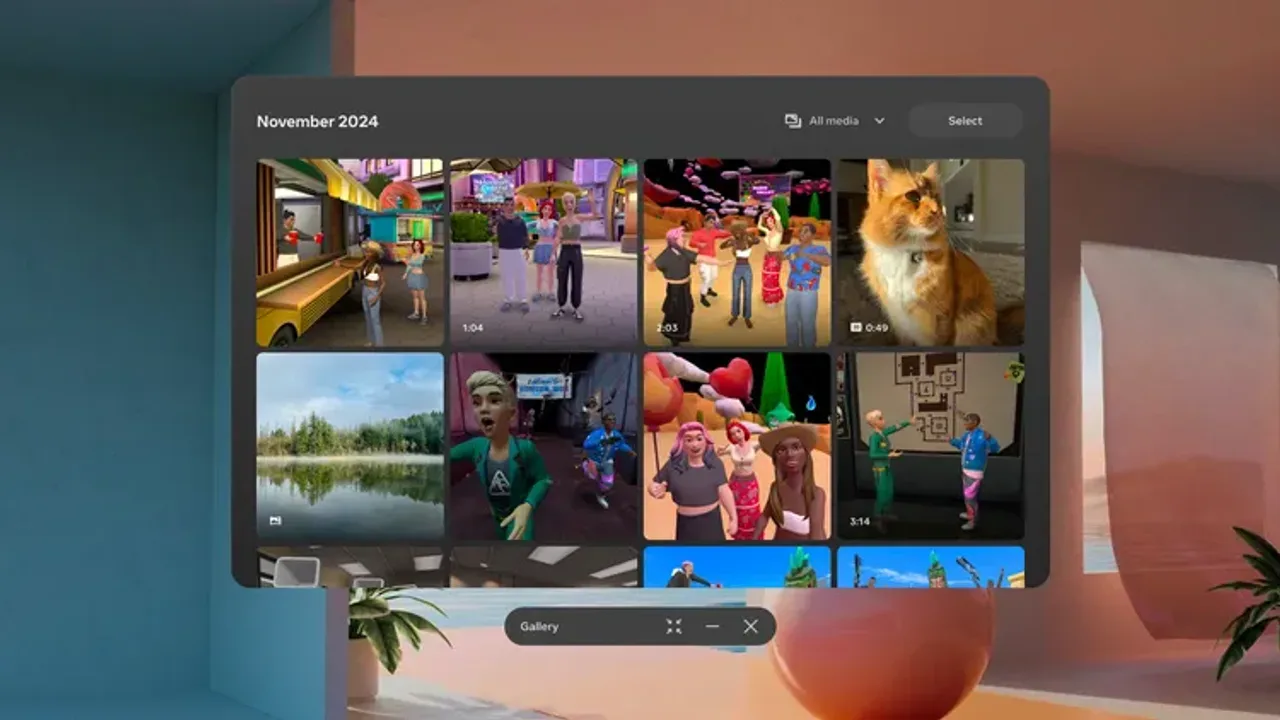
- Gallery: open it from your app library, or from the shortcut in the Camera menu. You can filter it to show only images, videos, panoramas or spatial videos.
- Files: open the Navigator, select Library, then select Files. Your captures are in the Media or Recents folder.
Gallery can also show photos and videos from other Quest headsets on the same account, media you uploaded from the Meta Horizon app or the web gallery, and pictures taken with the camera in Meta Horizon Worlds.
5. View and share from the headset
- Open Gallery.
- Select a photo or video.
- Share it to Facebook, WhatsApp, Instagram or chats. You can also view it in spatial 3D, or delete it from your gallery and devices.
In the Files app, the Share action in a file's menu sends it to other apps and contacts, depending on the file type.
6. Get your captures onto your phone
The Meta Horizon mobile app can show everything you capture in the headset. You need the app installed and paired with your headset on the same Wi-Fi network. If you haven't paired it yet, see our Quest 3/3S setup guide.
Turn on syncing in the headset:
- Open the Navigator and select Settings.
- Select Camera.
- Next to Sync photos and videos, turn the toggle on.
Media only syncs while the headset is on and idle. Syncing fails if you open another app, the headset leaves Wi-Fi or it turns off. Videos longer than one minute are not synced automatically. To sync one, open Library, select Gallery, find the file, select Options and then Sync.
Save it on your phone:
- Open the Meta Horizon app.
- Tap Menu at the top of your Horizon Feed.
- Tap Gallery, then tap the photo or video.
- Tap Download to save it to your phone.
Synced media does not use space on your phone until you download it. To send a clip without downloading it, open Gallery in the app, select the item, tap Share and then Create Link.
7. Copy your captures to a PC
With a USB-C cable (Windows):
- Connect the headset to your Windows PC with a USB-C cable or a Quest Link cable. The cable must support data transfer; some only charge.
- In the headset, select Allow to let the computer access your files. If you don't see the prompt, check your notifications (the bell icon).
- Follow any prompts on the PC.
- In File Explorer, open This PC\[your Quest]\Internal shared storage\Oculus. Videos are in VideoShots and photos are in Screenshots.
- Copy the files to a folder on your computer.
Do not move or delete files in other folders on the headset. That can stop it from working properly.
From a browser (any computer): once syncing is on (section 6), go to meta.com/gallery and log in to your Meta account. Hover over a photo or video, click the menu button, then click Download.
Quest videos may be saved with the HEVC codec. Windows may ask you to pay for an HEVC extension the first time you play one. Google Chrome and VLC Media Player play these files for free.
8. Want a live view instead? Cast your headset
Recording saves a clip for later. If you want people in the room to watch live on a TV, phone or computer, use casting instead. See our guide to casting your Meta Quest to a phone, TV or computer, or Meta's article on casting to a screen.
Questions & answers
What is the button combo for a screenshot on Meta Quest?
Hold the Meta or Oculus button on the right controller, then press and release the right trigger. Press the trigger quickly, because holding the Meta button too long recenters your view.
Where are Meta Quest screenshots and videos saved?
They are in the Gallery app and in the Files app under the Media or Recents folder. Over USB on a Windows PC, photos are in Oculus\Screenshots and videos in Oculus\VideoShots.
Can I record my voice in a Quest video?
Yes. Open the Navigator, select Camera, then Camera settings, and turn on the mic audio option before you record.
Why are some of my Quest videos missing from the Meta Horizon app?
Videos longer than one minute must be synced individually from Gallery using Options and then Sync. Syncing also needs the headset on, idle and connected to Wi-Fi.
Why won't my Quest video play on Windows?
Quest videos may use the HEVC codec, and Windows may ask you to buy an HEVC extension. Google Chrome and VLC Media Player can play these files for free.