How to use the Meta Horizon mobile app with your Quest
Use the Meta Horizon phone app with your Quest: pair the headset, fix pairing errors, buy and install apps, cast, and change settings and notifications.
- 初心者
- 10分
- Meta Horizon app 395.1 (iOS)で確認済み
- 最終確認日 2026年10月31日
必要なもの
- A Meta Quest headset
- An iPhone on iOS 15.1 or later, or an Android phone on Android 5.0 or later
- A Meta account
- Bluetooth on and the same Wi-Fi network for phone and headset
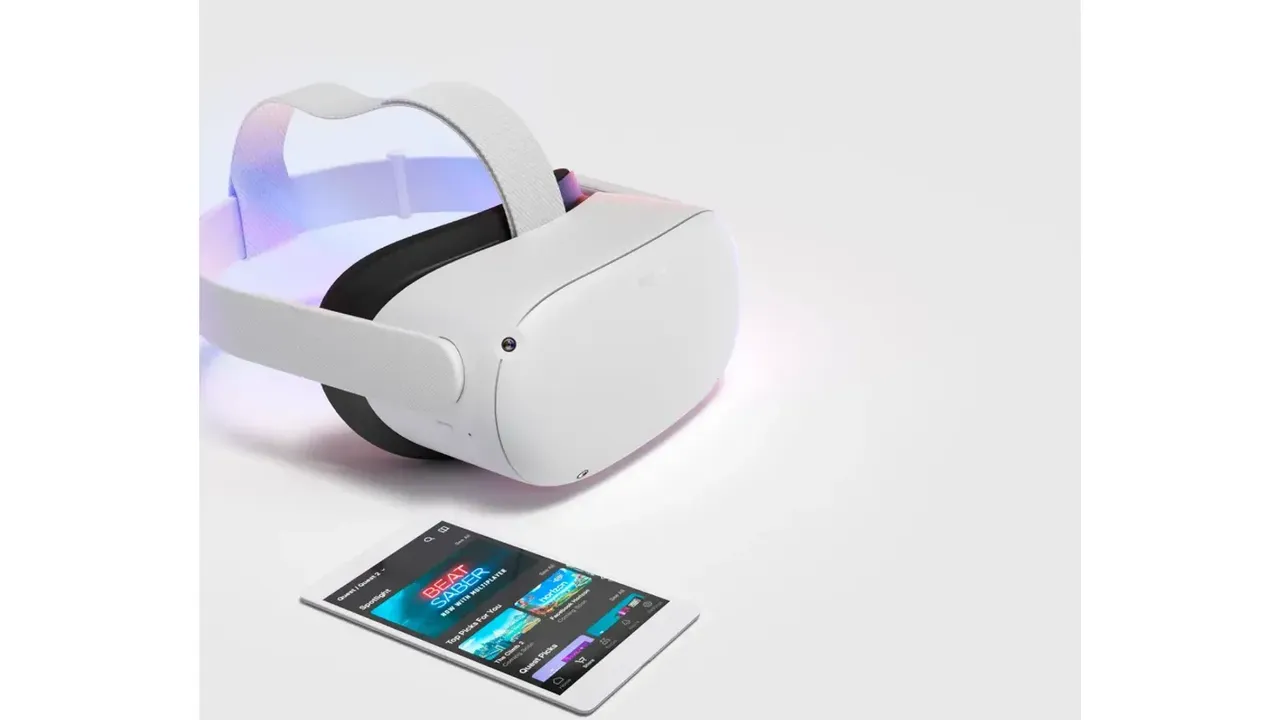
The Meta Horizon app is the phone companion to your Meta Quest. You need it to set up a new headset, and afterwards it lets you shop, install apps remotely, cast, manage notifications and change headset settings without putting the headset on. The steps follow Meta's articles on installing the Meta Horizon mobile app, pairing the app during Quest 3 setup, troubleshooting headset pairing, casting and pairing Touch controllers.
1. Install the app and sign in
- Download Meta Horizon from the Apple App Store or Google Play.
- Open the app and log in, or create a new account.
Meta's minimum phone requirements are iOS 15.1 or later and Android 5.0 or later. Meta warns that the app may not work on tablets or other devices, and that setup can fail on unsupported devices. The app was formerly named the Oculus app and then the Meta Quest app.
2. Pair your headset
Meta says you will not need the app every time you play, but you do need it to complete the initial pairing and setup. To pair:
- Turn on Bluetooth on your phone, plus sharing with nearby devices where your phone offers it.
- In the app, tap Menu at the top of your Horizon Feed.
- Tap Devices.
- Tap Pair new headset or Add device, choose your headset model and follow the on-screen steps.
If you do not see an option to add a Quest headset, update the app, fully close it and open it again. Once the app has activated the headset, you finish the rest of setup in VR. Our guide to setting up a Meta Quest 3 or 3S covers the full process.
3. Fix common pairing problems
Meta's pairing troubleshooter lists these fixes:
- No pairing code: turn on your phone's Bluetooth, then close and reopen the app. Meta notes the pairing code appears in the app, not in the headset.
- Wi-Fi: the phone and headset must be on the same network. If your router shows 2.4 GHz and 5 GHz networks under different names, join the same one on both. If they share one name, turn off your phone's mobile data while you pair.
- Old app: update the Meta Horizon app, then try again.
- Shared headset: check that the profile in the headset matches the one signed in to the app.
- "No available headsets found": wear the headset, keep it awake and near your phone, then pull down to refresh the Devices screen. A sleeping or charging headset with its display off will not appear.
- "Headset is already paired": unpair it from the Devices screen on the phone that paired it. If you no longer have that phone, use Get support.
4. Shop the Store and install apps remotely
- Open the app and tap Search.
- Find the app or game you want.
- Tap the price to buy it, or tap Free.
Meta says purchases from the Meta Horizon Store install automatically and appear in your Library. If your library looks empty, you may be logged in to a Meta Horizon profile that does not own those apps. Log out and log back in with the right profile.
5. Cast your headset view to your phone
- Turn on Bluetooth and connect your phone to the same Wi-Fi network as your headset. Both must use the same Meta account.
- Open the app menu and tap Devices.
- Select your headset, then tap Cast.
To stop, tap the casting display on your phone, tap the X and select Stop casting. Closing the app or switching to another app also stops casting. See our guide to casting to a phone, TV or computer for other screens.
6. Change headset settings from your phone
Turn on the headset, open the app, tap Menu > Devices, select your headset and tap Headset settings. From there you can:
- Wi-Fi: tap a network, enter the password and tap Connect to Wi-Fi.
- Controllers: tap Pair new controller and choose a side. Then hold Meta and B on the right controller, or Menu and Y on the left, until the LED blinks. To remove one, tap it and select Unpair controller. Meta says controllers cannot be paired without the app.
- About Headset: find details such as the headset's MAC address.
7. Manage notifications
- Open the app and tap Menu at the top of your Horizon Feed.
- Tap Notifications.
- Select a notification type and tap the arrow next to it.
- Use the toggles to turn each feature on or off.
In the headset itself, notifications live in Quick controls > Settings > Notifications. The Do not disturb toggle there mutes all notifications in the headset.
8. Family settings and your media
Meta says the app lets you customize settings for everyone in your family, with permissions for children aged 10-12 and teens aged 13 and over. Our guide to parental supervision with Family Center walks through it. Photos and videos you upload from the app also show up in the headset's Gallery app, alongside media captured in the headset. See how to take screenshots and record video on Quest.
よくある質問
Do I need the Meta Horizon app to use a Quest?
Meta says you need it to complete the initial pairing and setup, but not every time you use your headset. It is also the only way to pair Touch controllers.
Where does the pairing code appear?
According to Meta's pairing troubleshooter, the pairing code appears in the Meta Horizon app, not in the headset. If you do not see it, turn on Bluetooth, then close and reopen the app.
Why does the app say "No available headsets found"?
A headset that is asleep or charging with its display off will not appear. Wear the headset, keep it awake and near your phone, then pull down to refresh the Devices screen.
Can I buy and install Quest games from my phone?
Yes. Search for the app in the Meta Horizon app and tap the price or Free. Meta says it installs automatically and appears in your Library.
Does the Meta Horizon app work on tablets?
Meta says the app may not work on tablets or other devices. The minimum phone requirements are iOS 15.1 or Android 5.0.