How to use Guest User on Apple Vision Pro
Start a Guest User session on Apple Vision Pro from the headset or your iPhone, choose which apps a guest can open, and end it safely.
- 初心者
- 10分
- visionOS 2.4 or later (saving a guest setup needs visionOS 26 and iOS/iPadOS 26)で確認済み
- 最終確認日 2026年10月31日
必要なもの
- Apple Vision Pro with a passcode set (visionOS 2.4 or later to approve guests from iPhone or iPad)
- Optional: iPhone with iOS 18.4 or later or iPad with iPadOS 18.4 or later, signed in to the same Apple Account
- A guest aged 13 or older
- Optional for saving a guest setup: the guest's iPhone or iPad on iOS 26 or iPadOS 26 or later
Guest User lets a friend or family member try your Apple Vision Pro while your Optic ID, Apple Pay, EyeSight and Persona stay private. You choose which apps they can open, and their eye and hand setup is kept apart from yours. These steps follow Apple's support article on Guest User and the Apple Vision Pro User Guide page on letting others use your device. If you are still setting up the headset for yourself, start with our Apple Vision Pro getting started guide.
1. Check what you need first
You can always start a guest session from the headset itself. Approving a guest from your iPhone or iPad has extra requirements:
- visionOS 2.4 or later on your Apple Vision Pro, and iOS 18.4 or iPadOS 18.4 or later on the phone or tablet.
- Both devices signed in to the same Apple Account, with two-factor authentication turned on.
- A passcode set on both the Vision Pro and the iPhone or iPad.
- Wi-Fi and Bluetooth turned on, with the devices kept near each other.
Apple says Apple Vision Pro is designed to fit and be used by people 13 years of age or older.
2. Let your iPhone or iPad approve guests
- On your Apple Vision Pro, open the Settings app.
- Tap Optic ID & Passcode.
- If you have no passcode yet, tap Turn Passcode On and create one.
- Tap Enable Guest User with Nearby Device, then tap the iPhone or iPad you want to use.
To set a passcode on the iPhone or iPad, go to Settings and tap Face ID & Passcode or Touch ID & Passcode.
3. Start a guest session from your iPhone or iPad
With this method you never have to put the headset on yourself.
- Have your guest put on your Apple Vision Pro. They see a prompt that says Press Digital Crown for Guest User.
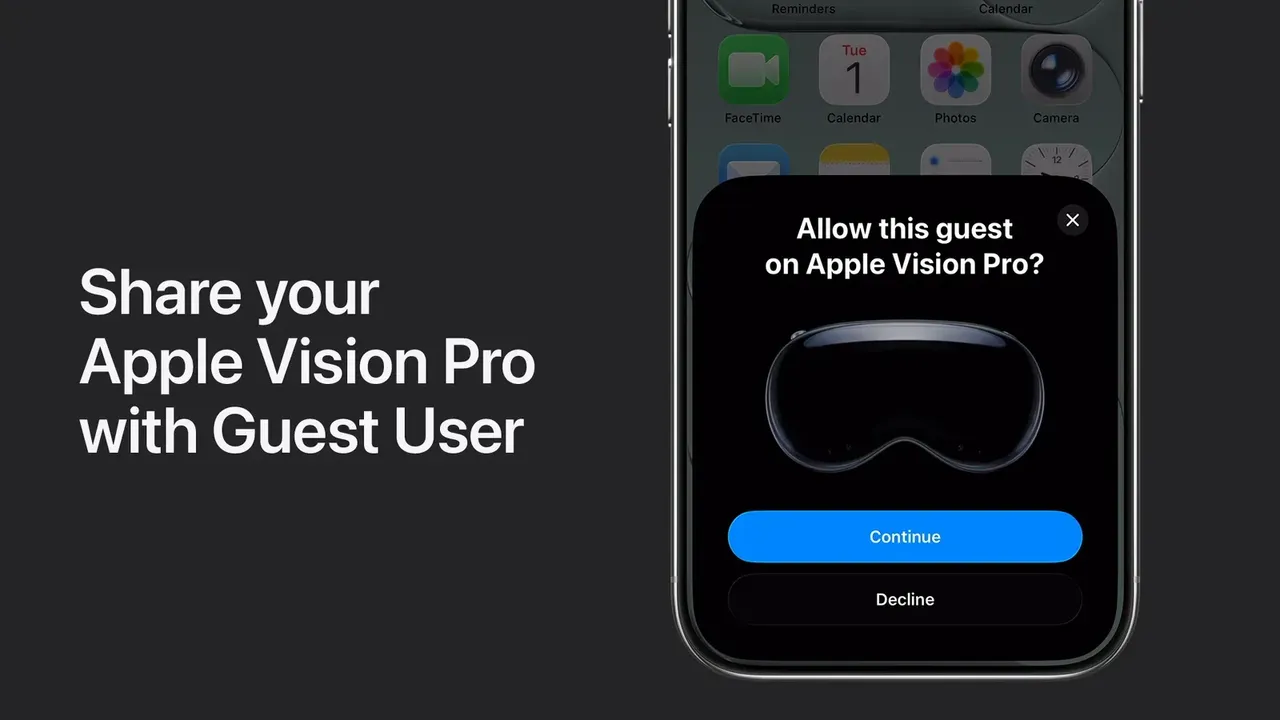
- Ask your guest to press the Digital Crown. Your iPhone or iPad asks if you want to allow the session.
- Tap Continue on your iPhone or iPad.
- Tap Start with All Apps, or tap Select Apps to choose the apps your guest can use, then tap Start.
Once the session begins, View Mirroring starts automatically on the device you used, so you can follow what your guest sees. Swipe up or tap the close button to hide it. To show it again, tap Guest User on the Lock Screen or in Control Center, or tap the Apple Vision Pro Live Activity at the top of your iPhone screen.
4. Start a guest session while wearing Vision Pro
- Open Control Center, then tap Guest User.
- Tap All Apps, or tap Select Apps and tap each app your guest may use. Some options may require a passcode.
- Tap Start, take off Apple Vision Pro and hand it to your guest.
If nobody puts the headset on within five minutes, the session ends. If you have a passcode, the device also locks. To cancel before handing it over, open Control Center, tap Guest User, then tap End.
5. Walk your guest through eye and hand setup
Guests need their own eye tracking and hand tracking setup, because the headset is calibrated for you. Here is what they will see:
- They might first need to press and hold the Digital Crown until the displays align and a green check mark appears.
- If they were the most recent guest, they can press the Digital Crown to continue as that guest. Otherwise they use the Digital Crown to select Set Up as New Guest.
- A new guest is asked to bring their iPhone or iPad nearby to save or load their setup. To skip this, they double-click the Digital Crown.
- New guests watch a brief video about using Vision Pro, then complete eye and hand setup. This includes enrolling their own ZEISS Optical Inserts if they have them. They can also scan their vision prescription from the Apple Vision Pro app.
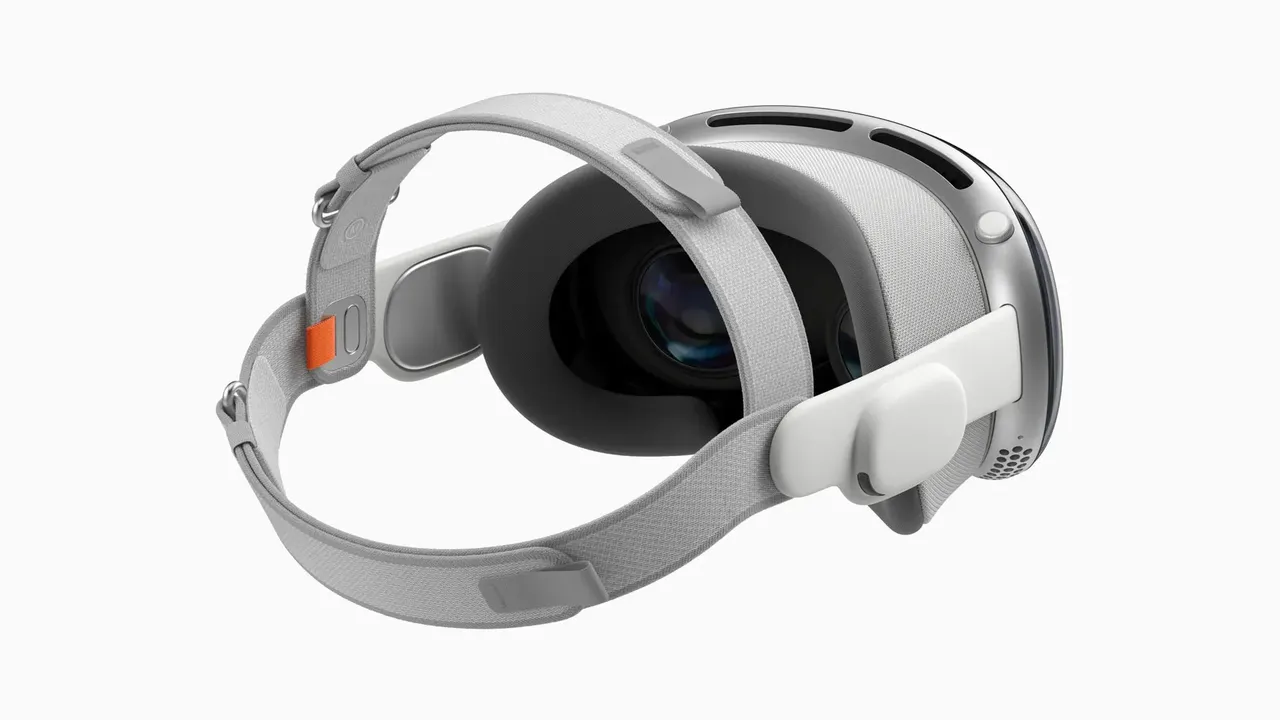
Only one guest's eye and hand data can be saved at a time. If that guest does not use it again within 30 days, they have to repeat the setup next time. Your own eye and hand setup is not affected. Your Light Seal and head band are fitted to you, so a guest may need to adjust the fit or use a different size. For glasses wearers, see our guide to prescription lenses and glasses in VR.
6. Know what your guest can and cannot see
Your guest can:
- See all the information in apps you allow. In Music, for example, they can see your playlists and recently played music.
- Use certain visionOS controls and data, including your selections in Control Center, even if you allow no apps.
- View your health data in allowed apps, and save their own health data to those apps.
- Start a shared session with people nearby or a FaceTime call, but only if you chose All Apps. They appear as a contact card.
Your guest cannot access your Persona, Optic ID, EyeSight or Apple Pay. If you have a passcode, they also cannot open Settings areas such as Apple Account, Wallet, Health Data and Privacy & Security.
Apple warns that with All Apps a guest can view things like your deleted messages, Safari browsing history, calendar events and emails. Use Select Apps if that matters to you.
7. Let your guest adjust settings or save their setup
During the session, your guest opens Control Center and taps Guest User. From there they can:
- Tap Redo Eye & Hand Setup if pointing feels off.
- Tap Accessibility Settings to change features they need. Your settings are not changed. If a guest turns on VoiceOver and you do not use it, VoiceOver turns off when the session ends.
- Tap Save Setup to iPhone or iPad, look at their device and follow the prompts. This needs iOS 26 or iPadOS 26 or later on their device and visionOS 26 or later on your Vision Pro. Next time, they can load their setup from that device.
- Tap Delete Eye & Hand Setup to remove their data. This only affects the guest's data.
- Tap Guest User & Privacy to read how Guest User protects privacy.
8. End the session
The session ends as soon as your guest takes off Apple Vision Pro. If you set up an iPhone or iPad to start guest sessions, you can also end it from the Lock Screen by tapping the close button next to Guest User. The next time you put on the headset, it returns to your own settings automatically.
よくある質問
Can a guest use my Optic ID or Apple Pay?
No. Guest users can't access your Optic ID, Apple Pay, EyeSight or Persona. If you have a passcode, they also can't open Settings areas such as Apple Account, Wallet, Health Data and Privacy & Security.
Does a guest's eye and hand setup replace mine?
No. The guest's eye and hand settings revert to yours when the session ends. Only one guest's eye and hand data can be saved at a time, and it must be used again within 30 days or the guest has to redo setup.
What happens if my guest doesn't put on the headset right away?
If Apple Vision Pro is not put on within five minutes after you tap Start, the session ends automatically. If you have a passcode, the device also locks.
Can I see what my guest is seeing?
Yes. When you start the session from your iPhone or iPad, View Mirroring starts automatically on that device. You can hide it and bring it back by tapping Guest User on the Lock Screen.
How do I end a Guest User session?
The session ends when your guest takes off Apple Vision Pro. If you set up a nearby iPhone or iPad, you can also tap the close button next to Guest User on its Lock Screen.