How to set up Samsung Galaxy XR for the first time
Set up Samsung Galaxy XR from unboxing to first app: battery, fit, Android XR setup, eye calibration, gestures, controllers, Google Play and boundary.
- 初心者
- 30分
- 最終確認日 2026年10月29日
著者 vrblogs.net
更新日 · 5分で読めます
必要なもの
- Samsung Galaxy XR with its battery pack, power cord and wall charger
- A Wi-Fi network and a Google Account (Samsung also lists a Samsung Account)
- A clear, obstacle-free space
- Optional: a Galaxy phone for Easy Setup, Galaxy XR Controllers, prescription inserts
This guide takes a new Samsung Galaxy XR from the box to your first app, including fit, gestures, controllers and a safe boundary. The steps follow Samsung's Galaxy XR headset setup article and charging guide, plus Google's Android XR first-time setup article and hand gesture guide. Specs are on our Galaxy XR device page.
1. Check what is in the box
Samsung lists these items in the Galaxy XR box:
- Galaxy XR headset
- Protective cover for the visor
- Light shields (L, R), which block outside light
- Cushion size adjusters and a forehead cushion
- Power cord (headset to battery pack)
- Battery pack
- Wall charger with a USB-C to USB-C cable
- Lens cleaning cloth
- Quick start guide and terms
The Galaxy XR Controllers, the travel case and prescription lens inserts are not in the box. Samsung sells them separately.
2. Charge the battery pack and connect it
- Plug the USB-C cable into the battery pack and the wall charger, then plug the charger into an outlet.
- The indicator light is red while charging and turns green when the pack is full. If it blinks, disconnect and reconnect the cable.
- Plug the power cord into the USB-C port at the front center of the battery pack.
- Line up the other end with the power connector on the headset and slide it down until it clicks.
Use only the supplied charger and cable. The headset's own USB-C port is for data only. To unplug, press the Release button on top of the cable and push it upward. On the pack, press the USB release button before pulling the cord out.
3. Fit the headset
Glasses cannot be worn with Galaxy XR, but soft contact lenses work. Samsung's partner Eyebuydirect sells prescription inserts (see our prescription lenses guide). To fit them, power off and unplug the headset, put the protective cover back on, remove the light shields below the lenses, then match the L/R markings and press the inserts into the round slots.
- Put the battery pack in a pocket and check that the cable is firmly connected at both ends.
- Remove the protective cover.
- Turn the rear band dial counter-clockwise to loosen the side bands.
- Rest the headset on your forehead, not on your nose or cheekbones.
- Adjust it until you can see the center of the screen, with the sides tilted about 5 degrees to the ground.
- Turn the dial clockwise until the headset is snug but not tight.
The headset checks its position and shows guidance. If it says your eyes are too far from the displays, remove the size adjuster under the forehead cushion or use a slimmer one. If they are too close, add an adjuster or use a thicker one. Loosen the dial, adjust, and tighten again until you see Great!.
4. Power on and complete first-run setup
With the battery connected, the headset turns on when you put it on, because the proximity sensor wakes the display. If the screen stays dark, press and hold the Top button. Then follow the on-screen setup:
- Follow the prompts to adjust the fit and the lenses for the clearest picture. Samsung lists automatic IPD adjustment across 54-70 mm.
- Choose your language, then follow the short tutorial on how to pinch, aim and drag.
- Choose your country and review the safety information.
- Choose whether to copy accounts and info or set up manually. Samsung's Easy Setup copies your accounts and Wi-Fi from a Galaxy phone. If the Galaxy XR app will not download on your phone, turn on Nearby device scanning on the phone.
- Connect to Wi-Fi and sign in with your Google Account.
- Install the recommended apps, set a screen lock and, if asked, sign in to your Samsung Account.
- Select your preferred aiming method.
When setup is finished, open Settings > Software updates to check for updates.
5. Calibrate eye tracking and choose an aiming method
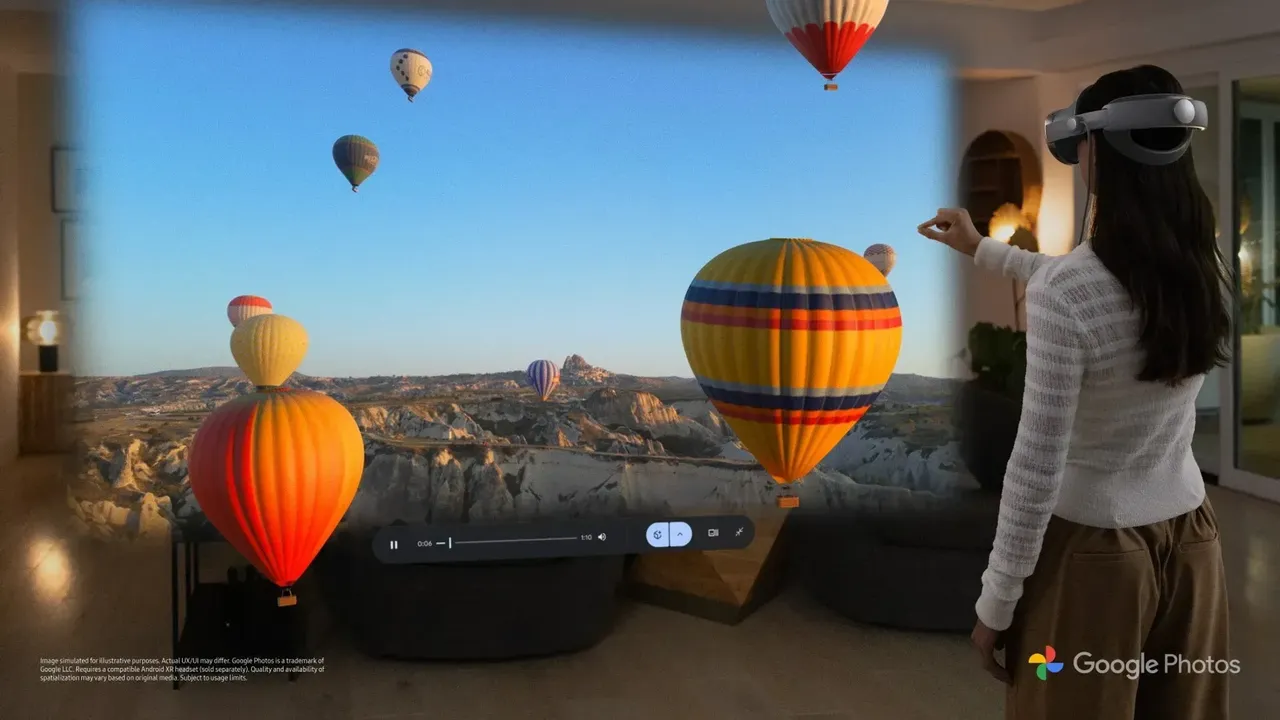
Galaxy XR can aim with your hands or with your eyes. Go to Settings > Input > Aiming method and choose Allow both eye and hand aiming or Use hand aiming only. With eye tracking, you look at an item and pinch to select it. Keep your hand down while you aim with your eyes, because raising it switches to hand aiming.
To run eye calibration, press the Top button three times, or go to Settings > Input > Eye calibration. Repeat it for each new user and whenever aiming feels off. If you have prescription inserts, register them under Eye calibration > Optical inserts. If you see double or blurry images, use Align displays on the same screen.
6. Learn the gestures and buttons
Android XR hand tracking gestures use the right hand by default. You can switch to the left under Settings > Input > Hand for gesture navigation.
- Select: pinch your index finger and thumb together.
- Launcher: with your palm facing you, pinch and hold, then release.
- Back: palm facing you, pinch and hold, move left, then release.
- Recent apps: palm facing you, pinch and hold, move right, then release.
- Move, scroll or pan: pinch and drag.
- Zoom: pinch with both hands and move them apart or together.
On the headset, a short press of the Top button opens the Launcher and a long press starts the voice assistant. Double-tap the touch pad on the right side to turn passthrough on or off, and touch and hold it to recenter your view. To turn the headset off, hold Top and Volume down together, then select Power off.
7. Pair the optional Galaxy XR Controllers
The controllers run on a standard AA battery and track in 6DoF.
- Press the Power button on each controller. They should pair automatically. If not, follow the prompts in the Launcher.
- Or press the Top button and go to Settings > Input > Controllers > Add controllers.
- If pairing fails, keep the controllers close and restart both the headset and the controllers.
8. Install apps from Google Play
- Open the Google Play app. If it is not on your Home screen, search for "Google Play".
- Select the search bar to find an app, or browse the categories.
- Select Install, or the price for paid items.
Apps with the Made for XR badge are optimized for the headset. You can also install apps on the headset remotely from Google Play on your phone or computer.
9. Set the boundary and play safely
To set or move your boundary, press the Top button and open Settings > Boundary. Choose Small or Large, move the boundary to fit your space and select Confirm. If the floor looks wrong, select Adjust floor level, follow the prompts and select Looks good.
- Clear the area of obstacles, and remove piercings before you put the headset on.
- Take a break at least every 30 minutes, and stop if you feel discomfort or pain.
- After each session, put the protective cover back on, disconnect the battery pack and clean the visor only with the supplied cloth. Google warns that the battery drains if it is left plugged into the headset.
よくある質問
How do I charge the Samsung Galaxy XR?
Charge the external battery pack with the supplied wall charger and USB-C cable. The light is red while charging and green when full. The USB-C port on the headset is for data only, not charging.
How long does the Galaxy XR battery last?
Samsung lists about 2 hours of general use and 2.5 hours of video watching. You can keep using the headset while the battery pack is plugged into the wall charger.
Can I wear glasses with Galaxy XR?
No. Samsung says prescription glasses cannot be used with Galaxy XR, but soft contact lenses can. Prescription inserts are sold separately through Samsung partner Eyebuydirect.
Does Galaxy XR need a phone to set up?
Google's setup lets you copy accounts and info from another device or set up manually. With a Galaxy phone, Samsung's Easy Setup copies your accounts and Wi-Fi automatically.
Are controllers included with Galaxy XR?
No. The Galaxy XR Controllers are sold separately and use a standard AA battery. Without them you control the headset with hand gestures, eye tracking and the headset buttons.