How to set up a Meta Quest 3 or 3S for the first time
A step-by-step walkthrough for unboxing a Meta Quest 3 or Quest 3S: charging, pairing controllers, fitting the headset, pairing with the Meta Horizon app and getting updates.
- शुरुआती
- 30 मिनट
आपको क्या चाहिए
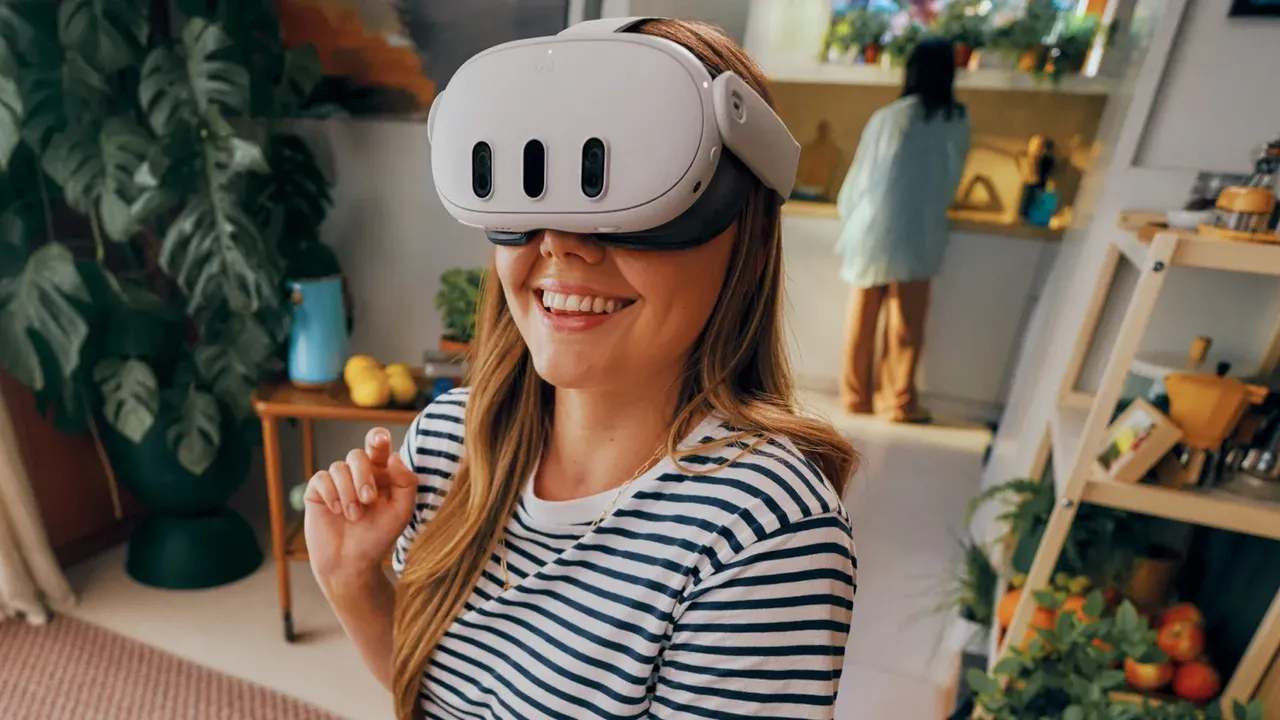
- Meta Quest 3 or Meta Quest 3S
- Smartphone with the Meta Horizon app
- Meta account
- Wi-Fi network
- Clear play space away from direct sunlight
The Meta Quest 3 and Meta Quest 3S share almost the same first-time setup. This guide follows Meta's official setup articles for Quest 3 and Quest 3S and points out where the two headsets differ.
Before you start
- Clear a space to stand or sit in, away from windows. Meta warns that direct sunlight can permanently damage the lenses in less than a minute, so keep the headset out of the sun.
- Have your Wi-Fi password and a phone (Android or iPhone) ready.
- If you wear glasses, read our guide to glasses and prescription lenses in VR first.
Step 1: Charge and power on
- Fully charge the headset with the power adapter and cable from the box before first use.
- Remove the protective paper from the strap and the plastic films from the lenses.
- Press and hold the power button on the left side of the headset for about three seconds until it turns on.
Step 2: Prepare the controllers
- Pull the paper tab on each controller to remove the battery blocker.
- Attach the controllers to your wrists with the straps.
- Turn them on: hold the Menu button on the left controller and the Meta button on the right controller for about two seconds, until you see a blinking white light and feel a vibration.
Step 3: Put on and fit the headset
- Loosen the straps, place the headset against your face, and move any hair out of the way.
- Pull the straps over the back of your head, tighten the split back strap, then adjust the top strap to take weight off your face.
- Tilt the headset up or down on its arms until the image is clearest.
- Adjust the lens spacing. On Quest 3, turn the lens spacing wheel on the bottom left until the image is clear. On Quest 3S, slide the lenses sideways into one of three positions. Our IPD and lens fit guide explains how to pick the right setting.
- Quest 3 only: if your eyelashes or glasses touch the lenses, use the eye-relief buttons inside the facial interface to move the lenses farther from your eyes. Quest 3S owners who wear glasses can fit the included glasses spacer.
Step 4: Follow the in-headset tutorial
- Choose your language.
- Connect to your Wi-Fi network.
- Let the headset download its first software update. Meta recommends keeping the headset connected to a charger during updates.
Step 5: Pair with the Meta Horizon app
- Install the Meta Horizon app from the Apple App Store or Google Play.
- Open the app and log in or create an account.
- New users: follow the on-screen device setup. Existing users: tap Menu, then Devices, then the option to pair or connect a new device, choose your headset model and follow the prompts.
- Keep Bluetooth turned on for your phone while pairing. You only need the app for this initial pairing, not every time you play.
Step 6: Set up your boundary
Before playing, the headset helps you create a safety boundary. Follow our boundary setup guide for the details.
What to do next
- Browse the Meta Horizon Store for apps and games.
- If you are new to VR, start with short sessions and read how to reduce motion sickness.
- Want to play PC games? See how to play PC VR games on Quest.
प्रश्न और उत्तर
Do I need a phone to set up a Meta Quest 3 or 3S?
Yes. Meta's setup uses the Meta Horizon app on an iPhone or Android phone to pair the headset with your account. After that first pairing you do not need the phone to play.
How do I turn on the Quest controllers for the first time?
Pull out the battery blocker tab, then hold the Menu button on the left controller and the Meta button on the right controller for about two seconds until the light blinks white and you feel a vibration.
Can I wear glasses with a Quest 3 or 3S?
Yes. Quest 3 has eye-relief buttons that move the lenses farther from your face, and Quest 3S comes with a glasses spacer. Meta lists frames up to 142 mm wide and 50 mm tall for the spacer.
Should the headset be charging during the first update?
Meta recommends connecting the headset to a charger before doing software updates so the battery does not run out partway through.