How to make your Meta Quest battery last longer
Get more play time from Meta Quest 3, 3S and 2 with Battery saver, smarter sleep habits, the right charger and Meta's battery care advice.
- Beginner
- 10 min
- Last checked October 29, 2026
What you need
- Meta Quest 3, Quest 3S or Quest 2 with its controllers
- The power adapter and USB-C cable from the box
- Up-to-date headset software
- Optional: Elite Strap with Battery or a Meta charging dock
Meta Quest headsets run on a built-in battery that lasts a couple of hours per charge, and that battery slowly loses capacity with age. This guide covers what Meta's official battery figures mean, how to check your charge, which settings save power, how to charge properly and how to keep the battery healthy. The steps follow Meta's article on maximizing battery life, its guide to charging your headset and its headset care tips.
1. Know what Meta's battery figures mean
Meta gives these battery life figures:
- Meta Quest 3: 2.2 hours of use on average across a variety of activities.
- Meta Quest 3S: up to 2.5 hours on average. Meta breaks this down as 2.7 hours for gaming, 2.3 hours for social, 1.8 hours for productivity and 2.8 hours for media.
These are averages, not guarantees. Meta says mixed reality and more demanding apps can reduce battery life below these levels. It also lists device settings, usage, battery age, Bluetooth usage and wireless conditions as factors. If a session feels short, check what you were running before assuming something is wrong.
2. Check the battery level of your headset and controllers
- Press the Meta button on your right controller to open the Navigator. The headset's battery level shows next to the clock.
- Open Quick controls in the Navigator to see your battery levels along with brightness, volume and other controls.
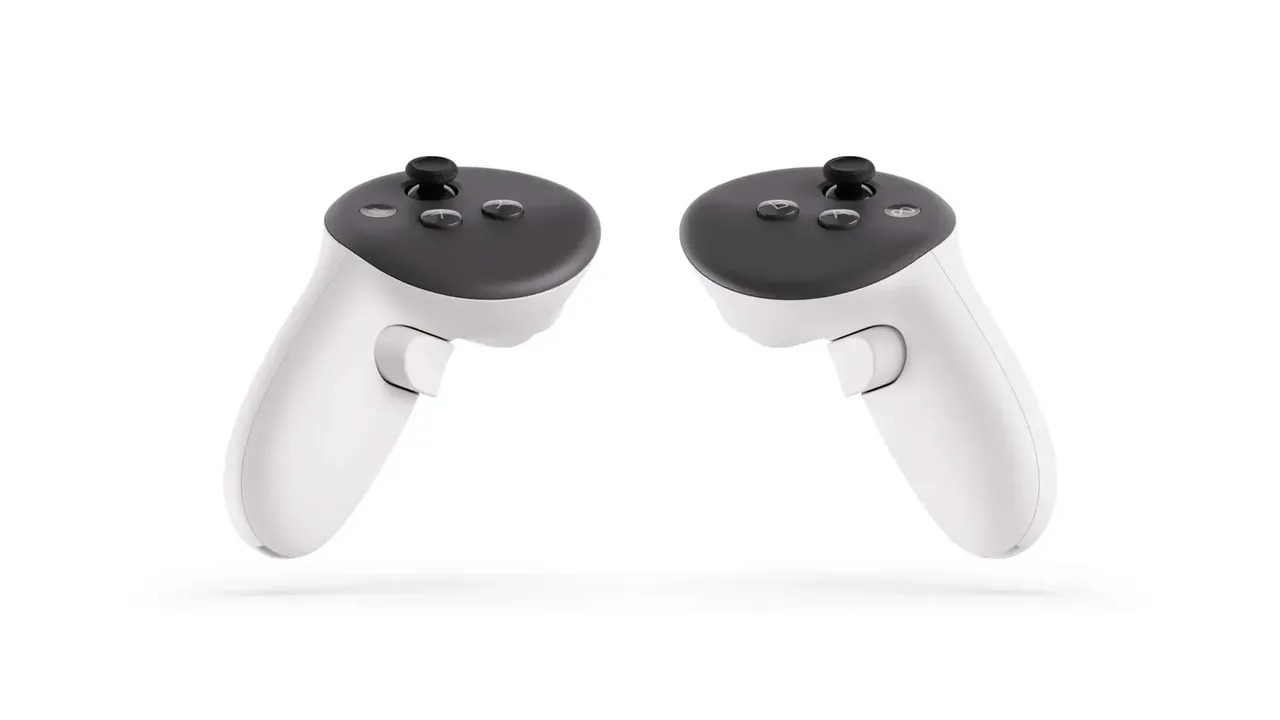
- For Touch Plus controllers, watch the status lights in the headset. Meta says 1 red dot means the controller battery is low.
- When the headset is off, check the status light on the side of a Quest 3 or 3S: orange means charging, green means fully charged and red means the battery is dead.
3. Turn on Battery saver
Battery saver trades some visual quality for longer play time. To turn it on:
- Press the Meta button on your right controller to open the Navigator.
- Select Quick controls.
- Select Battery saver.
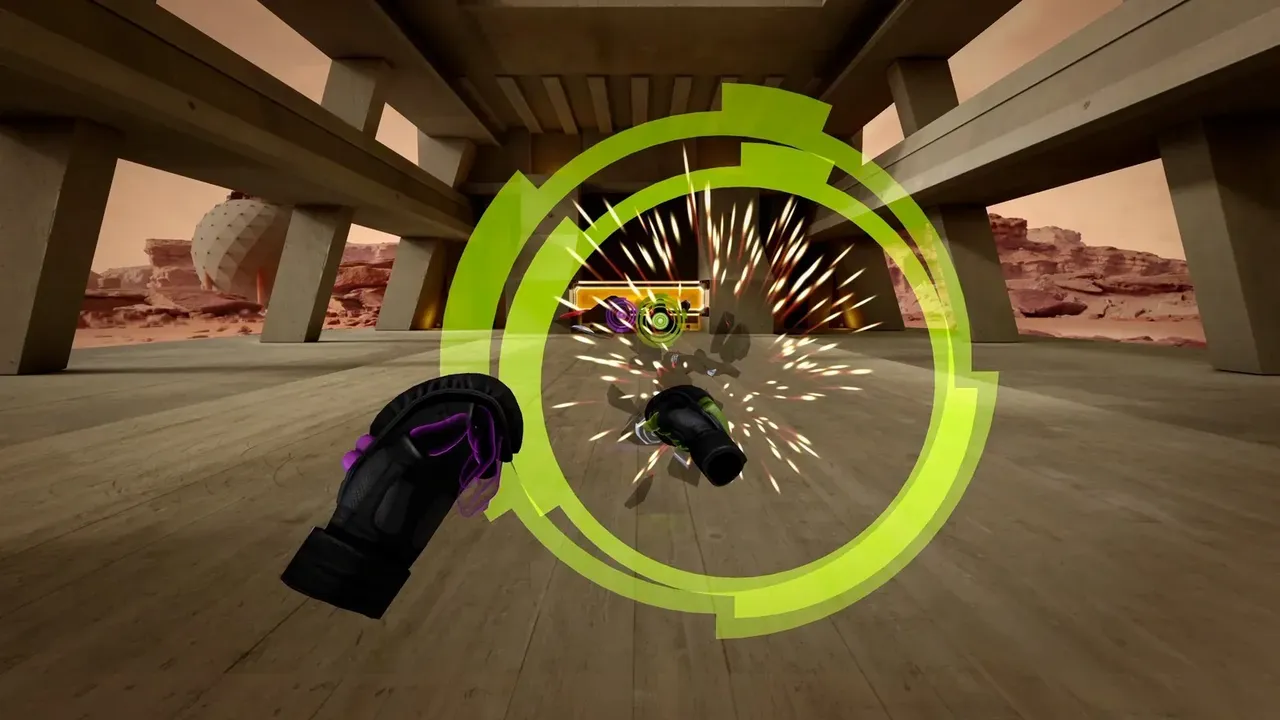
The same switch is in the power settings menu. Meta's developer documentation says Battery saver lowers display brightness to 40%, drops the refresh rate to 72Hz, turns on fixed foveated rendering and disables some CPU and GPU boosts. Meta warns that this may affect graphical fidelity, so you may want it off for visually demanding games.
On Quest 3 and Quest 3S, Meta has also added Temporal Dimming, which gradually dims the display during each session. Meta says it helps extend battery life and reduce eye strain. You can turn it on or off in Advanced Settings. You can also lower brightness yourself from Quick controls.
4. Sleep or power off between sessions
Meta explains that a sleeping headset still drains power, though much more slowly than when it is in use. A headset that is turned off drains much less than one in sleep mode.
- Short break: press the power button once to put the headset to sleep.
- Longer break or overnight: hold the power button for at least three seconds until the light turns off and you hear the power-down chime.
- Auto Sleep: on headsets that detect when you take them off, the time before the headset goes to sleep is set under Settings > Power > Auto Sleep. A shorter time saves more power.
Meta Quest 3S has no auto-wake or wear detection. It will not sleep or wake when you take it off or put it on, so press the power button yourself when you set it down.
5. Keep the software updated
Meta recommends always running the latest software. Your headset updates automatically when it is turned on and connected to Wi-Fi, and you can also check for updates manually in Settings. Features such as Temporal Dimming arrive through these updates.
6. Charge with the right equipment
Meta recommends using the charger that came in the box, since the headset and charger were designed and tested together. The power adapter ratings Meta lists are:
- Meta Quest 3 and Quest 3S: 18W
- Meta Quest 2: 10W
Plug the USB-C cable into the port on the left side of the headset and the adapter into a wall outlet. Meta says a full charge takes about 2.5 hours with the included adapter, and quotes about 1.9 hours for Quest 3S (headset only). An adapter rated below 18W, or a computer USB port that is not Power Delivery (PD) capable at 18W or more, will charge more slowly. A USB-C cable other than the included PD charging cable may lead to poor charging performance.
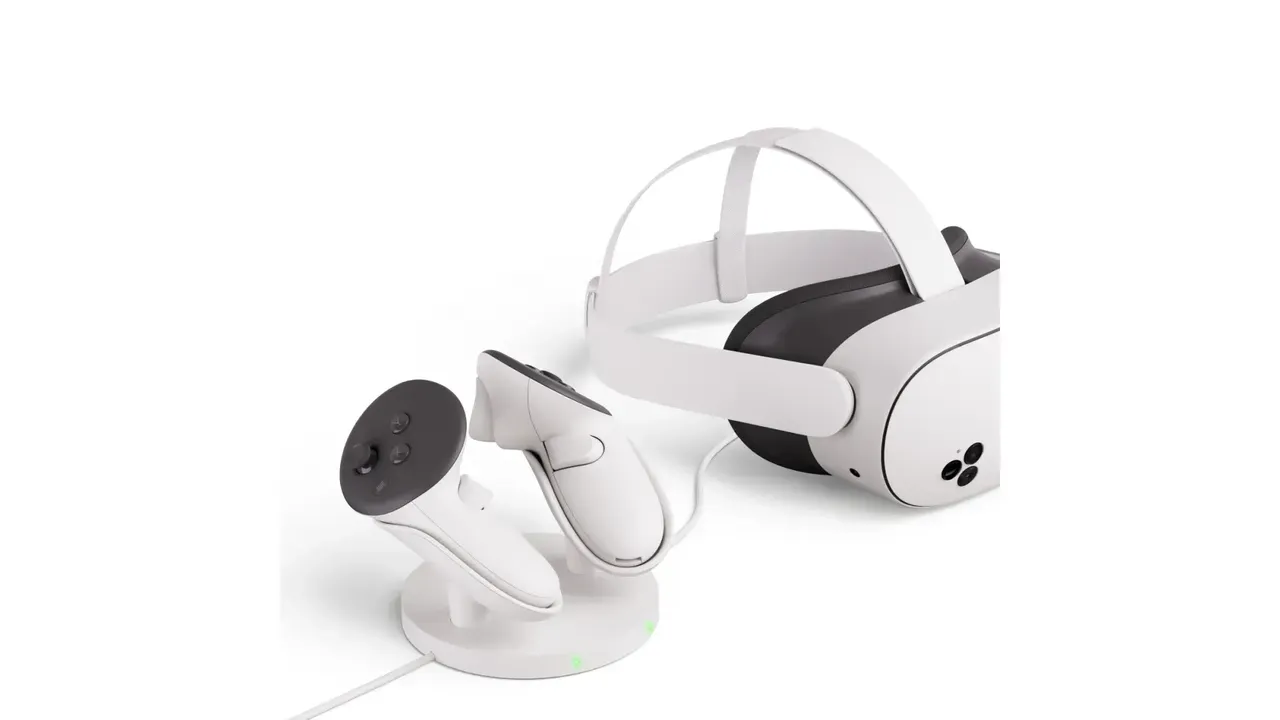
A charging dock keeps everything topped up between sessions. The Meta Quest Compact Charging Dock works with Quest 3 and 3S and charges the headset and two Touch Plus controllers at once. The Meta Quest 3 Charging Dock only works with Quest 3. Meta says the docks need an 18W or higher USB PD adapter, with 45W recommended, and do not work with proprietary adapters.
7. Extend long sessions with a battery strap
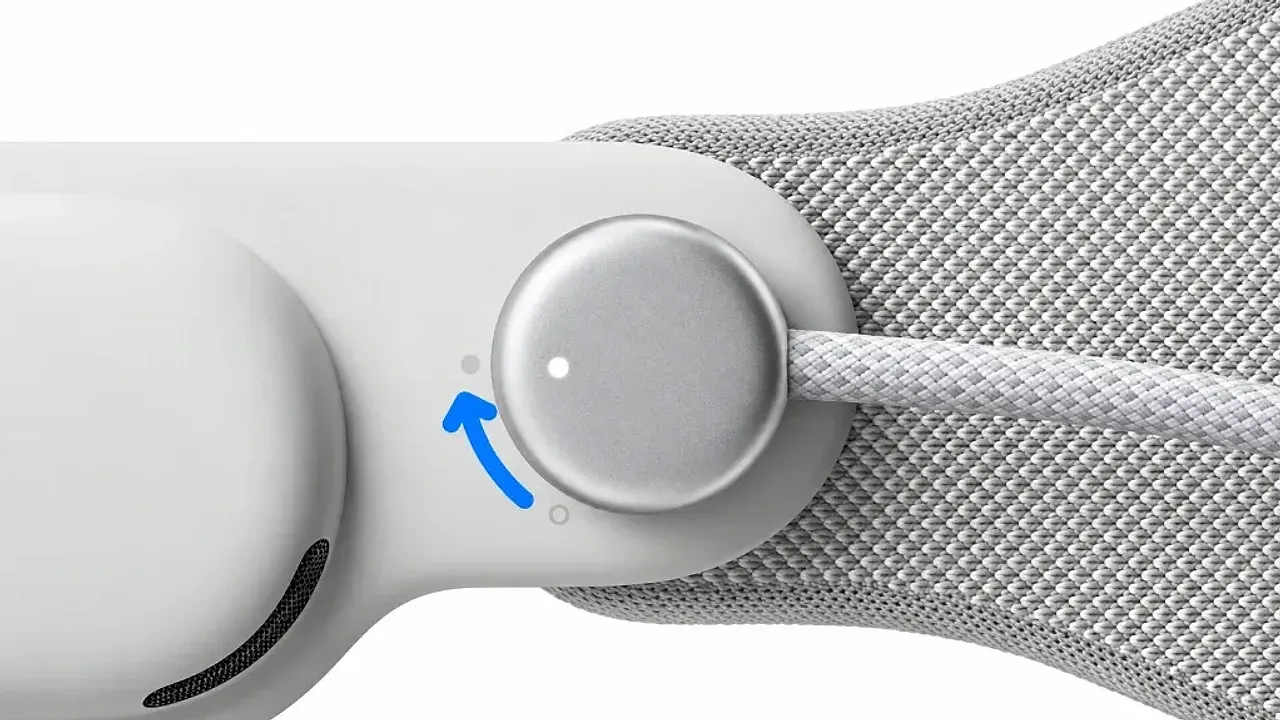
For Quest 3 and 3S, Meta's official way to play longer is the Meta Quest Elite Strap with Battery, which Meta says adds 2 hours of headset use. To charge the headset and strap together, keep them connected and plug the strap into power with the Quest 3/3S charging cable. Meta notes the strap can only fully charge to 100% when it is connected to the headset and the headset is not on your head.
Meta's care guidance says not to use or wear your headset while it is connected to the power adapter or charging. If the headset is plugged in while in use, Meta says it may adjust the charging rate based on factors such as temperature. It may not reach full charge until it is no longer in use and has cooled down.
8. Look after the battery for the long term
Like all lithium-ion batteries, Quest batteries age and lose capacity over time. Meta's recommendations:
- Use the headset until the battery is below 50% before recharging.
- If you are storing the headset for a long time, leave it charged to about 50% and keep it at room temperature.
- Avoid storing it in hot or cold places. Meta gives an operating range of 0 to 35°C (32 to 95°F).
- Never leave it in a hot car, near heat sources or in direct sunlight. Meta warns that less than a minute of direct sunlight can permanently damage the headset.
- Only charge indoors, and stop using or charging if the headset, controllers or adapter feel hot. Let them cool down first.
- Keep the magnetic pins on a charging dock dry. Wipe away any moisture with a dry cloth.
Meta also notes that your headset may use software and hardware systems to manage charging, including limiting the charge to less than maximum capacity. For other ways to keep your headset in good shape, see our guide to cleaning VR lenses safely.
Questions & answers
How long does the Meta Quest 3 battery last?
Meta says Quest 3 provides 2.2 hours of use on average across a variety of activities. Mixed reality and more demanding apps can reduce that.
How long does the Meta Quest 3S battery last?
Meta rates Quest 3S at up to 2.5 hours on average: 2.7 hours for gaming, 2.3 for social, 1.8 for productivity and 2.8 for media.
What does Battery saver change on a Quest?
According to Meta's developer documentation, it lowers display brightness to 40%, caps the refresh rate at 72Hz, enables fixed foveated rendering and disables some CPU and GPU boosts. Meta notes it may affect graphical fidelity.
Why does my Quest not charge to 100% while I am playing?
Meta says the headset may adjust its charging rate during use based on factors like temperature. Once it is no longer in use and has cooled down, it resumes charging to 100%.
What charge level should I store my Quest at?
For long storage, Meta recommends leaving the battery at about 50% and keeping the headset at room temperature, away from hot or cold places.