How to watch movies and videos in VR
How to watch flat, 3D, 180 and 360-degree video in a headset with YouTube, Bigscreen and Skybox VR Player, plus how to copy files and tips for comfort and battery.
- Débutant
- 15 min
- Dernière vérification : 28 octobre 2026
Ce dont vous avez besoin
- A supported headset with the latest software
- A Google account to sign in to YouTube (optional)
- Home Wi-Fi network for streaming
- USB-C cable that supports data, to copy files to a Quest
- Windows PC with hardware video encoding for Bigscreen Remote Desktop (optional)
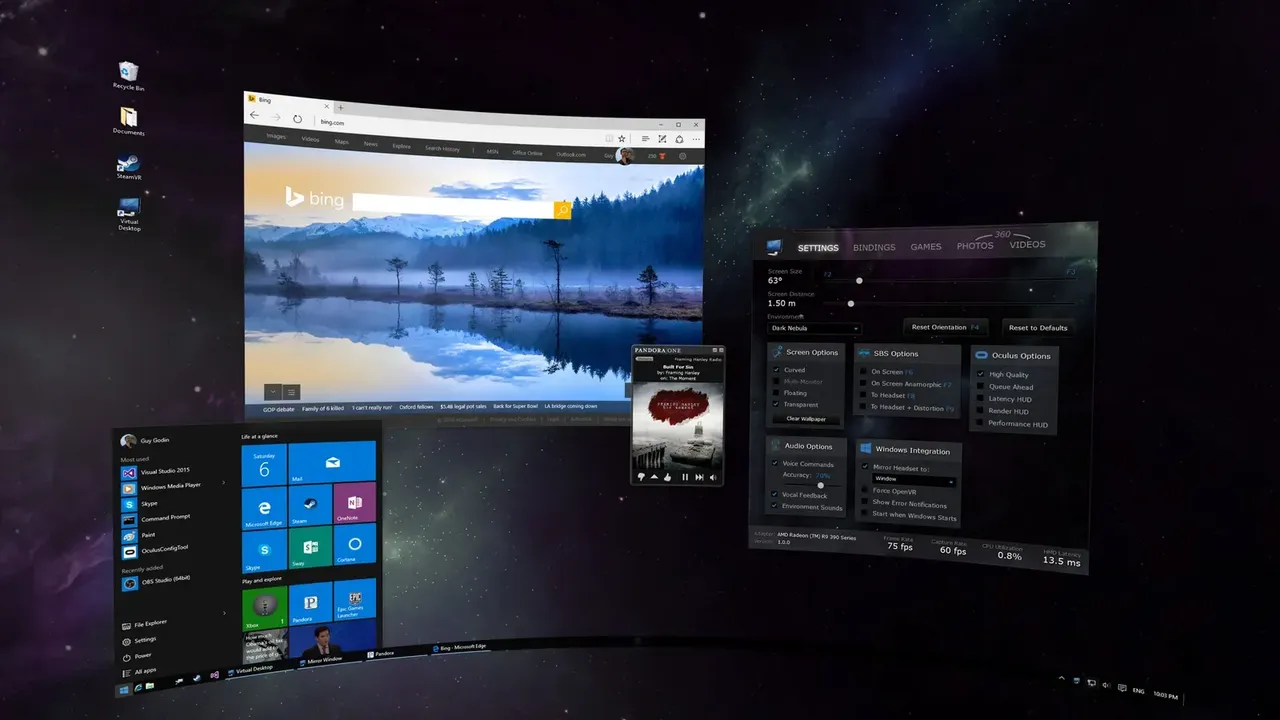
A headset gives you a screen the size of a cinema wall, plus video formats a TV cannot show, such as 180- and 360-degree video. Three apps cover most needs: YouTube for online video, Bigscreen for a virtual cinema you can share with friends, and Skybox VR Player for your own files. This guide follows Google's YouTube VR help page, the Bigscreen Steam listing, the Skybox VR Player store listing and Meta's file transfer instructions.
Video formats in VR
- Flat (2D): regular video, shown on a large virtual screen.
- 3D: two images, one for each eye, packed side by side (SBS) or over-under (also called top-bottom). The player needs to know the layout to show it correctly.
- 180-degree (VR180): fills the view in front of you, usually in 3D.
- 360-degree: surrounds you completely, so you can look in every direction.
Option 1: YouTube
YouTube is free. Google lists Meta Quest 2, Quest Pro, Quest 3, PICO 4 and Apple Vision Pro as supported, and the app is also available on Android XR headsets.
- Install YouTube from your headset's store.
- To sign in, open Account and Settings, choose Sign in and note the activation code. Enter it at youtube.com/activate on a phone or computer. Brand Accounts are not supported.
- Search by voice or keyboard. Use the filters for 360°, VR180, 4K or 3D to find videos made for headsets.
- Play a video. Flat videos appear on a big screen; 360 and VR180 videos surround you.
- If the screen drifts out of place, point the controller forward and hold the Meta button to recenter.
On Quest you can switch between a fully immersive mode and a smaller panel mode, and pick an environment: Auto, Dark, Light or Mixed Reality. The mixed reality option anchors the screen in your real room. Google says purchased movies play at up to 4K on Quest, and the app supports 8K video on Quest 3.
Option 2: Bigscreen
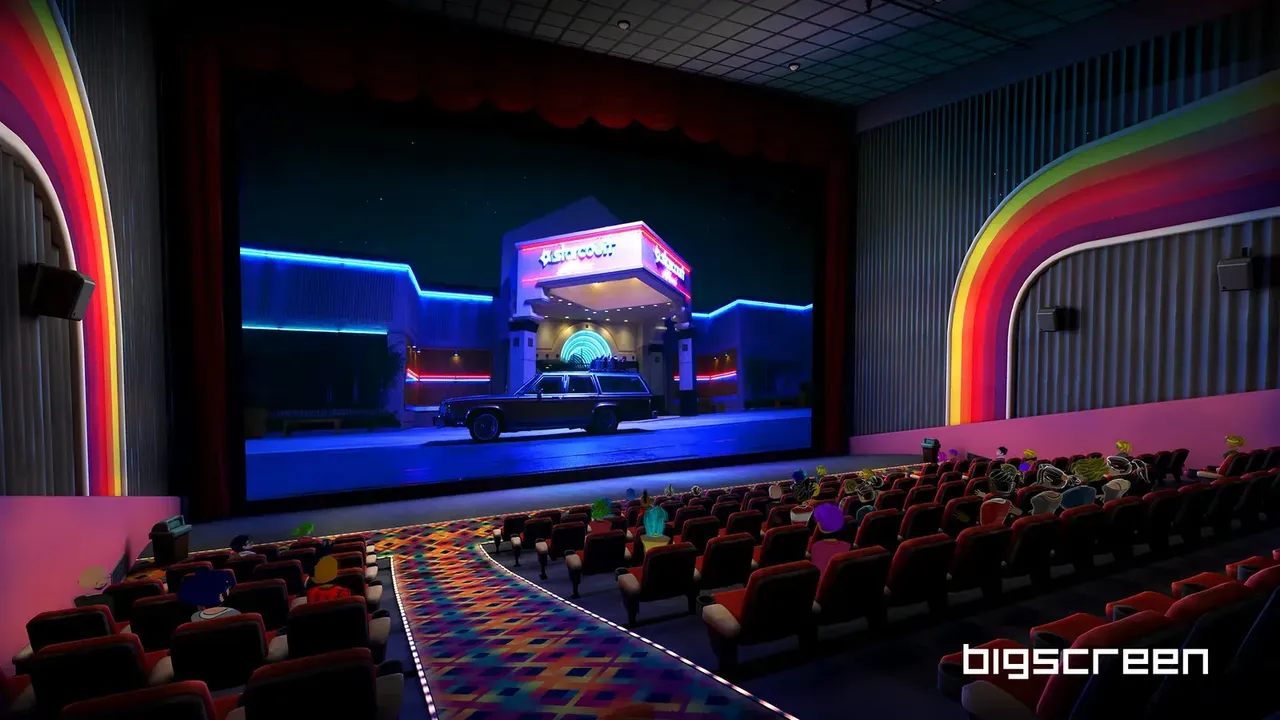
Bigscreen, listed as Bigscreen Beta, is free on the Meta Horizon Store and on Steam for SteamVR headsets. It puts a giant screen in a virtual theater or other environment, and its main draw is watching together.
- Install Bigscreen Beta from the Meta Horizon Store or Steam.
- Pick an environment, such as a cinema, and use the built-in video player to play files stored on the headset, including side-by-side and over-under 3D videos.
- To watch with friends, create a private room and invite them, or join a public room. You see each other as avatars and can chat while you watch.
- To watch something from your Windows PC, install the free Bigscreen Remote Desktop client and sign in with the same account you use in the headset. In the Bigscreen menu, go to My Room, then Remote Desktop, and switch sharing on.
The Quest listing also mentions free 24/7 TV channels and watching YouTube with friends. The Steam listing says Bigscreen works with studios such as Paramount Pictures so you can rent 3D movies; check the app for what is offered on your headset and in your country. The Remote Desktop client is Windows only, needs a graphics chip with hardware video encoding, and requires the PC and Quest to be on the same local network, with the Quest on 5 GHz Wi-Fi. Public rooms are open to strangers, and the Quest version is rated 12+ with a note that users interact.
Option 3: Skybox VR Player for your own files
Skybox VR Player is a paid player on the Meta Horizon Store and Steam, and on the visionOS App Store as SKYBOX Media Player. It plays files stored on the headset and streams them from other devices on your home network. It is a player, not a streaming service, so you bring your own videos.
- Copy videos to the headset (see the next section), or set up a network source.
- To stream from a computer, download the free Skybox PC client from the SKYBOX website and run it on the computer.
- To stream from a NAS or media server, share your videos over UPnP/DLNA or SMB and keep the server on the same Wi-Fi network as the headset.
- Open Skybox, pick a source and choose a video. Skybox detects the format automatically; if a 3D or 360 video looks wrong, change the format in the player's settings.
The store listing names AV1, MP4, MKV, MOV, TS and WEBM files, side-by-side and top-bottom 3D, and VR180, 360-degree and wider fisheye videos. The Quest version supports hand tracking, and the Apple Vision Pro version adds WebDAV servers as a source.
How to copy videos to a Quest
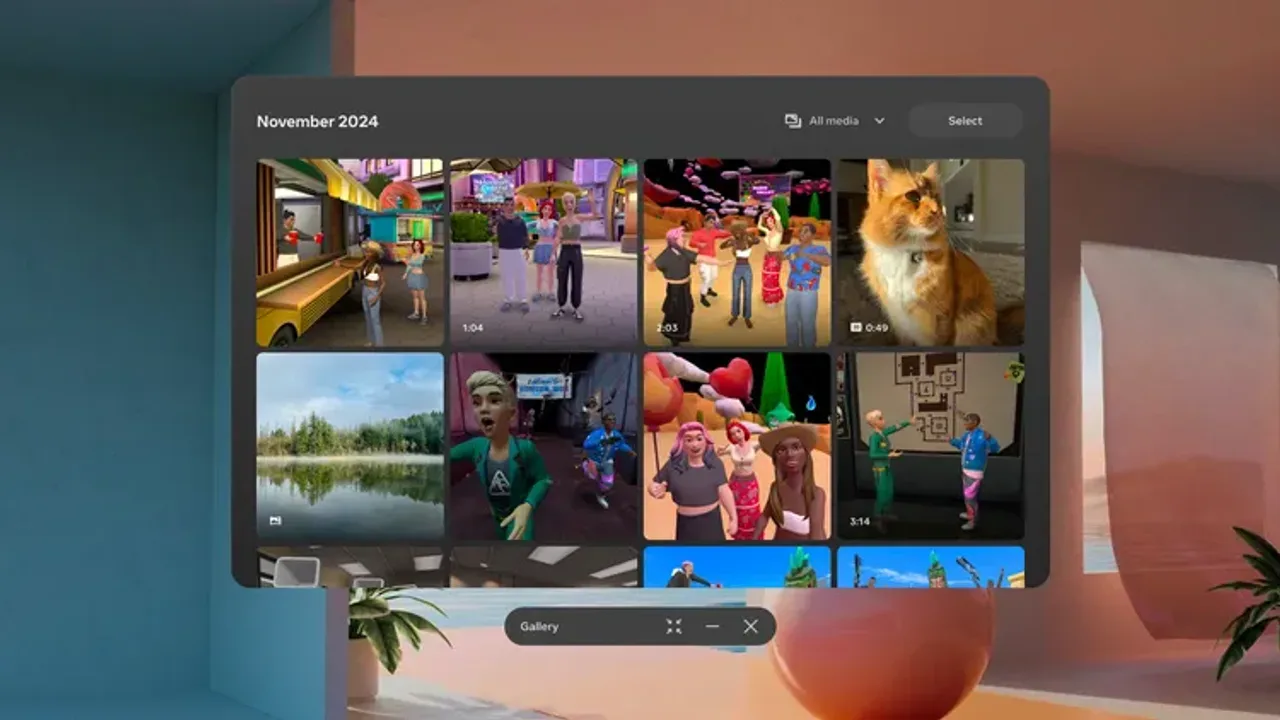
- Connect the headset to a Windows PC with a USB-C cable that supports data. Some cables only charge.
- Put on the headset and choose Allow when it asks to give the computer access to your files. If no prompt appears, check your notifications with the bell icon in the universal menu.
- On the PC, open File Explorer. The headset appears under This PC, with an Internal shared storage folder inside.
- Copy your videos into a folder there, for example one called Movies. Do not move or delete files in the headset's other folders.
- Unplug the cable and open the files in Skybox VR Player or Bigscreen.
If you have a large library, streaming from a PC or NAS saves headset storage and skips the cable.
Tips for better viewing
- Match the format. If a 3D film shows two pictures next to each other, switch the player to side-by-side or over-under 3D.
- Watch the file size. Very high-resolution or high-bitrate videos can stutter on a standalone headset or over Wi-Fi. Copying a file to the headset avoids network hiccups, and a lower-resolution version often plays more smoothly.
- Stay comfortable. Watching from a fixed spot rarely causes motion sickness, but 360 videos filmed with a moving camera can. Sit in a stable chair for long films and recenter the screen where you naturally look. Our comfort settings explainer has more tips.
- Plan for battery. A feature film uses a big share of a standalone headset's charge. Start fully charged, and for long sessions run a long USB-C cable to a charger or use a battery strap made for your headset.
- Mind the sound. Built-in headset speakers can be heard by people nearby, so use headphones late at night.
Questions et réponses
Can I watch 3D movies in VR?
Yes. Bigscreen and Skybox VR Player play side-by-side and over-under 3D files, and YouTube has a 3D search filter.
What is VR180?
A video format that fills the view in front of you, usually in 3D. In YouTube you can filter search results to show VR180 videos.
Can I watch videos with friends in VR?
Yes. Bigscreen lets you watch together in public or private rooms, where you appear as avatars and can chat.
Can I play videos from my NAS or PC?
Skybox VR Player streams from UPnP/DLNA media servers and SMB shares on the same Wi-Fi network, and a free PC client is available from the SKYBOX website.
Does YouTube play 8K video in a headset?
Google says the YouTube app supports 8K on Quest 3. Purchased movies play at up to 4K on Quest.