How to work in VR: use your headset as a multi-monitor desk
How to turn a VR headset into a multi-monitor workspace with Virtual Desktop, Immersed and XSOverlay, plus tips for typing, readable text and comfort.
- Principiante
- 20 min
- Última comprobación 28 de octubre de 2026
Qué necesitas
- A supported headset with the latest software
- A Windows, Mac or Linux computer (Windows only for XSOverlay)
- Home Wi-Fi network shared by headset and computer, ideally 5 GHz with the computer wired to the router
- Physical keyboard and mouse
- SteamVR and a Windows PC for XSOverlay
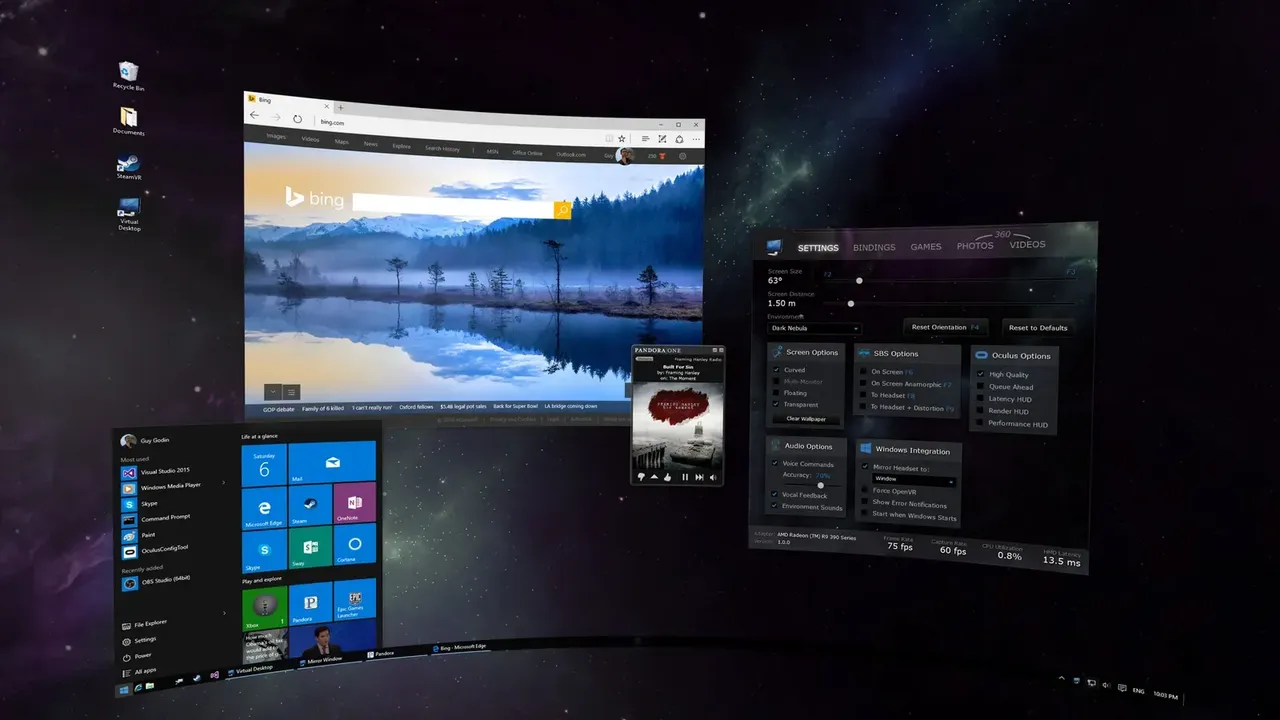
A VR headset can stand in for a row of monitors: your computer's screens float in front of you at any size, whether you sit at a small desk, on a sofa or in a hotel room. Three apps cover most needs. This guide follows the Virtual Desktop website, Immersed's plans page, the XSOverlay Steam page and Meta's tracked keyboard instructions.
Which app should you use?
- Virtual Desktop: a paid app that streams a Windows or Mac desktop to a standalone headset, with extra physical or virtual monitors.
- Immersed: a free app built around virtual monitors and shared workspaces, with a desktop agent for Windows, Mac and Linux.
- XSOverlay: a paid SteamVR overlay that puts desktop windows on top of a VR game, so you can check chat, music or a guide without leaving it.
The first two are for working in VR. XSOverlay is for keeping your desktop at hand while you play PC VR.
What you need
- A headset supported by the app you choose, updated to the latest software.
- A computer on the same home network as the headset. Virtual Desktop's developer recommends connecting the computer to the router by cable and using a 5 GHz Wi-Fi router that supports 802.11ac or 802.11ax.
- A physical keyboard and mouse connected to your computer. Typing on a real keyboard is far faster than pointing at a virtual one.
Streaming a desktop works over Wi-Fi, so the tips in our wireless PC streaming explainer apply here too.
Option 1: Virtual Desktop
Virtual Desktop runs on Meta Quest, PICO, HTC Vive and Android XR headsets such as the Samsung Galaxy XR. Its Streamer app supports Windows 10 or 11 (64-bit) and macOS Catalina or later.
- Buy and install Virtual Desktop on the headset from its store, such as the Meta Horizon Store or the PICO Store.
- Download the free Virtual Desktop Streamer from the Virtual Desktop website, install it on your computer and leave it running.
- Put on the headset, open Virtual Desktop and select your computer. Your desktop appears on a large screen.
- To add screens on Windows, click below the screen to add or remove monitors. They can be real monitors plugged into the PC or virtual ones the Streamer creates.
- In the Settings tab, keep the option to arrange monitors automatically when you recenter, or use the button to arrange them by hand.
How many monitors you get depends on the headset. The developer's release notes list up to three on Quest 3 and 3S and up to two on Quest 2 and Quest Pro. Since version 1.34, the Mac Streamer can create virtual monitors without extra software. All screens share one stream with a combined desktop bitrate of up to 120 Mbps, so each extra screen gets a smaller share.
Option 2: Immersed
Immersed is free on the Meta Horizon Store and the visionOS App Store. Its desktop agent runs on Windows 10 or 11 (64-bit), macOS 11 or newer, and 64-bit Linux distributions using X11 or Wayland.
- Download the free desktop agent from Immersed's website and install it on your computer.
- Install Immersed on the headset and sign in to, or create, an Immersed account.
- In the headset, open the Computers tab in the Immersed menu and follow the pairing steps to link your computer. Keep both on the same network.
- Your real screen appears in front of you. Add virtual screens, then place and resize them around you.
The free Starter plan allows up to three virtual screens at standard resolutions such as 1440x900. Immersed Pro, from $5.99 a month, raises that to five screens and adds resolutions up to 3840x2160. On Linux, Immersed's built-in virtual displays only work on GNOME with Wayland. If the picture lags, Immersed's FAQ suggests checking your router, and Mac users can try a Wi-Fi Direct connection. On Apple Vision Pro, the app cannot run side by side with other visionOS apps.
Option 3: XSOverlay inside VR games
XSOverlay is sold on Steam and runs on top of SteamVR. It officially supports Windows 10 and 11 only, and it is still in Early Access. It works with SteamVR headsets such as the Valve Index, and with a Quest when you play PC VR through SteamVR.
- Buy and install XSOverlay from Steam on your Windows PC.
- Start SteamVR, then launch XSOverlay from your Steam library.
- Choose a whole monitor or a single window to show as a floating panel.
- Move, scale or curve the panel, and save the layout so it comes back next time.
- Turn on input blocking when you want to click the overlay without the game reacting behind it.
XSOverlay also has a virtual keyboard that detects your keyboard layout, basic media controls, and an API that lets other programs send notifications to your headset.
Tips for working comfortably
See your real keyboard
Quest headsets can show your keyboard and hands in a passthrough window. Press the Meta button to open the Navigator, choose Quick controls, then Settings, Devices, Keyboard, and turn on Show my keyboard. Meta says tracking works with most common keyboards, but not ergonomic or split ones. Virtual Desktop also has keyboard bindings to toggle hand and desk passthrough, which is handy if you do not touch-type.
Make text readable
- Make the screen bigger or bring it closer rather than squinting. Sharpness depends on the headset's pixels per degree, so a 4K virtual monitor will not look as crisp as a 4K desk monitor.
- Increase display scaling in Windows or macOS, or pick a lower virtual monitor resolution, so text is larger.
- Set your IPD correctly and adjust the strap so the sharpest part of the lenses sits in front of your eyes.
- Keep your main screen straight ahead and put secondary screens to the sides, angled toward you, so you turn your head less.
Comfort and breaks
- Start with short sessions and build up. Take the headset off every so often to rest your eyes and face.
- Front-heavy headsets get tiring over a workday. A better head strap or a rear counterweight spreads the load.
- Use a stable chair and keep the area around you clear, since you cannot see your room unless passthrough is on.
- Stop if you get eye strain, a headache or nausea. Our comfort settings explainer has more tips.
Preguntas y respuestas
Can I use Virtual Desktop with a Mac?
Yes. The Virtual Desktop Streamer runs on macOS Catalina or later and can show your Mac desktop, including virtual monitors. PC VR games still need a Windows PC.
How many monitors can Virtual Desktop show?
It depends on the headset. The developer's release notes list up to three monitors on Quest 3 and 3S and up to two on Quest 2 and Quest Pro.
Is Immersed free?
Yes. The free Starter plan gives up to three virtual screens at standard resolutions. Immersed Pro, from $5.99 a month, allows five screens and resolutions up to 3840x2160.
Does XSOverlay work on Meta Quest?
Only when you play PC VR through SteamVR on a Windows PC. XSOverlay is a SteamVR overlay, not a standalone Quest app.
Can I see my real keyboard while in VR?
On Quest, go to Settings, Devices, Keyboard and turn on Show my keyboard to see it in a passthrough window. Ergonomic and split keyboards are not supported.