How to play non-VR games on PS VR2 with Cinematic Mode
Play regular PS5 games and media apps on a virtual screen in PS VR2 with Cinematic Mode, and set screen size, 120 Hz or HDR output and audio.
- 入门
- 10 分钟
- 上次检查时间:2026年10月31日
你需要准备
- PS5 console with PlayStation VR2 connected and set up
- A non-VR PS5 game or media app
- PS VR2 Sense controller, to re-center the screen
- Headphones, if you want to use Lock Audio Position with 3D Audio
Cinematic Mode lets you play non-VR PS5 games and use media apps on a large virtual screen inside your PlayStation VR2 headset. This guide covers starting it, changing the screen size, choosing 120 Hz or HDR output, setting up audio and knowing its limits. These steps follow Sony's support articles How to play non-PS VR2 games on PS VR2 (Cinematic Mode) and the PS VR2 video output guide, plus the official PlayStation VR2 FAQ on the PlayStation Blog.
1. Know what Cinematic Mode does
PS VR2 has two viewing modes. VR Mode runs PS VR2 games in a 360-degree virtual environment. Cinematic Mode covers everything else: Sony says you can view the PS5 system and UI and all non-VR game and media content, such as streaming apps, on a virtual cinema screen.
According to Sony, content in Cinematic Mode is displayed in a 1920 x 1080 HDR video format at 24/60 Hz, and 120 Hz is also available. VR Mode, by comparison, runs at 2000 x 2040 per eye at 90 Hz or 120 Hz.
Picture and sound go only to the headset. While you are in Cinematic Mode the social screen (the image shown on your TV) is disabled, and Sony notes that the connected TV turns black when you put the headset on.
2. Start Cinematic Mode
If your headset is not set up yet, follow our guide on how to set up PlayStation VR2 on PS5 first. Then:
- Turn on your PS5 console and PS VR2.
- Select a non-PS VR2 game or media app.
- The game or app appears on a virtual screen in front of you.
There is nothing extra to switch on. Sony states that whenever you use PS VR2 to play a game or app that does not support PS VR2, you see it in Cinematic Mode.
3. Open the PS VR2 Quick Settings
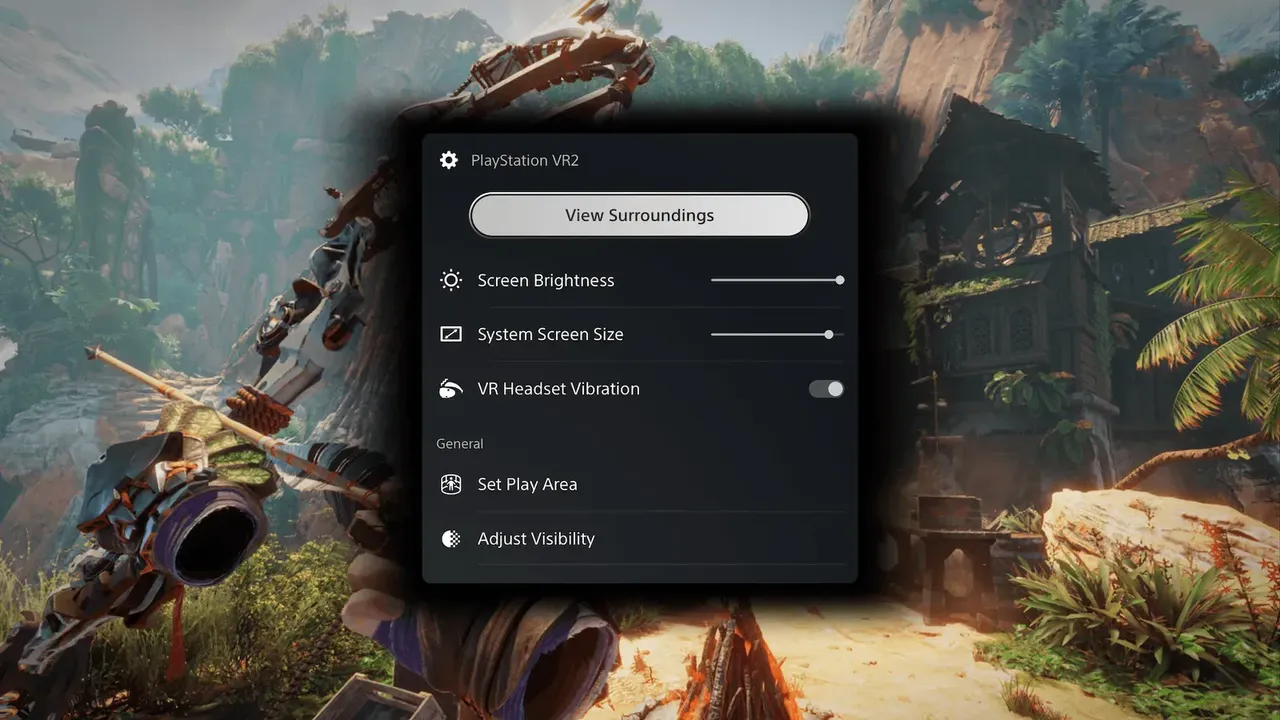
The fastest way to adjust things while you play is the control center. Press the PS button, then select the PS VR2 Quick Settings card. It offers:
- View Surroundings, a see-through view of your room
- Screen Brightness
- Screen Size
- VR Headset Vibration
- Set Play Area
- Adjust Visibility
- Eye Tracking
- Other Settings
4. Change the screen size
You can change the size of the virtual screen from the Screen Size option in the PS VR2 Quick Settings card. To do it from the home screen instead:
- Go to Settings > Accessories > PlayStation VR2.
- Select Cinematic mode.
- Select Screen Size and pick the size you want.
If the picture looks blurry at every size, the problem is usually fit rather than the setting. See how to adjust IPD and lens fit for a sharp VR image.
5. Choose 120 Hz or HDR output
The headset can show either 120 Hz video or HDR video in Cinematic Mode. Your TV does not need to support 120 Hz or HDR for the headset to display it.
- Go to Settings > Accessories > PlayStation VR2 > Cinematic mode.
- Select Video Output for Cinematic Mode.
- Set 120 Hz or HDR output.
Sony presents these as two separate choices, so pick the one that matters more for what you are playing or watching.
6. Fix a greyed-out 120 Hz option
If 120 Hz output is greyed out, Sony suggests this:
- Go to Settings > Screen and Video and change 120 Hz Output from Automatic to Off.
- Go to Accessories > PlayStation VR2 > Cinematic mode > Video Output.
- 120 Hz output for the headset should now be available.
If it still is not, Sony points you to PlayStation Repairs.
7. Set up audio
In Settings > Accessories > PlayStation VR2 > Cinematic mode, the Lock Audio Position option controls where sound seems to come from:
- Off: the audio source comes from where the screen is in the virtual space.
- On: the audio source stays relative to the direction your headset faces.
For this to work, also turn on Settings > Sound > 3D Audio for Headphones > Enable 3D Audio for Headphones.
8. Re-center the screen
If the screen ends up off to one side, for example after you change seats, press and hold the options button on your PS VR2 Sense controller. This resets the position of the screen in front of you.
9. Know the limits
- Cinematic Mode is a flat virtual screen. Non-VR games stay flat; they do not gain a 360-degree view.
- Content is shown in a 1920 x 1080 format, so do not expect 4K detail.
- Other people in the room cannot follow along on the TV, because the social screen is disabled.
- For long films, comfort matters as much as settings. Our guide on how to watch movies and videos in VR has more tips.
问题与答案
Can I play regular PS5 games on PS VR2?
Yes. Sony says Cinematic Mode shows the PS5 system UI and all non-VR game and media content, including streaming apps, on a virtual cinema screen inside the headset.
What resolution and refresh rate does Cinematic Mode use?
Sony states that content in Cinematic Mode is displayed in a 1920 x 1080 HDR video format at 24/60 Hz, and 120 Hz output is also available.
Does my TV need to support HDR or 120 Hz?
No. Sony says your TV does not need to support 120 Hz or HDR video for it to be displayed through the PS VR2 headset.
Can other people watch on the TV while I use Cinematic Mode?
No. The social screen is disabled in Cinematic Mode, and the connected TV turns black when you put the headset on.
Why is the 120 Hz option greyed out?
Go to Settings > Screen and Video and change 120 Hz Output from Automatic to Off, then return to Accessories > PlayStation VR2 > Cinematic mode > Video Output. If it is still unavailable, Sony recommends contacting PlayStation Repairs.