How to play PC VR games on Meta Quest
Four ways to play PC VR games on a Meta Quest: a Link cable, Air Link, Valve's Steam Link app and Virtual Desktop, with what each needs and the steps to connect.
- 中级
- 30 分钟
你需要准备
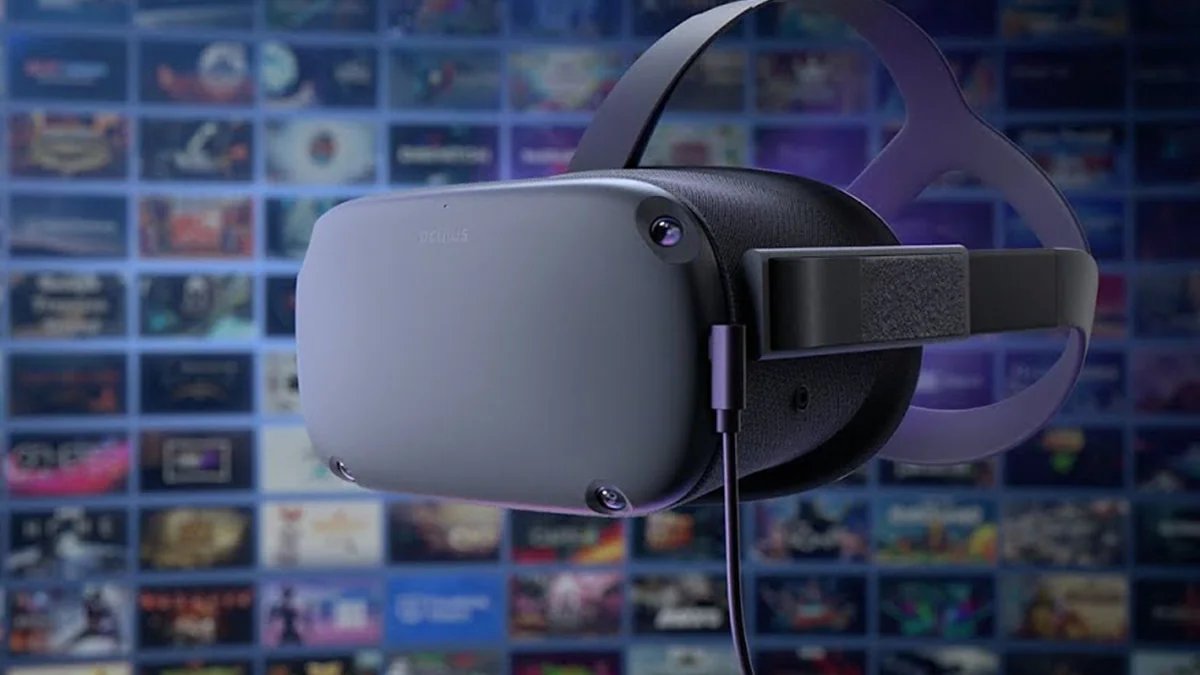
- Meta Quest headset with the latest software
- Windows gaming PC with a dedicated graphics card
- Steam and SteamVR for Steam games
- USB-C cable rated 5 Gbps or faster (for Link)
- 5 GHz Wi-Fi router, ideally Wi-Fi 6 or 6E, with the PC wired to it (for wireless)
A Meta Quest can double as a PC VR headset, letting a gaming PC render games from SteamVR and other PC stores. There are four common ways to connect. This guide follows Meta's Link and Air Link instructions, the Steam Link store listing and the Virtual Desktop website.
Which method should you use?
- Link cable: most stable image and no Wi-Fi needed, but you are tethered.
- Air Link: Meta's built-in wireless option. Free.
- Steam Link: Valve's free wireless app that connects straight to SteamVR, without Meta's PC app.
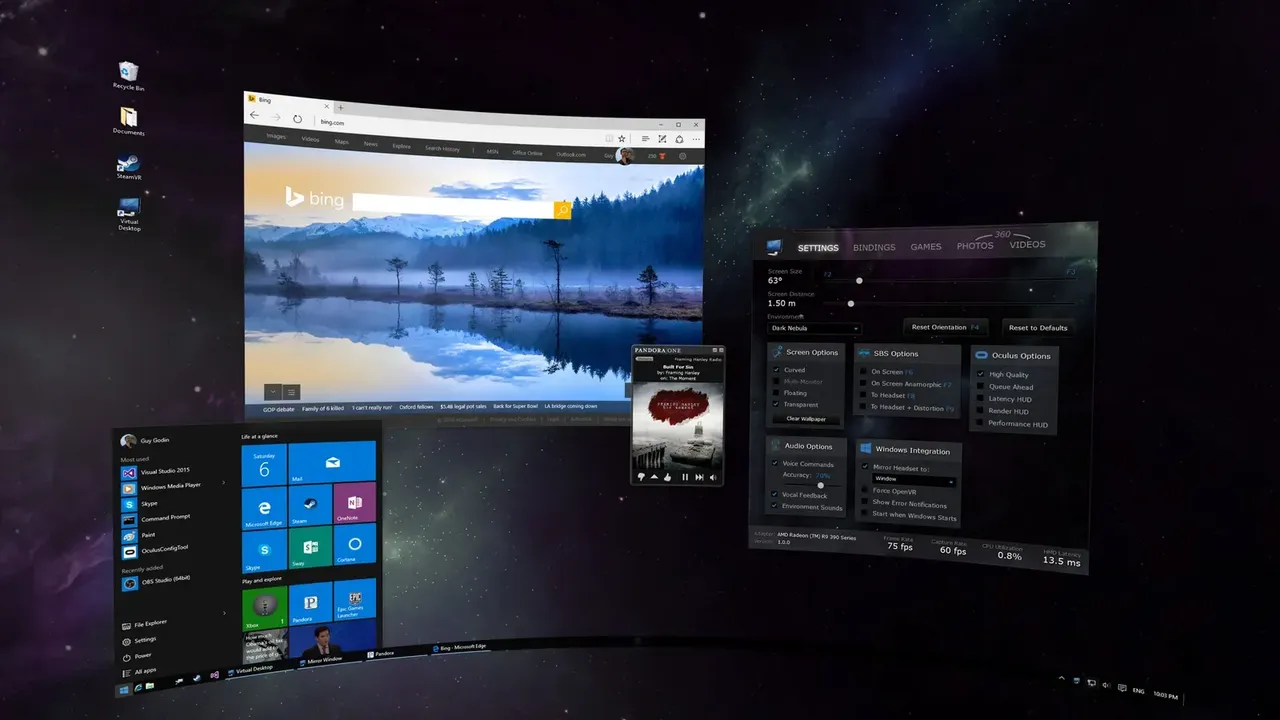
- Virtual Desktop: a paid wireless app with many tuning options that also works with other standalone headsets.
All wireless options depend heavily on your home network. See wireless PC streaming for background.
What every method needs
- A Windows PC with a dedicated graphics card that meets the requirements of the method you choose.
- Your Quest updated to the latest software.
- Steam and SteamVR installed on the PC if you want to play Steam games.
Method 1: Link cable
- Install the Meta Horizon Link app on your Windows PC and sign in.
- Connect a USB-C cable rated for at least 5 Gbps (USB 3.2) from a USB 3 port on the PC to the headset.
- In the headset, press the Meta button to open the Navigator, choose Quick controls, then Link.
- Select your computer and choose Launch.
- To play Steam games, start SteamVR from the Link environment or from Steam on your desktop.
Method 2: Air Link
- Install and open the Meta Horizon Link app on your PC. Make sure the PC and headset are on the same network; Meta recommends 5 GHz Wi-Fi.
- In the headset, open the Navigator, choose Quick controls, then Link, and turn on Use Air Link.
- Pick your computer from the list and choose Pair.
- Check that the pairing code in the headset matches the code on your PC, then click Confirm in the PC app.
- Put the headset back on and choose Launch.
Method 3: Steam Link
- On the PC, install Steam and SteamVR, and keep Steam running.
- On the Quest, install the free Steam Link app from the Meta Horizon Store.
- Open Steam Link in the headset. It searches your network for the PC and walks you through connecting, including a pairing code you confirm on the PC.
- Once connected, launch VR games from your Steam library.
Valve lists a Windows 10 or newer PC with at least an NVIDIA GTX 970 as the minimum, and recommends a PC wired to the router plus a Wi-Fi 6 or 6E router.
Method 4: Virtual Desktop
- Buy and install Virtual Desktop on the headset from its store.
- Download and install the free Virtual Desktop Streamer app on your PC from the Virtual Desktop website, and leave it running.
- Make sure the PC and headset are on the same network. Guest networks and some apartment or office Wi-Fi can block the connection.
- Launch Virtual Desktop in the headset and select your computer.
- Start SteamVR games from the Games tab in the Virtual Desktop menu, as its developer recommends.
Virtual Desktop's developer recommends a PC connected by cable to a 5 GHz Wi-Fi 5 (802.11ac) or Wi-Fi 6 (802.11ax) router.
Tips for a smooth wireless picture
- Connect the PC to the router with an Ethernet cable.
- Keep the router in the same room with a clear line of sight to where you play.
- Avoid guest networks and pause large downloads on the same network.
- If you see stutters, lower the streaming bitrate or the game's graphics settings.
If Link does not connect, Meta has a Link troubleshooting page.
问题与答案
What is the difference between Link and Air Link?
Both use Meta's Meta Horizon Link app on the PC. Link sends the image over a USB-C cable, while Air Link sends it over Wi-Fi. A cable is usually more stable; Air Link removes the tether but depends on your network.
Do I need Meta's PC app to use Steam Link?
No. Valve's Steam Link app connects the Quest straight to Steam and SteamVR on your PC. You only need Steam and SteamVR installed.
Can I play PC VR on a Mac?
Not PC VR games from SteamVR. Virtual Desktop can show a Mac desktop in the headset, but its developer notes that SteamVR games need a Windows PC.
Why does wireless PC VR stutter?
Most stutters come from the network. Wire the PC to the router, use a 5 GHz or 6 GHz Wi-Fi band close to where you play, and avoid other heavy traffic on the network.
What cable do I need for Link?
Meta asks for a USB-C cable rated for at least 5 Gbps, connected to a USB 3 port on the computer.