How to move to a new Meta Quest headset without losing your games
Back up game saves, copy your captures, sign in on the new Meta Quest, re-download your library, move App Sharing and safely factory reset the old headset.
- 入门
- 30 分钟
- 上次检查时间:2026年10月31日
你需要准备
- Your old Meta Quest, charged to at least 50%, if you still have it
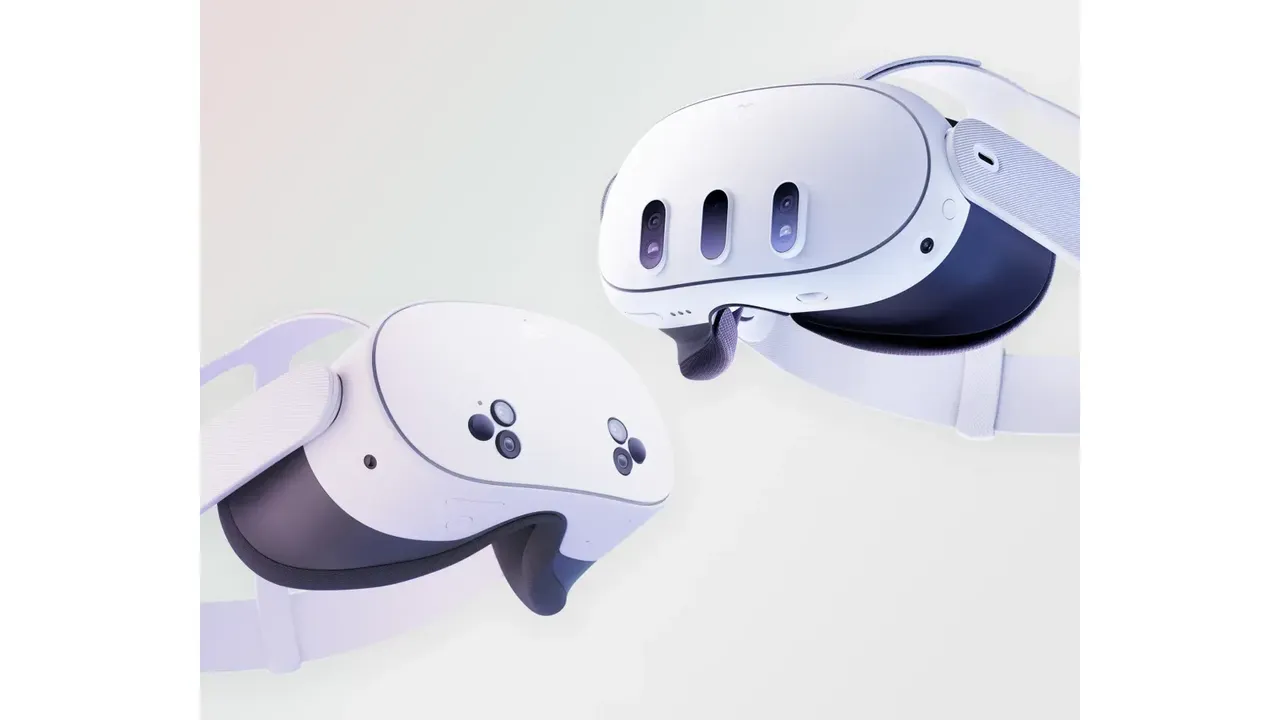
- The new Meta Quest headset and a Wi-Fi network
- The Meta Horizon app on your phone, signed in to the same Meta account
- A computer and USB cable if you want to copy screenshots and videos
This guide shows you how to move from one Meta Quest headset to another, for example from a Meta Quest 2 to a Meta Quest 3 or Meta Quest 3S, without losing your games or your progress. The steps follow Meta's articles on cloud backup, setting up a Meta Quest 3S, managing your app library, transferring files between Meta Quest devices and factory resetting a Meta Quest. Do the first three steps on your old headset before you set up the new one.
1. Know what moves with your account and what doesn't
- Games and apps you bought belong to your Meta account, not to the headset. Meta says a factory reset won't remove content you've purchased or downloaded from your account.
- Game progress and app settings only follow you if cloud backup was on and the app supports it. Developers decide whether their app uses cloud backup and what data it saves.
- Screenshots, videos and other files stored on the headset have to be copied over yourself.
- Apps shared with you through App Sharing don't follow an additional profile to a different headset. Apps an additional profile bought itself do.
2. Turn on cloud backup on your old headset
- Press the Meta button (or Oculus button) on your right controller to open the Navigator.
- Select Quick controls, then Settings, then General.
- Select Cloud backup, then make sure the Cloud backup toggle is on.
Keep the headset on Wi-Fi so your app data can be saved to the cloud. To see which of your apps support cloud backup, with the last backup time and size, open secure.oculus.com/my/cloud-backup on a computer. A game that doesn't support cloud backup won't bring its progress with it.
On Meta Quest 2 and later you can also protect backups with end-to-end encryption. In the same Cloud backup screen, select Setup next to End-to-end encryption, select Continue and enter a 6-digit PIN twice. This PIN lets you restore your backups when you set up a new device. If you forget it and haven't set up a recovery device, Meta can't reset it or restore your backup for you.
3. Copy your screenshots and videos
- Connect the old headset to a computer with a USB cable.
- Put on the headset and select Allow so the computer can access its files.
- On Windows the headset appears as a drive. On a Mac, Meta says you need Android File Transfer. On a Chromebook, use the Files app.
- Drag the files you want onto your computer, then unplug the headset.
Later you can plug in the new headset and drag the files into its folders the same way. For more on captures, see our guide to taking screenshots and recording video on Meta Quest.
4. Set up the new headset with the same Meta account
Charge the new headset, turn it on and follow the in-headset steps for language, fit and Wi-Fi. Our Meta Quest 3 and 3S setup guide covers this part in detail.
Then pair it with the Meta Horizon app on your phone, signed in to the same account you used on the old headset. For an existing Meta Quest user, Meta's Meta Quest 3S steps are:
- Open the Meta Horizon app and tap Menu at the top of your Horizon Feed.
- Tap Devices.
- Tap Connect new device, tap your headset model and follow the on-screen instructions.
Meta's Meta Quest 3 article labels this option Pair new headset or Add device. If you don't see an option to add a headset, update the Meta Horizon app, fully close it and open it again. Turn on Bluetooth on your phone.
5. Download your games again from your library
- Press the Meta button to open the Navigator.
- Select App library.
- Select the icon of a game that isn't installed to download it again.
The Meta Horizon app also lets you browse the Store and remote-install apps from your phone. If your library looks empty, Meta says you may be logged into a profile that doesn't have your purchases. Log out and log in with the profile that bought them.
6. Restore your game progress
Meta says cloud backup lets you pick up where you left off in a supported game when you set up a new Meta Quest and install the game again. Keep Cloud backup turned on in the new headset's Settings > General so future progress is saved too. If you used end-to-end encryption, enter your 6-digit PIN when asked. Open each important game once and check your save before you wipe the old headset.
7. Move App Sharing to the new headset
A device owner can share eligible purchases with additional profiles on one headset only. To move sharing, the owner turns App Sharing off on the old headset, then turns it on on the new one. Our guide to sharing a Meta Quest with multiple accounts explains how profiles and App Sharing work.
8. Factory reset the old headset
Do this only after you've checked your games and files on the new headset. A factory reset is irreversible and removes all account information, downloaded games and content from the headset. Charge it to at least 50% first.
From the Meta Horizon app (the headset must be paired to it):
- Tap Menu, then Devices, and select the old headset.
- Tap Headset settings, then Advanced settings.
- Tap Factory Reset, then Reset.
Using the headset buttons:
- Turn the headset off.
- Hold the power and volume down (−) buttons together for 10 to 15 seconds until the boot menu appears.
- Use the volume buttons to highlight Factory Reset and press the power button.
- Highlight Yes, erase and factory reset and press the power button to confirm.
If you've already handed the headset over, go to auth.meta.com/settings/my/devices/ on a computer or phone, choose the headset and select Delete device data or Factory reset. The headset resets the next time it comes online.
问题与答案
Do I have to buy my Meta Quest games again on a new headset?
No. Purchases stay with your Meta account, and Meta says a factory reset won't remove content you've purchased from your account. Sign in with the same account and download the games again from your App library.
Will my game progress transfer to the new headset?
Only for apps that support cloud backup, and only if cloud backup was turned on. You can check which of your apps are supported at secure.oculus.com/my/cloud-backup on a computer.
What happens if I forget my end-to-end encryption PIN?
If you haven't set up a recovery device, you can't access your encrypted backups. Meta can't reset the PIN or restore the backup for you.
Do screenshots and videos move to the new headset?
Meta's help article describes copying them manually: connect the old headset to a computer over USB, copy the files off, then copy them onto the new headset.
Can I wipe an old headset I've already given away?
Yes. Go to auth.meta.com/settings/my/devices/, choose the headset and select Delete device data or Factory reset. It resets the next time it comes online.