How to fix Meta Quest Wi-Fi connection problems
Fix a Meta Quest that won't join or keep Wi-Fi with Meta's official steps: basic checks, reconnecting, restarts, router checks, updates and reset.
- Beginner
- 15 min
- Checked on Meta Horizon OS v2.9
- Last checked October 31, 2026
What you need
- A Meta Quest 2, 3, 3S or Pro
- Your Wi-Fi network name and password
- A phone with the Meta Horizon app
- Optional: a computer and the headset's USB-C cable for the software update tool
A Meta Quest needs Wi-Fi for most features and content, so a dropped or refused connection stops a lot of things working. This guide works through Meta's official fixes in order, from quick checks to a factory reset. The steps follow Meta's article on troubleshooting joining a Wi-Fi network, its fix for Wi-Fi problems during setup and its guide to connecting your headset to Wi-Fi.
1. Check the basics first
Meta suggests ruling out these common causes before anything else:
- Your Wi-Fi network is working, and other devices can connect to it.
- You entered the Wi-Fi password correctly.
- You are not too far from your Wi-Fi router.
- You are not on a hotspot such as hotel or airport Wi-Fi while doing initial setup.
2. Reconnect from the headset
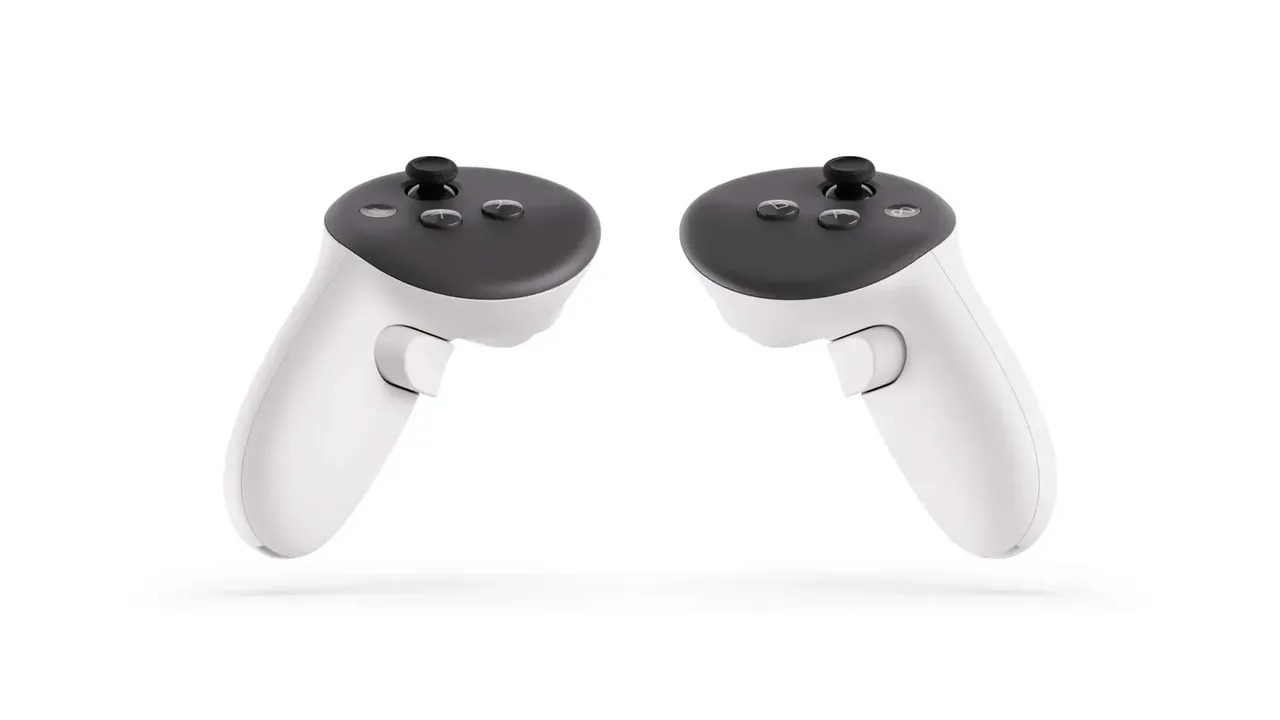
- Press the Meta button (or Oculus button) on your right controller to open the Navigator.
- Select Quick controls, then Settings, then Wi-Fi.
- Make sure the Wi-Fi toggle is on.
- Find your network, select Connect and enter the password.
You can also select Wi-Fi directly in Quick controls to switch networks.
3. Change the network from the Meta Horizon app
If the headset menus are hard to use, set Wi-Fi from your phone:
- Turn on your headset.
- Open the Meta Horizon app and tap Menu at the top of your Horizon Feed.
- Tap Devices and select your headset.
- Tap Headset settings, then Wi-Fi.
- Tap the network, enter the password if asked and tap Connect to Wi-Fi.
Meta says you can tap the connected network name in the app to see more details, including the security protocol in use, for example WPA/WPA2 PSK.
4. Restart, then force restart
Meta's next step is a restart:
- With the headset on, press and hold the power button until the Power off screen appears.
- Select Restart.
If the headset is unresponsive or the problem stays, force a restart. Hold the power button for at least 30 seconds, then wait 30 seconds. If it does not turn back on by itself, press the power button.
5. Fix Wi-Fi problems during first-time setup
If the headset will not connect while you are setting it up for the first time:
- On the phone you use for setup, turn Wi-Fi off and back on.
- Restart the headset as in step 4.
- Try a different network, such as another home network or a personal hotspot from a phone. The phone and the headset must be on the same Wi-Fi network. After setup, reconnect to your usual network and check whether the issue returns.
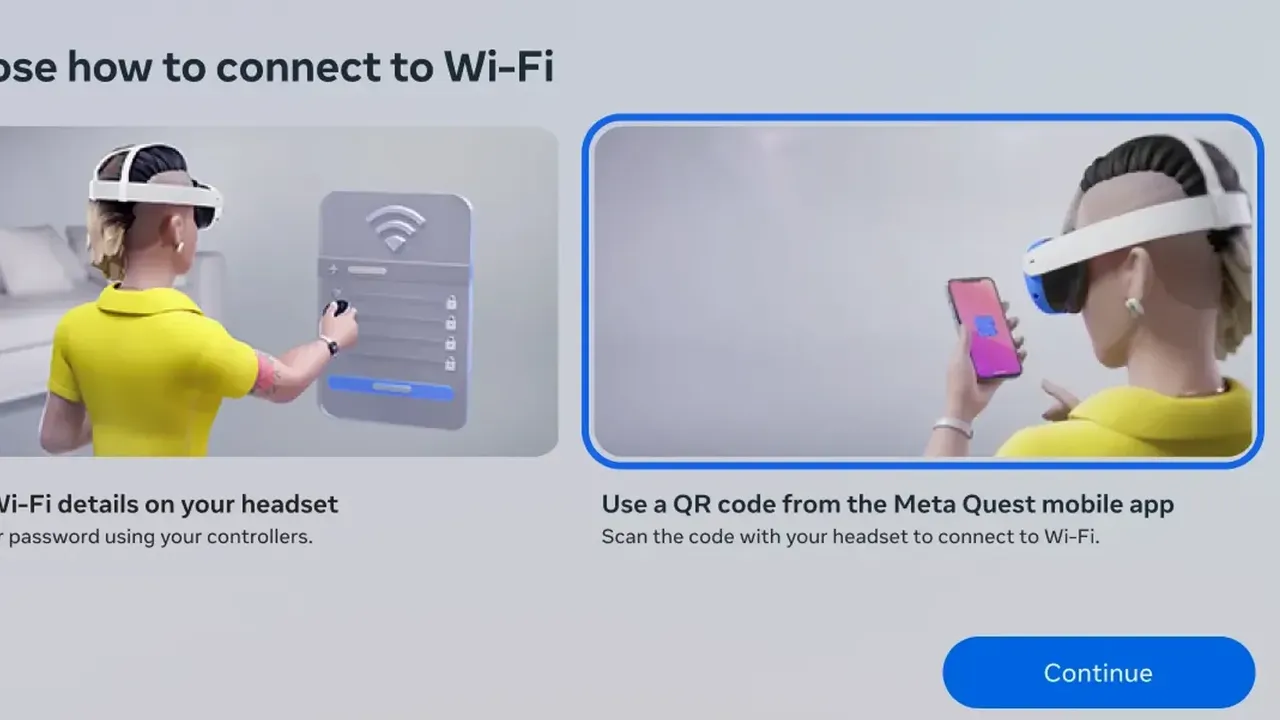
On Meta Quest 3 and Quest 3S, setup can also scan a Wi-Fi QR code from the Meta Horizon app. Choose Use a QR code from the Meta Horizon mobile app and hold your phone at eye level. Meta notes the QR code does not support semicolons in network names or passwords, so type the details on the headset if yours contain one.
6. Try another network and check your router
If the headset connects to a different network, Meta says the issue may be with your Wi-Fi configuration. Two things to check:
- Same network on dual-band routers. For pairing, Meta says that if your router shows 2.4 GHz and 5 GHz networks under different names, connect the phone and headset to the same one. If both bands share one name, turn off your phone's mobile data while you pair. For casting, Meta also asks that devices on a dual-band network use the same frequency.
- MAC address. Some networks need your headset's MAC address. Find it in Quick controls > Settings > General > About, under Network. In the app, it is under Headset settings > About Headset.
7. Update the headset software
Meta says an update may also fix Wi-Fi problems. In the headset, go to Quick controls > Settings > General > Software update. If the headset cannot get online, use Meta's software update tool on a computer. It needs 2GB of free storage and the USB-C cable that came with the headset. Meta says it works even when the device itself is unresponsive, and it does not erase your data.
Meta confirmed that some Quest 2 headsets could not connect to Wi-Fi after the Horizon OS v2.6 update. Its fix is to connect temporarily to a phone's mobile hotspot, then check Settings > General > Software Update. Install the v2.6 build dated July 24, 2026 or later, then reconnect to your home Wi-Fi. Hotspot use may count against your mobile data plan.
8. If Air Link is the problem
Meta lists a Wi-Fi network, preferably 5GHz, as a requirement for Air Link. If the headset browses fine but wireless PC streaming struggles, put the headset on a 5GHz network. See our guide to playing PC VR games on Quest for the full Link and Air Link setup.
9. Last resort: factory reset or contact support
Meta calls a factory reset a last resort. Try the software update tool and a 30-second hard reboot first. A reset erases all account information, downloaded games and content from the headset. Your purchases stay on your account. Turn on cloud backup first and make sure the battery is at least 50%. Then:
- Turn the headset off.
- Hold the power and volume down buttons together for 10-15 seconds until the boot menu appears.
- Use the volume buttons to highlight Factory Reset and press power.
- Highlight Yes, erase and factory reset and press power.
If nothing here works, contact Meta Store Support.
Questions & answers
Why won't my Meta Quest connect to Wi-Fi?
Meta lists common causes: the network itself is down, the password is wrong, the headset is too far from the router, or you are on a hotel or airport hotspot during setup. If the headset joins a different network, the problem may be your Wi-Fi configuration.
Can I change my Quest's Wi-Fi network from my phone?
Yes. In the Meta Horizon app, tap Menu, then Devices, select your headset, tap Headset settings, then Wi-Fi, and choose the new network.
My Quest 2 lost Wi-Fi after the v2.6 update. What should I do?
Meta says a fix is available. Connect the headset to a phone's mobile hotspot, go to Settings > General > Software Update and install the v2.6 build dated July 24, 2026 or later, then reconnect to your Wi-Fi.
How do I hard reboot a Meta Quest?
Hold the power button for at least 30 seconds, then wait 30 seconds. If the headset does not turn back on by itself, press the power button.
Can I update my Quest if it has no Wi-Fi?
Yes. Meta's software update tool runs on a computer and updates the headset over its USB-C cable. It needs 2GB of free storage and does not erase your data.