Apple Vision Pro: getting started
Get started with Apple Vision Pro: adjust the band and Light Seal, run setup with an iPhone or the Digital Crown, complete eye and hand setup, capture your Persona and learn the core gestures.
- Beginner
- 30 min
What you need
- Apple Vision Pro with charged battery
- Apple Account
- Wi-Fi network
- Optional: iPhone with iOS 17 or later or iPad with iPadOS 17 or later for Quick Start
- Contact lenses or ZEISS Optical Inserts if you need vision correction
The Apple Vision Pro has no controllers: you use your eyes, hands and voice. That makes a careful first setup important, because fit and calibration decide how well everything works. This guide follows Apple's official user guide pages on turning on and setting up, adjusting the fit, capturing your Persona and basic gestures. It applies to both the current M5 model and the original Apple Vision Pro.
Before you start
- Charge the battery.
- Have a Wi-Fi network and your Apple Account ready. An iPhone with iOS 17 or later, or an iPad with iPadOS 17 or later, makes setup faster but is optional.
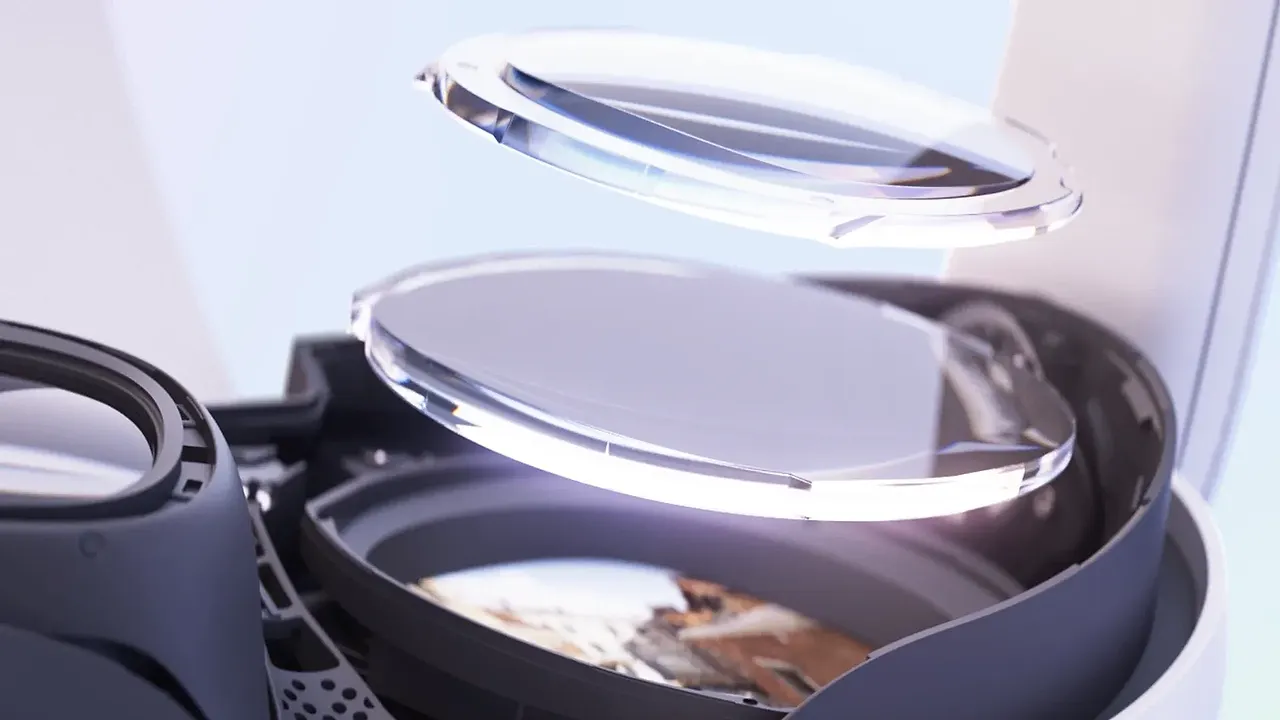
- Eyeglasses are not compatible with Vision Pro. If you need vision correction, use contact lenses or ZEISS Optical Inserts. See our guide to glasses and prescription lenses in VR.
Step 1: Adjust the fit
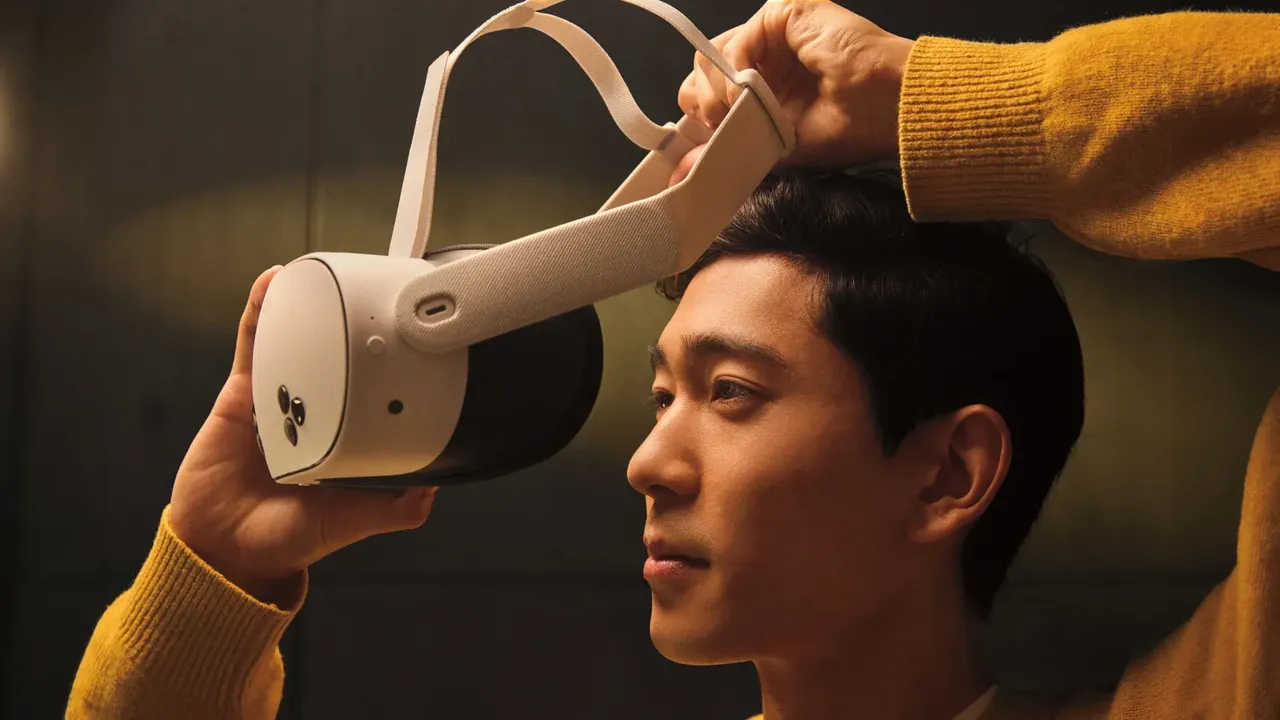
- Always pick up the device with two hands by the frame, not by the Light Seal, which attaches magnetically.
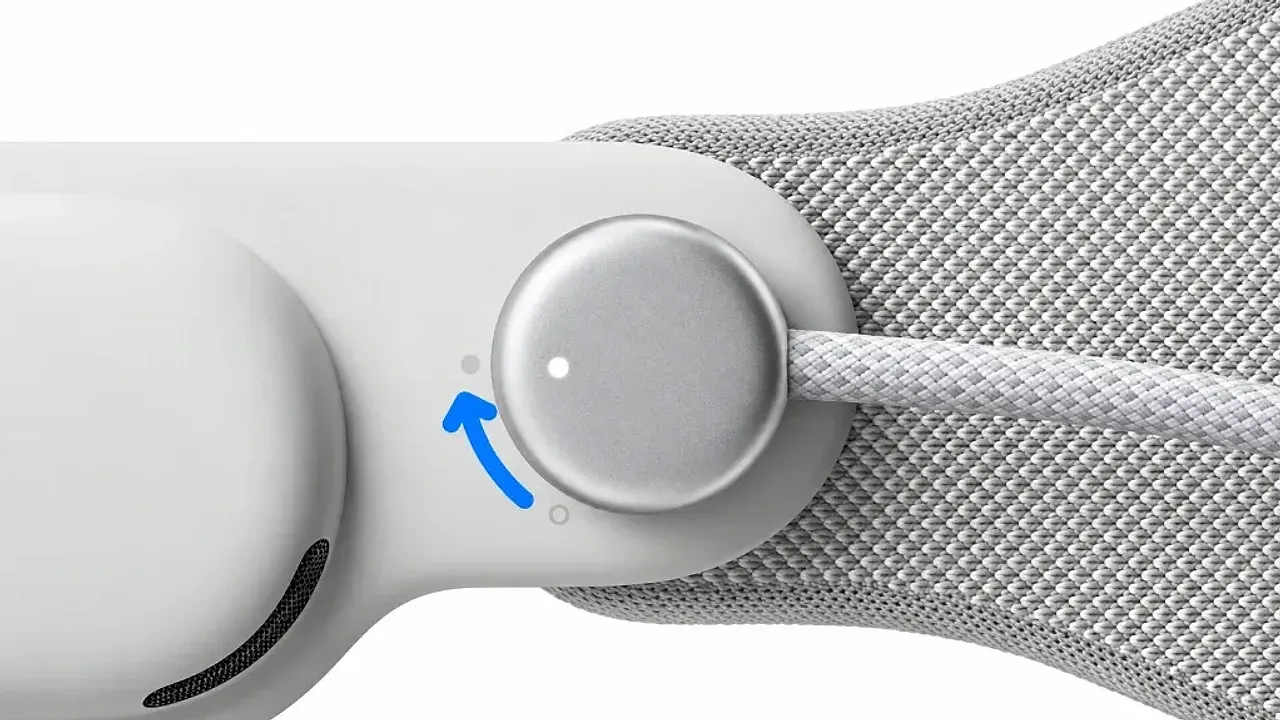
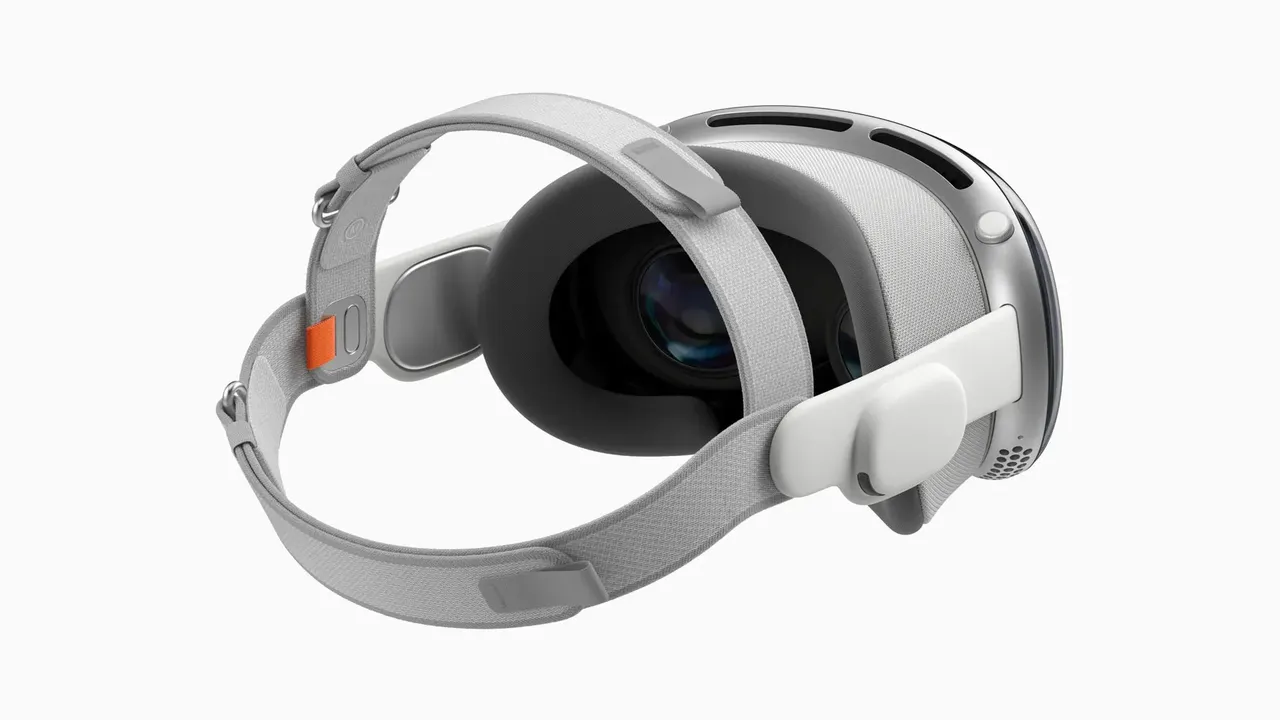
- Dual Knit Band: with the Fit Dial pushed in, turn it to tighten or loosen the lower strap. Pull the Fit Dial out and turn it to adjust the upper strap. Move the lower strap up or down on the back of your head to balance the weight between forehead and cheeks.
- Solo Knit Band: turn the Fit Dial until the band is snug, then move the band up or down to balance support.
- Dual Loop Band: tighten the lower strap, then the upper strap.
- Aim for a secure fit that does not feel too tight. If the device says you are too close to the displays, or your eyelashes touch them, switch to the thicker Light Seal Cushion marked "+" or a different Light Seal size.
Step 2: Turn it on and choose a setup method
- Connect the battery. When you hear a tone, the device is ready to wear. If there is no tone after 30 to 45 seconds, press and hold the top button for a few seconds.
- Place the band over the back of your head and slide the device down over your face. The displays turn on when your eyes are detected.
- To set up with an iPhone or iPad, bring it close and follow the Quick Start prompts. To set up manually, double-click the Digital Crown.
Step 3: Complete eye and hand setup
- Follow the on-screen prompts to show your hands and look at a series of dots. This calibrates eye tracking and hand tracking.
- Sign in with your Apple Account. Apple notes that children under 13 cannot sign in, and teens should be supervised by an adult.
- Set a passcode and Optic ID, which unlocks the device by recognizing your eyes.
Step 4: Capture your Persona
Your Persona is the digital likeness others see in FaceTime and other calls.
- Find a spot with even, front-facing light and a plain background. Avoid bright windows or lamps behind or beside you.
- Open Settings, tap Persona, then Get Started, and follow the hand refinement step.
- Tap Begin Capture, take off the device, and hold it at eye level with the front facing you.
- Follow the spoken prompts to turn your head and make expressions. The front display also shows visual cues.
- Adjust lighting, temperature and brightness, add glasses if you like, then tap Done and Save.
If holding the device is difficult, Apple offers a Hands-Free Capture option under the Accessibility button during Persona setup.
Step 5: Learn the core gestures
- Tap: look at an item and tap your thumb and index finger together to select it.
- Pinch and drag: pinch, hold and move your hand to scroll or move a window.
- Swipe: pinch and quickly flick your wrist to scroll fast.
- Zoom: pinch and hold with both hands, then pull apart to zoom in or bring them together to zoom out.
- Touch: press nearby elements directly, such as keys on the virtual keyboard.
- Home View: look at your palm and tap the Home View button, or press the Digital Crown.
- Control Center: look at your palm, flip your hand over and tap the status bar.
Step 6: Know the buttons
- Digital Crown: press to open Home View; press and hold to recenter content; turn to adjust immersion or volume; double-click to switch to a view of your surroundings.
- Top button: press to open Capture for photos and videos; press and hold to turn the device on.
- Triple-click the Digital Crown for the Accessibility Shortcut.
Next steps
Browse the visionOS App Store for spatial apps, and keep the cover glass and lenses clean with a dry microfiber cloth as described in how to clean VR lenses safely.
Questions & answers
Can I wear glasses with Apple Vision Pro?
No. Apple says eyeglasses are not compatible. Use contact lenses or ZEISS Optical Inserts, and see Apple's Digital Prism Correction option if your prescription includes prism.
Do I need an iPhone to set up Vision Pro?
No. An iPhone or iPad speeds setup with Quick Start, but you can double-click the Digital Crown to set up manually with just Wi-Fi and your Apple Account.
How do I recenter the view?
Press and hold the Digital Crown to recenter your content in front of you.
What should I do if I feel too close to the displays?
Apple recommends switching to the thicker Light Seal Cushion marked with a plus sign, or a different Light Seal size if the problem continues.
How do I redo eye and hand setup?
Quadruple-click the top button, or go through eye and hand setup again in Settings.