How to use hand tracking on Meta Quest
Turn on Hand and Body Tracking on Meta Quest, switch from controllers to hands, and use pinch, touch and palm gestures with reliable tracking.
- 入门
- 10 分钟
- 上次检查时间:2026年10月31日

你需要准备
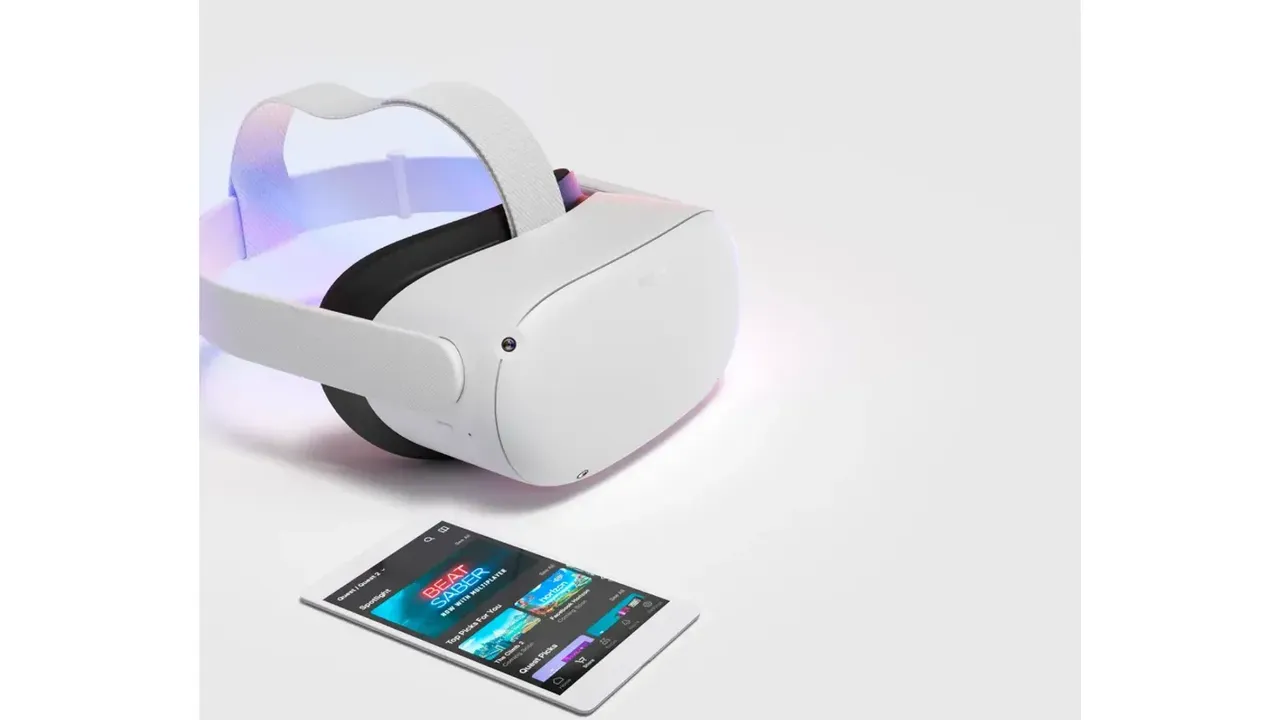
- A Meta Quest headset with up-to-date software
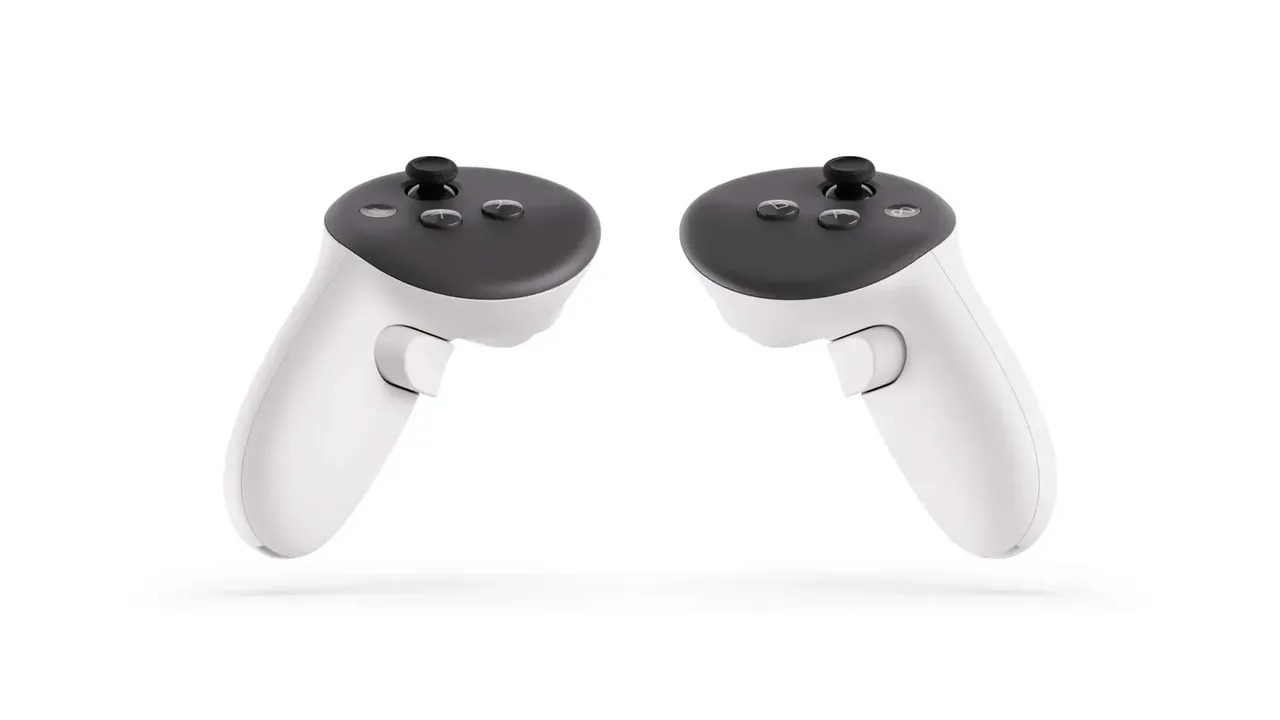
- Your controllers, to turn the setting on
- A well-lit indoor play space
- Apps that list hand tracking as an input method
Hand tracking lets you put the controllers down and use your bare hands to open apps, scroll, type and move windows on a Meta Quest. This guide shows how to turn it on, how to switch from controllers to hands, which gestures the system understands and how to get reliable tracking. The steps follow Meta's article on Hand and Body Tracking, its article on Direct Touch and its developer guidance on hand tracking limitations.
1. Turn on Hand and Body Tracking
Meta groups hands and body under one setting called Hand and Body Tracking. To turn it on:
- Press the Meta button on your right controller to open the Navigator. On older headsets this is the Oculus button.
- Select Quick controls.
- Select Settings.
- Select Tracking.
- Turn on the toggle next to Hand and Body Tracking.
The same toggle turns the feature off. Meta says that with it off you use controllers to interact, and your avatar's movements are based on the position of your headset and controllers instead.
2. Understand how it works
Hand tracking uses the cameras on the headset, the same ones behind its inside-out tracking. Meta's software analyzes camera images of your hands and body in real time to estimate their position and orientation. Nothing extra is worn on your hands, which is why lighting and hand position matter so much (see section 7). Meta's Hand and Body Privacy Notice explains what data is collected.
3. Switch from controllers to your hands
Once Hand and Body Tracking is on, you can move between controllers and hands. Meta's Direct Touch article gives a quick shortcut: double tap the sides of your controllers together to manually transition to using your hands. Then keep your hands in front of the headset where its cameras can see them.
4. Point and pinch to select, pinch and drag to scroll
These are the two gestures you will use most in menus. Meta describes them like this:
- Point and Pinch (select items, open apps): when the cursor appears, point your hand at what you want, then pinch your thumb and finger together to select.
- Pinch and Drag (scroll up, down, left or right): pinch your fingers inward and, while still pinched, move your hand in the direction you want to scroll. Release when you are done.
Meta's developer guidance recommends pinching with your palm facing the headset cameras so your fingers are clearly visible. A pinch made with the hand turned away is harder for the cameras to read.
5. Touch panels directly with Direct Touch
For things within arm's reach you can skip the cursor. Meta's Direct Touch lets you tap and scroll on panels with your hands, much like a tablet:
- Tap objects with one finger to select them.
- Scroll and swipe with one finger to move through menus, such as the apps in your library.
- Type on the virtual keyboard by touching the keys.
- Grab a panel by its edge to move it. You can also highlight the edge with your index finger, then pinch your index finger and thumb together to select the panel and move it.
- Grab a panel by its corner to resize it.
6. Use the palm pinch system gesture
The palm pinch is the hand tracking shortcut to the system menu. Look at your palm at eye level, then pinch your thumb and index finger together.
- Meta's Hand and Body Tracking article says to hold the pinch until the Meta (Oculus) icon fills, then release. This brings you back to the menu.
- Meta's Direct Touch article describes the same palm pinch opening the Quick Actions Menu. Keep your fingers pinched to move through the menu, highlight an item and unpinch to select it.
7. Get better tracking
Meta's developer guidance lists what limits hand tracking. Use it as a checklist when hands flicker or disappear:
- Keep your hands in view. Hands outside the cameras' area, such as resting by your thighs or held very close to your face, are not detected.
- Avoid covering your own hand. If large parts of a hand are hidden, by the other hand, by overlapping fingers or by fingers pointing away from the headset, the virtual hand can disappear.
- Use good indoor light. Insufficient lighting reduces accuracy. Meta also warns that direct sunlight can damage the headset's lenses, so do not play in it.
- Slow down. Rapid or erratic movements, like a fast throw, are harder to track accurately.
- Check what is on your hands. Meta says long fingernails, some nail polish, hand tattoos, rings, long sleeves and different hand sizes and shapes can all affect performance.
If the whole headset is losing tracking, not just your hands, Meta's headset tracking article also recommends bright, even lighting and cleaning the tracking cameras with a dry microfiber cloth. Controller problems are covered in our guide to fixing Meta Quest controller tracking.
8. Check which apps support hand tracking
Not every game works without controllers. Meta says you can check an app's product details page in the Meta Horizon Store. If hand tracking is supported, it is listed as one of the app's input methods. Apps that do not support it will need your controllers.
问题与答案
Where is the hand tracking setting on Meta Quest?
Open the Navigator with the Meta button, select Quick controls, then Settings and Tracking, and turn on the toggle next to Hand and Body Tracking.
How do I switch from controllers to hands quickly?
Meta says you can double tap the sides of your controllers together to manually transition to using your hands.
How do I open the menu with hand tracking?
Look at your palm at eye level and pinch your thumb and index finger together. Meta describes this palm pinch as the way back to the menu and to the Quick Actions Menu.
Why does hand tracking keep losing my hands?
Meta lists hands outside the cameras' view, hands or fingers covering each other, low light, very fast movements, and things like rings, long sleeves or long nails as factors that reduce tracking.
Do all Quest games support hand tracking?
No. Check the app's product details page in the Meta Horizon Store; if hand tracking is supported it is listed as one of the input methods.