How to set up and edit your Persona on Apple Vision Pro
Capture your Apple Vision Pro Persona, tune its lighting, tone and eyewear, recapture it later, and use it in FaceTime calls and spatial Persona sessions.
- Người mới
- 10 phút
- Đã kiểm tra vào visionOS 27 (Apple Vision Pro User Guide)
- Kiểm tra lần cuối 31 tháng 10, 2026
Bạn cần gì
- Apple Vision Pro with Optic ID set up (recommended)
- A well-lit spot with even, front-facing light and a plain background
- Contacts to call who use FaceTime; Apple Vision Pro owners for spatial Persona
Your Persona is the realistic digital version of your face and hands that other people see when you're on a FaceTime call or another video app with Apple Vision Pro. This guide shows you how to capture it, edit its look, redo it, and use it in FaceTime, including spatial Persona. The steps follow Apple's support article Set up your Persona on Apple Vision Pro and the Apple Vision Pro User Guide pages on capturing and editing your Persona, making a FaceTime call and using spatial Persona. If you haven't set up the headset yet, start with our Apple Vision Pro getting-started guide.
1. Get your room and yourself ready
- Find front-facing, even light so your face has no strong shadows. Natural light or cool-temperature lights work best. Avoid bright windows or lamps behind or beside you.
- Sit or stand in front of a simple, neutral background, away from chair backs and lamps, with nobody behind you.
- Make sure your hair doesn't cover your face.
- Set up Optic ID first. Without it, anyone who knows your passcode can use your Persona.
- To make holding the headset easier, you can remove the Dual Knit Band and put it back afterwards.
2. Start the Persona setup
You can capture your Persona during first-time setup or later:
- Open the Settings app and tap Persona.
- Tap Get Started.
- Refine your hand setup by holding your hands up as shown.
- Watch the tutorial video. If you've seen it before, tap Continue to skip it.
- Tap Begin Capture.
3. Capture your face
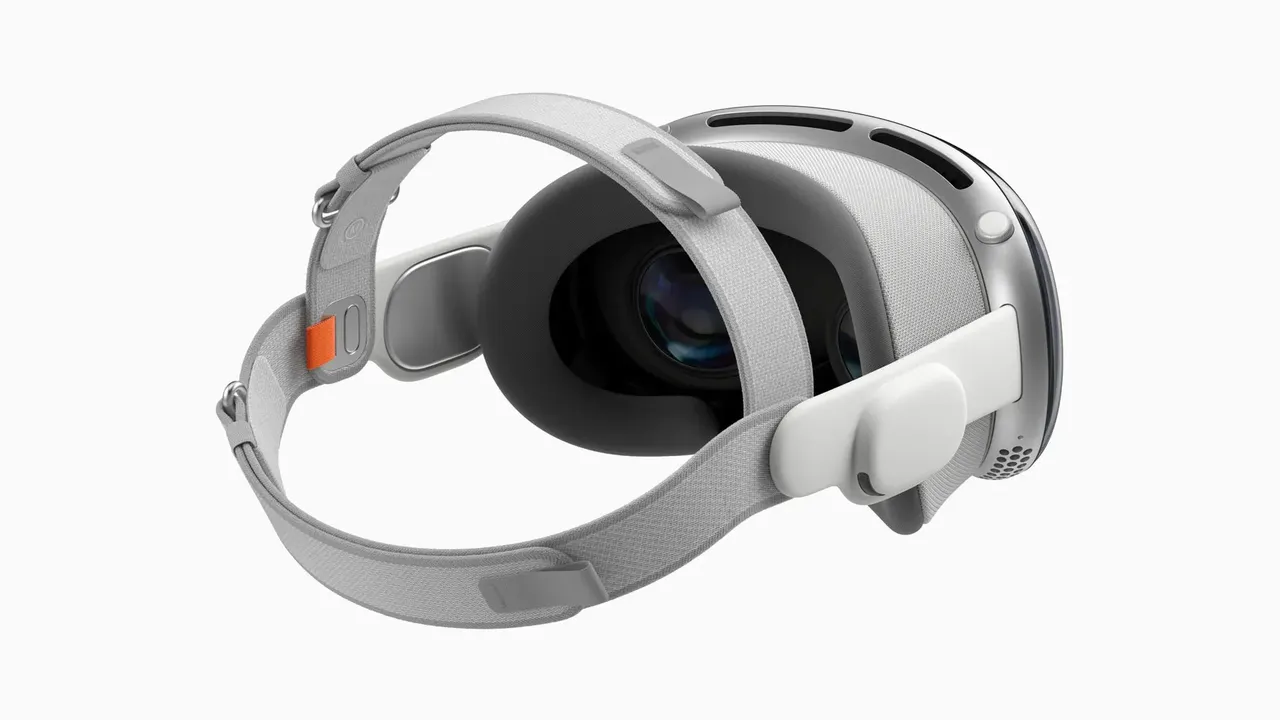
- When asked, take off Apple Vision Pro. Hold it by the frame, never by the Light Seal, Audio Straps or headband.
- Turn it around so the front faces you, held level at eye height, with your whole face in the frame. Keep your arms and shoulders relaxed.
- Follow the spoken instructions. Slowly turn your head right, left, up and down, then smile with your mouth closed, smile showing your teeth, raise your eyebrows and close your eyes for a moment.
- When you hear Capture complete, put Apple Vision Pro back on.
If you can't hear the voice, follow the cues on the front display. Arrows show which way to turn. Four rings mean smile with your mouth closed, three rings a big smile with teeth, two rings raise your eyebrows, and one ring close your eyes. If you can't make an expression, double-click the Digital Crown to skip it. Capture won't start until the headset is at eye level, and it's cancelled if you don't start within 15 minutes.
4. Capture without holding the headset
If holding the headset is hard, use Hands-Free Capture:
- Go to Settings > Persona and tap Get Started.
- After you refine your hands, tap the Accessibility button and turn on Hands-Free Capture, then tap Save.
- When asked, set Apple Vision Pro down on a steady surface at eye level, or have someone hold it, and follow the instructions.
5. Edit how your Persona looks
After you put the headset back on, a progress bar shows while your Persona is created. Then you can adjust it:
- Lighting: at the bottom of the Persona window, choose Natural, Studio, Contour or Spot. Studio lights your Persona brightly. Contour adds dramatic shadows.
- Tone: tap Tone and use the sliders to change temperature and brightness.
- Eyewear: tap Eyewear and pick a style, then adjust thickness, fit, material and color.
Tap Done, then Save. Tap Recapture instead if you want to start over. Your eyes are also captured for EyeSight, which shows them on the front of the headset to people nearby.
6. Change, recapture or delete it later
- Open Settings and tap Persona.
- Tap Edit Details, Recapture or Delete.
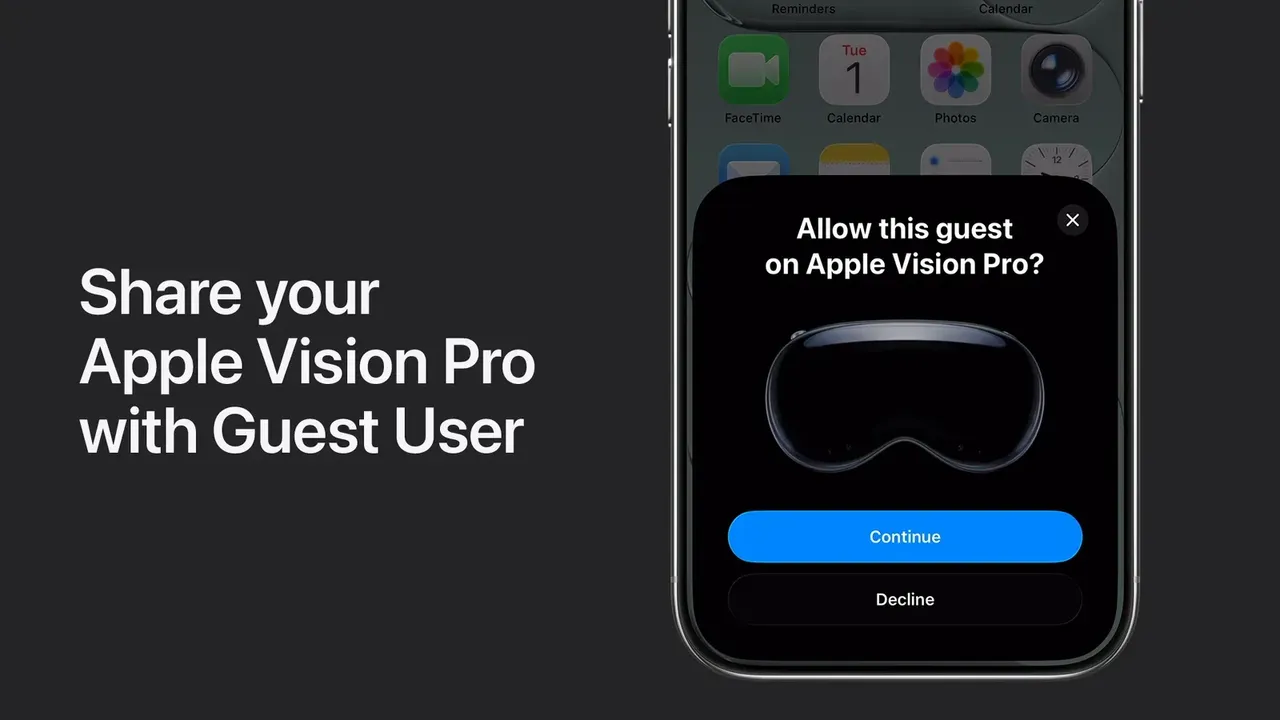
Recapture after a new hairstyle or outfit change, for example. EyeSight updates too. Tap Change Background to pick a Color, Environment or Photo background for apps other than FaceTime. You can't capture or edit your Persona in Travel Mode or during a FaceTime call, and Persona isn't available to a Guest User. Your Persona is stored encrypted on the device. If you turn off Optic ID after turning it on, your Persona is deleted.
7. Use your Persona in FaceTime
- In Home View, tap People in the tab bar, then tap New FaceTime.
- Type a name, number or email address. You can add several people.
- Tap the FaceTime button to start a video call.
Others on the call see your Persona. Other video apps can also show it through the Persona Virtual Camera.
8. Use spatial Persona with other Vision Pro owners
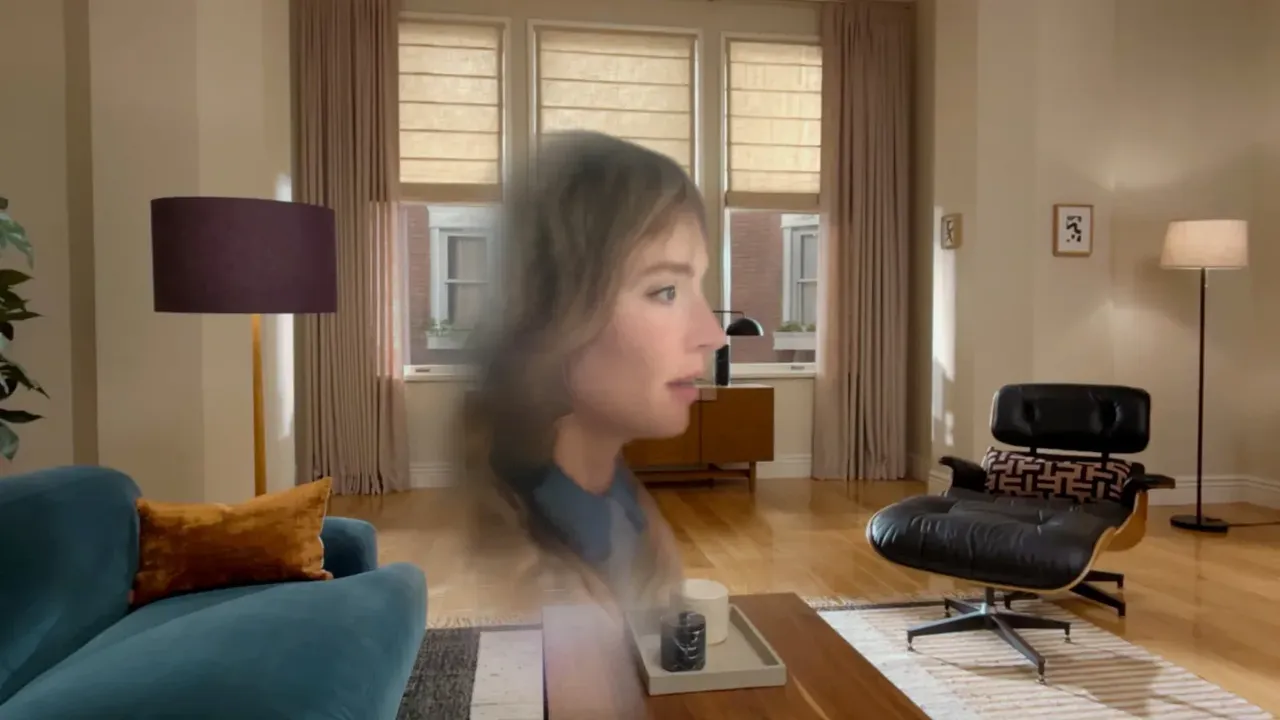
When at least one other person on the call has Apple Vision Pro, spatial Persona turns on by default. Personas appear in your room instead of in tiles, and you hear each other with Spatial Audio.
- Up to five participants can use spatial Persona.
- To move someone's Persona, look at it, then pinch and drag.
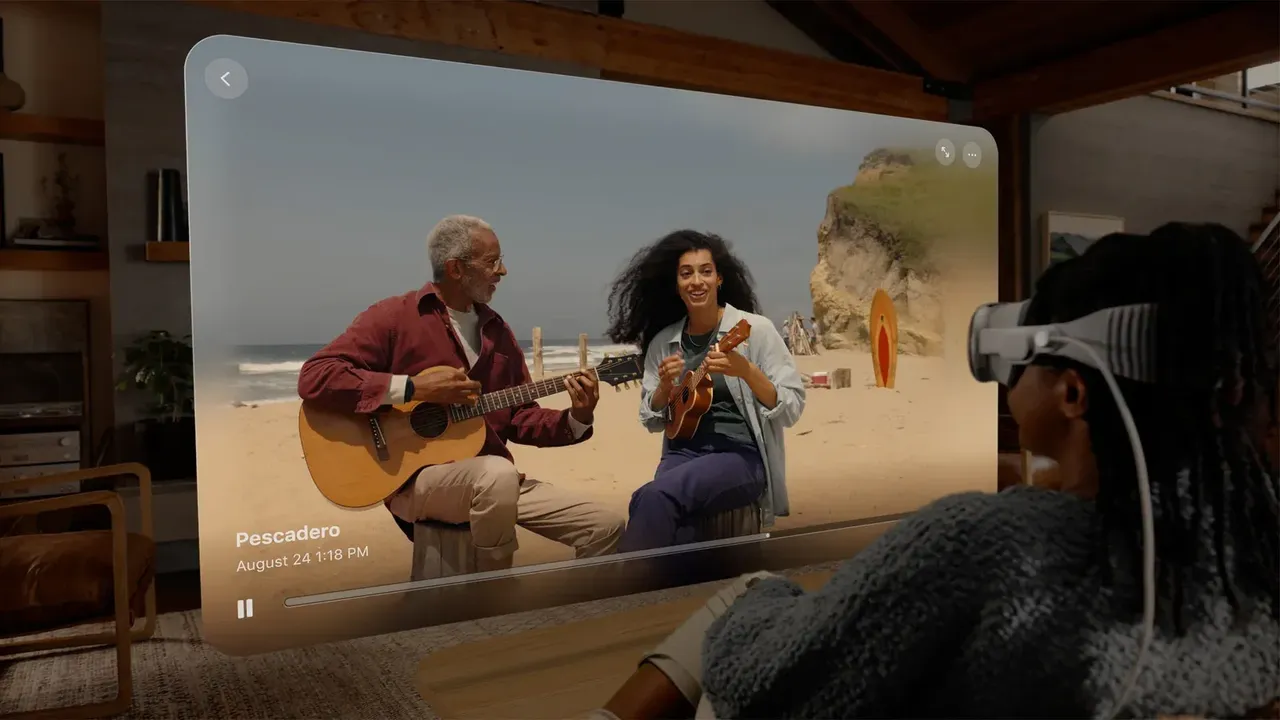
- With SharePlay, Personas appear next to you when you watch a movie together and may appear across from you when you play a game.
- Call controls move to Control Center. To return to tiles, open Control Center and tap the Spatial button. Tap it again in the call controls to turn spatial Persona back on.
Câu hỏi & trả lời
Can I redo my Persona?
Yes. Go to Settings, tap Persona, then tap Recapture. EyeSight is updated automatically when you recapture.
Can I capture a Persona without holding Apple Vision Pro?
Yes. Turn on Hands-Free Capture during setup, then place the headset on a surface at eye level or have someone else hold it.
Who can use my Persona?
Your Persona is stored encrypted and needs Optic ID or your passcode. Apple recommends setting up Optic ID, because without it anyone who knows your passcode can use your Persona.
How many people can join a spatial Persona call?
Apple says you can use spatial Persona with up to five participants. It turns on by default when at least one other person on the call has Apple Vision Pro.
Why can't I edit my Persona right now?
You can't capture or edit your Persona while Travel Mode is on or during a FaceTime call, and Persona isn't available to a Guest User.