How to use your Windows PC in mixed reality on Meta Quest
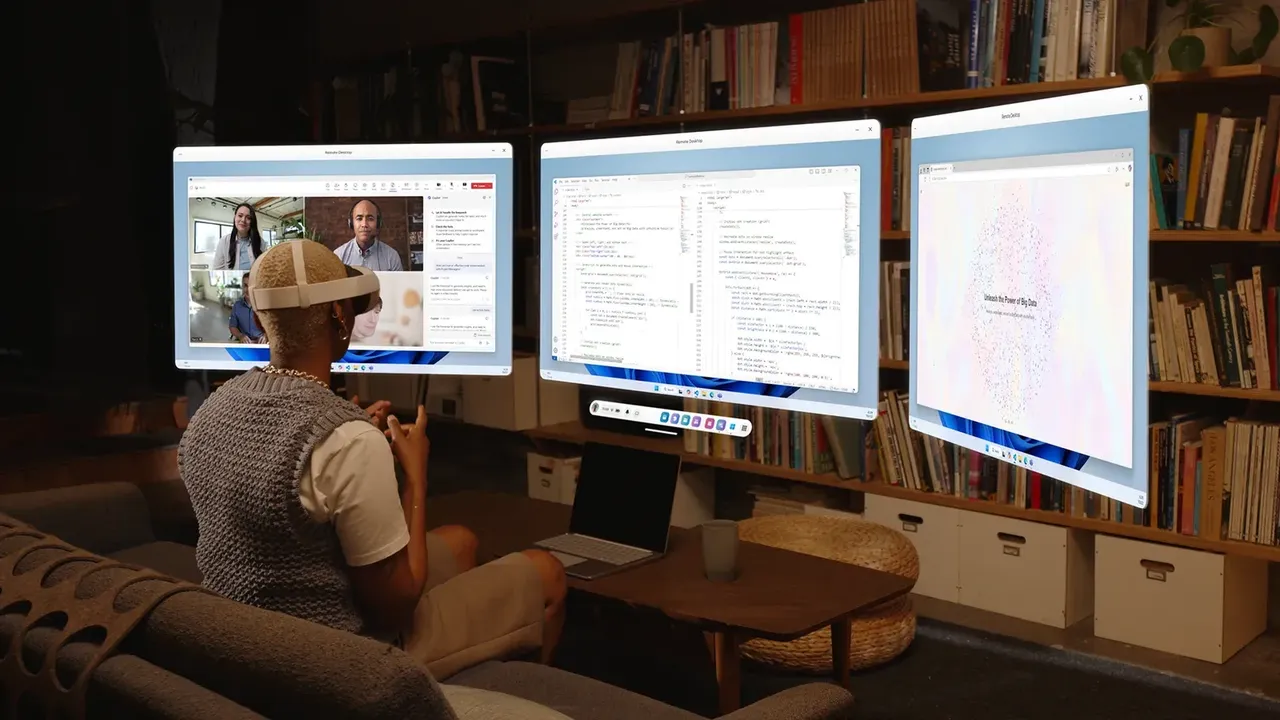
Pair a Meta Quest 3 or 3S with a Windows 11 PC using Mixed Reality Link and Virtual Display, then set up to three virtual monitors.
- 초급
- 15분
- Horizon OS v81+; Windows 11 22H2+에서 확인
- 마지막 확인 2026년 10월 31일
준비물
- Meta Quest 3 or Meta Quest 3S on Horizon OS v81 or newer
- Windows 11 PC, version 22H2 or newer, meeting Microsoft's graphics minimum
- 5 GHz or 6 GHz Wi-Fi (802.11ac or higher) shared by the PC and headset
- Mixed Reality Link from the Microsoft Store
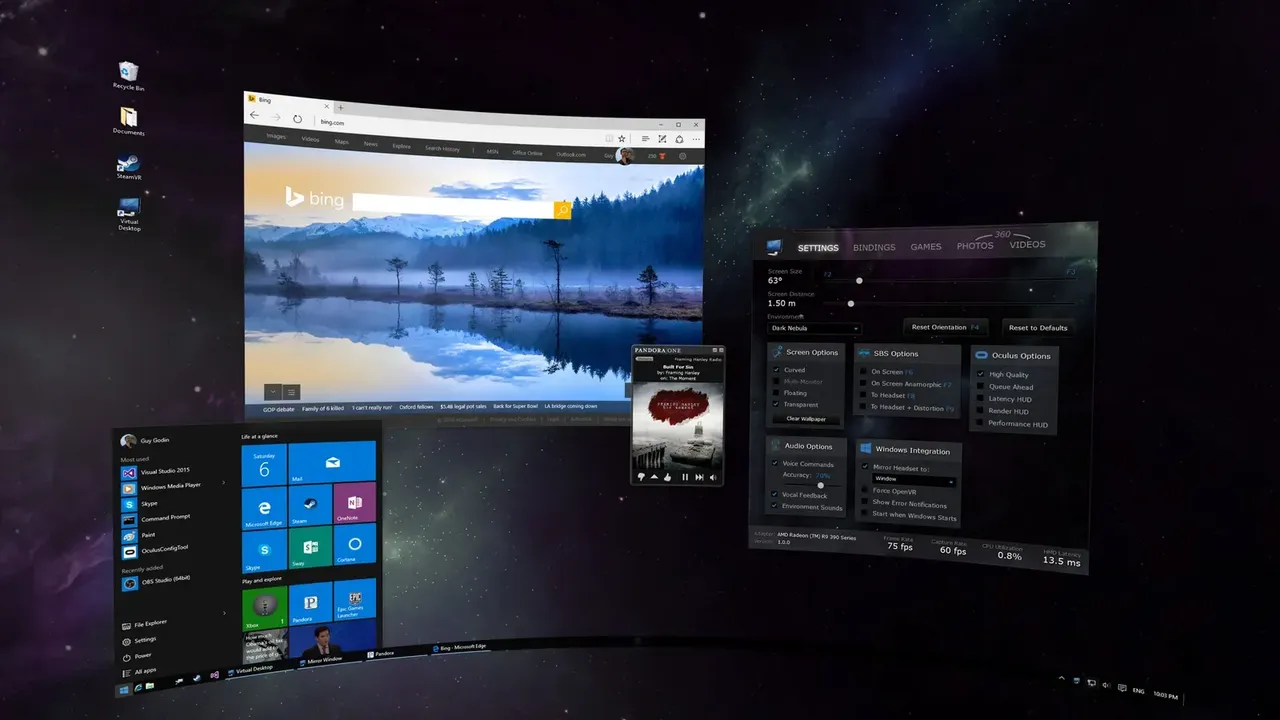
A Meta Quest 3 or 3S can show your Windows 11 desktop as large virtual monitors floating in your room. Microsoft's Mixed Reality Link app runs on the PC, and Meta's Virtual Display feature shows the screens in the headset, with passthrough so you can still see your keyboard. The steps follow Meta's article on using your computer in VR with Meta Virtual Display and Microsoft's About Windows Mixed Reality Link page. Microsoft made the feature generally available on October 30, 2025.
1. Check that your headset and PC qualify
Meta lists these requirements:
- Headset: Meta Quest 3 or Meta Quest 3S.
- Headset software: Horizon OS v81 or newer.
- PC: Windows 11 22H2 or newer.
Microsoft's minimum graphics are an Intel 8th generation Core processor with Intel UHD 620 graphics, an AMD Ryzen 3000 series APU, an AMD Radeon RX 5000 series card, an NVIDIA GeForce GTX 9xx series card, or a Snapdragon X series chip, or anything newer.
2. Prepare your network
The headset connects to your PC over your home network, so the network matters as much as the PC:
- Put the PC and the headset on the same network. If both use Wi-Fi, connect them to the same network name (SSID).
- Meta requires 5 GHz or 6 GHz Wi-Fi and 802.11ac or higher. Microsoft recommends 6 GHz.
- Microsoft asks for at least 75% Wi-Fi signal strength and recommends 90%.
- If the PC uses Ethernet, make sure the headset's Wi-Fi is on the same subnet, ideally through a gigabit router.
- Firewalls must allow ports 8264 (TCP), 8265 (TCP) and 8266 (UDP).
3. Install Mixed Reality Link on your PC
- On your Windows 11 PC, open the Microsoft Store.
- Download and install Mixed Reality Link. Meta links to it at aka.ms/mrlink.
Meta notes that Microsoft plans to include this experience by default on new Windows PCs.
4. Pair your Quest with the PC
- Make sure your PC is nearby, turned on and unlocked.
- Put on your Quest headset.
- A pairing prompt should appear above your keyboard. Select Pair to continue.
- If no prompt appears, open Virtual Display and select Add computer. You can also open Quick Settings, select Virtual Display, then Add a new device.
- Select Windows 11 and follow the on-screen instructions.
During pairing you will be asked to install the Windows App on the headset. It is required: it handles the connection and streaming from Windows to Virtual Display. You don't need to open it yourself. Its Nearby Device permissions are turned on automatically so it can stay paired with your PC.
5. Reconnect next time
Once paired, getting back in is quick. Unlock your PC, look at the keyboard while wearing the headset, and press Connect. You can also reconnect from Quick Settings or from Virtual Display.
6. Add more virtual monitors
You can run up to three virtual displays:
- In the headset, hover over the Virtual Display panel.
- Open Setting from the dropdown menu at the top center of the panel.
- Select Add display.
- Move and resize each display to suit your desk.
7. Change the shape, size and resolution
To change a display's shape, open Setting from the dropdown at the top center of the panel, select Monitor Formats and choose Portrait (3:4), Compact (16:9), Wide (21:9) or Ultrawide (32x9).
To resize, hover over a corner of the display, grab the handle that appears and drag. Meta offers three resolution settings: Larger Text (720p), Default (1080p) and More Space (1440p). Meta picked the default for the best text quality and warns that other settings may look worse.
8. Fix pairing and image problems
- Can't pair or reconnect: check that both devices are on the same network and the PC is unlocked.
- Pixelated or distorted image: Meta and Microsoft both point to the network. Check the Wi-Fi band and signal strength from step 2.
- NVIDIA RTX 50 series: Microsoft lists a known display update error with some drivers. Update to driver 616.86 or later.
- Still stuck: send feedback to Microsoft through Feedback Hub, or report the bug to Meta.
Mixed Reality Link shows your Windows desktop on virtual monitors. To play PC VR games instead, see how to play PC VR games on Meta Quest. For tips on laying out a virtual desk and other apps, read how to work in VR.
질문과 답변
Does Mixed Reality Link work with Meta Quest 2 or Quest Pro?
Meta and Microsoft list only Meta Quest 3 and Meta Quest 3S as supported headsets.
How many virtual monitors can I use?
Up to three. Each can be resized and set to Portrait, Compact, Wide or Ultrawide format.
Why do I need the Windows App on my Quest?
Meta says the Windows App from Microsoft powers Virtual Display when you connect to a Windows 11 PC. It must be installed, but you don't need to open it yourself.
Why is my virtual display pixelated?
Meta and Microsoft both point to the network. Use 5 GHz or 6 GHz Wi-Fi, keep the signal strength at 75% or higher and make sure both devices are on the same network.
What Windows version do I need?
Windows 11 version 22H2 or newer, with Mixed Reality Link installed from the Microsoft Store.