How to set up mixed reality and your space on Meta Quest 3
Set up mixed reality on Meta Quest 3: light your room, use passthrough, scan your space with Space Setup, set a boundary and fix drifting objects.
- 초급
- 15분
- Meta Horizon OS 2.9에서 확인
- 마지막 확인 2026년 10월 31일
준비물
- A Meta Quest 3 (some steps also apply to Quest 3S and Quest Pro)
- A well-lit room, at least 2 m by 2 m clear for roomscale play
- Up-to-date headset software
- A mixed reality app from the Meta Horizon Store
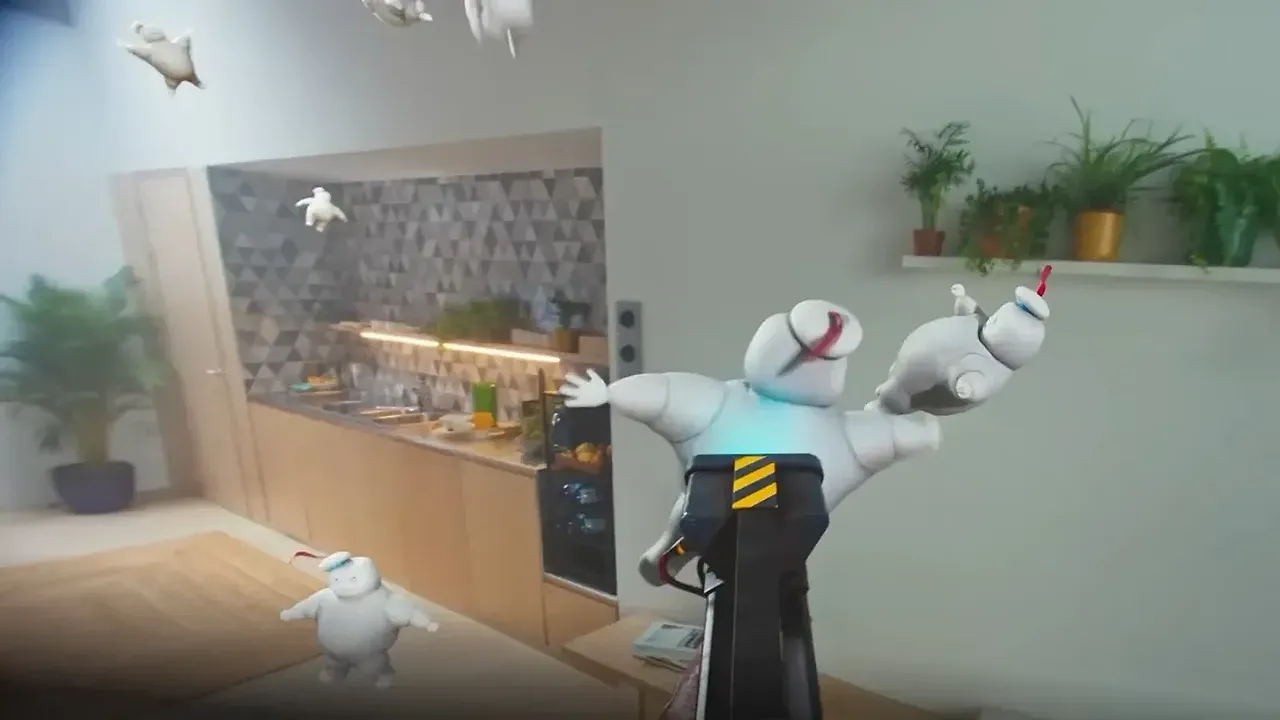
Meta Quest 3 can show your real room in color and place virtual objects on your walls, tables and floor. To do that well it needs good light, a scan of your space and a boundary. This guide walks through turning on passthrough, running Space Setup, handling the boundary in mixed reality and fixing objects that drift. The steps follow Meta's article on using Passthrough, its guide to suggested boundary and assisted Space Setup and its boundary setup article.
1. Know what Quest 3 does in mixed reality
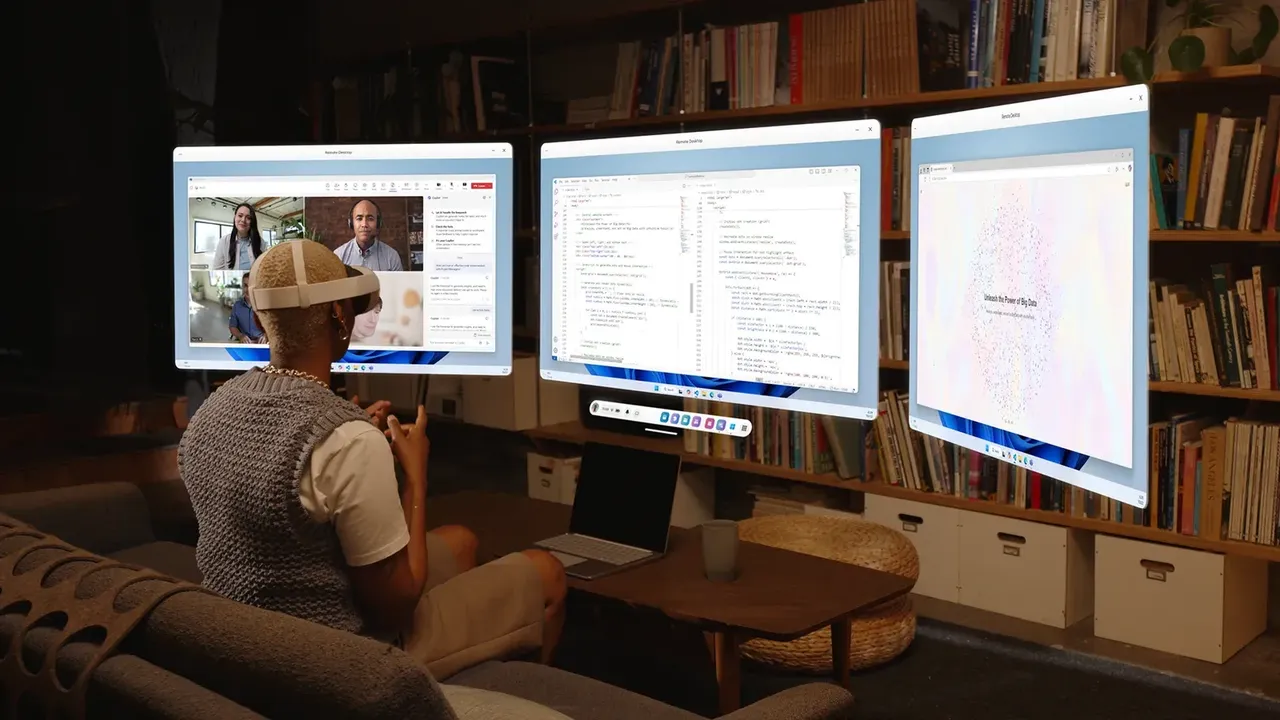
Meta lists three building blocks: full-color passthrough, suggested boundary with assisted Space Setup, and Direct Touch, which lets you tap, scroll and grab panels with your hands. Color passthrough is available on Meta Quest 3, Quest 3S and Quest Pro.
2. Light your room properly
Meta recommends a light level of at least 50 lux for full-color passthrough, roughly a soft evening light in a family room. Its quick test: if you can comfortably read a book in the room, you likely have enough light. Avoid direct sunlight, and keep mirrors, glass and polished surfaces to a minimum. Meta says these can cause virtual objects to drift.
3. Turn passthrough on and off
- Press the Meta button on your right controller to open the Navigator.
- Select Quick settings from the System bar.
- Select Passthrough.
For a faster switch on Quest 3, turn on Double Tap for Passthrough in your Passthrough settings. Then tap either side of the headset twice to toggle it. On Quest 3S, the action button on the bottom right of the headset does the same job. In the Passthrough home, you can also pin windowed apps in your real room. Open the app, place it and choose Pin on its control bar.
4. Scan your room with Space Setup
Spaces let apps understand your room, so virtual content can collide with or hide behind real furniture. With assisted Space Setup, the headset runs a quick 3D scan and builds a simple model of your walls, tables and other furniture.
- It runs automatically the first time you launch an app that uses Spaces.
- You can also start it yourself from Settings > Environment setup > Space setup.
Meta's release notes say Space Setup now labels windows, doors, tables, couches, storage, screens and beds automatically. It can also scan several rooms in one continuous session and handle multi-height floors, slanted ceilings and inner walls. You can save up to 15 spaces. If you rearrange furniture, reopen Space Setup and continue scanning to update the existing room instead of starting again.
5. Set your boundary for mixed reality
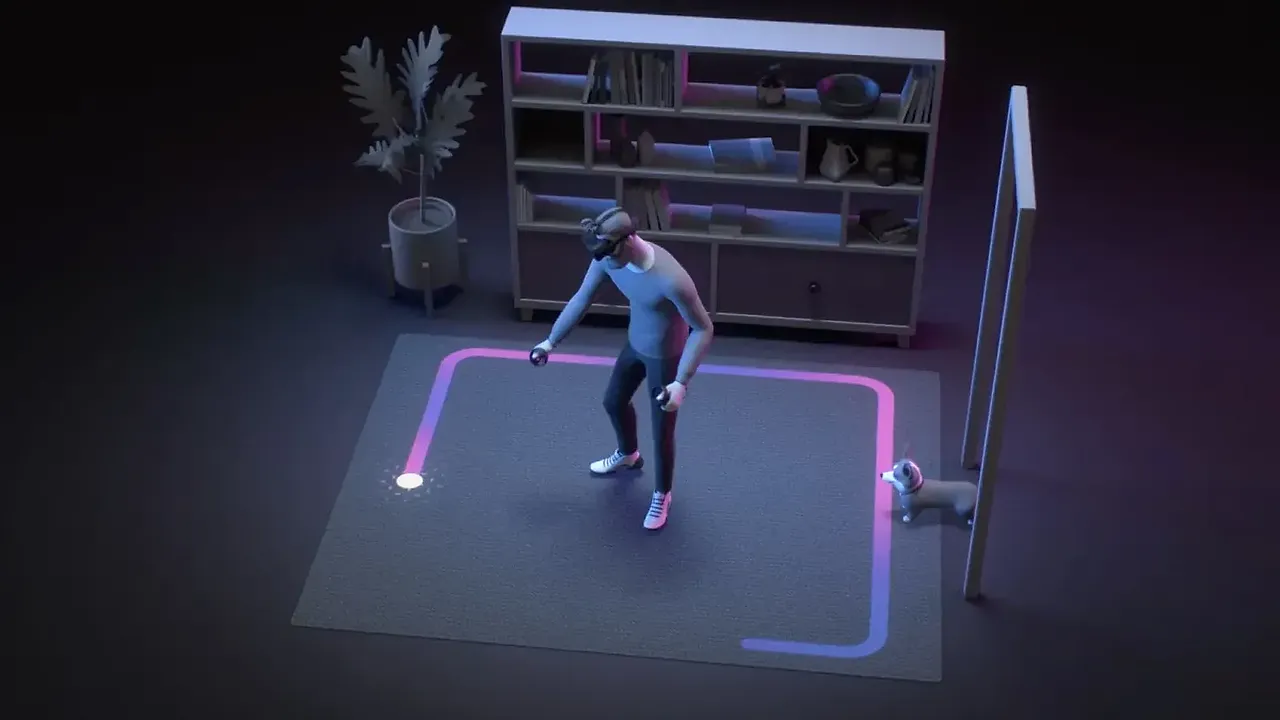
When you launch an app and no boundary exists, Quest 3 suggests one based on the free space around you. You can edit it before accepting, draw your own, or use a stationary boundary. Meta's two modes are:
- Stationary: a 1 m by 1 m (3 ft by 3 ft) area for sitting or standing in place.
- Roomscale: for moving around. Meta recommends a clear area of at least 2 m by 2 m (6.5 ft by 6.5 ft).
Some mixed reality apps do not show the boundary warning when you walk past it, and a notification tells you so when the app launches. Turning passthrough on does not change your boundary preference for VR home or VR apps. If setup or scanning is interrupted, the headset now goes back to your previous boundary or falls back to Stationary. For full boundary steps, see our guide to setting up your play area and boundary.
6. Find and launch mixed reality apps
Search the Meta Horizon Store for apps with the Mixed Reality tag. Meta describes First Encounters as an easy way to discover what mixed reality can do on Quest 3. When an app asks for access to your spatial data, select Allow.
7. Share the room with another headset
Colocation lets two or more people with their own headsets share one experience in the same room. Every headset needs Enhanced spatial services turned on. Find it in Settings > Privacy and safety > Device permissions. Usually one player runs Space Setup to scan the room, then everyone launches the app. How you invite each other varies by app.
8. Record or cast your mixed reality view
Quest 3, 3S and Pro can record or cast your real room with virtual objects in it. Tell the people around you first and ask before including them. While you record, cast or livestream with passthrough on Quest 3 or 3S, a blinking white light shows bystanders that the cameras are active. For the capture steps, see our guide to taking screenshots and recording video.
9. Fix drifting objects or a forgotten room
If placed objects drift or look unstable, Meta says clearing your physical space history usually fixes it:
- Open the Navigator and select Quick controls > Settings.
- Select Privacy and safety > Device permissions.
- Next to Clear physical space history, select Clear.
This removes boundaries, spaces and spatial anchors. You will need to set up your space and boundary again and re-place objects in mixed reality apps. If drift continues, use a smaller play area, keep the room well lit and clean the headset's tracking cameras. A headset can also forget a room after big changes to furniture, decor or lighting, such as day versus night. When redrawing, stand near the center of the play area and look all around the room.
질문과 답변
Do I have to scan my room for every mixed reality app?
No. Assisted Space Setup runs automatically when you launch an app that uses Spaces, and Meta says you are asked to set up your space the first time you open such an app. You can update or rescan it from Settings > Environment setup > Space setup.
How many rooms can Quest 3 remember?
Meta added support for saving up to 15 spaces in Space Setup, so you can scan and name more than one room.
How much light does Quest 3 passthrough need?
Meta recommends at least 50 lux, roughly soft evening light in a family room. If you can comfortably read a book, you likely have enough light.
Why do virtual objects drift in my room?
Meta says clearing your physical space history usually fixes drifting anchors. If it continues, use a smaller play area, improve the lighting without direct sunlight, reduce reflective surfaces and clean the tracking cameras.
Does turning on passthrough change my boundary?
No. Meta says toggling passthrough does not change your boundary preference for VR home or VR apps.