How to use PS VR2 on a PC with the official adapter
Connect a PlayStation VR2 to a Windows PC with Sony's PS VR2 PC adapter: what you need, how to wire it, pair the Sense controllers, set the play area and which features do not work on PC.
- 중급
- 30분
준비물
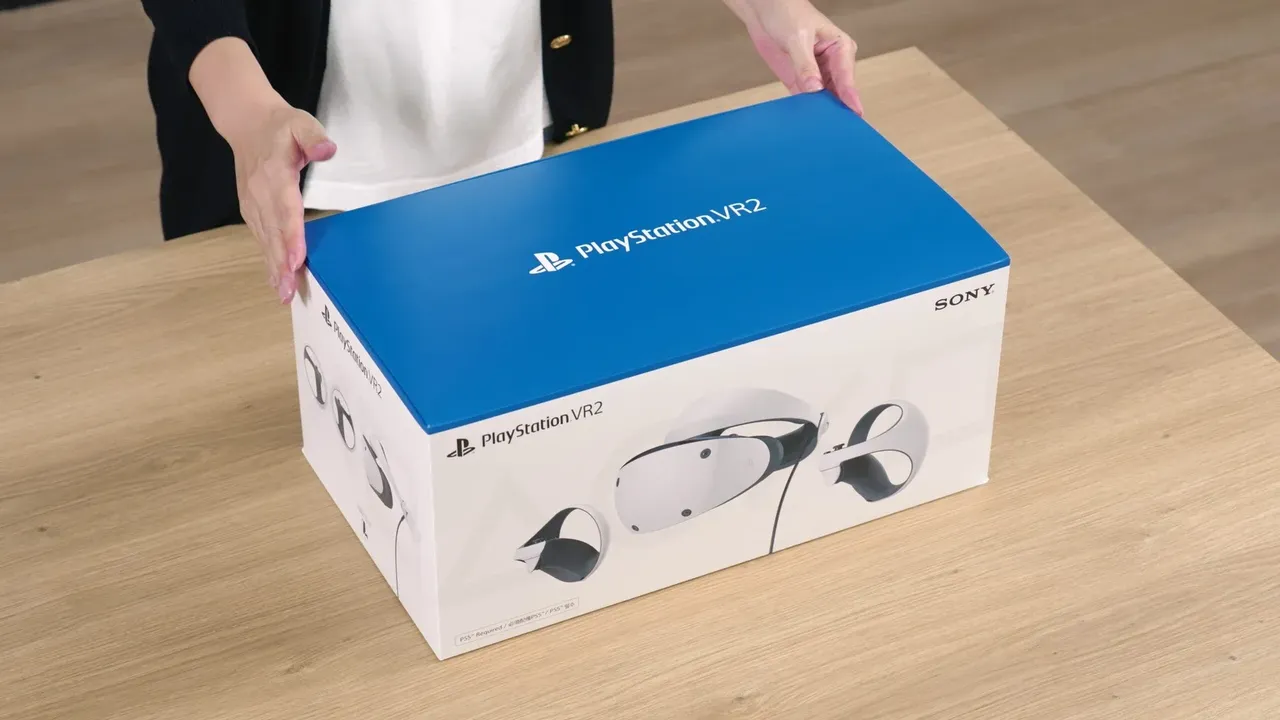
- PlayStation VR2 headset and Sense controllers
- PlayStation VR2 PC adapter
- DisplayPort 1.4 cable
- Windows 10 or 11 (64-bit) PC meeting Sony's minimum specs
- Free USB 3.0 Type-A port and DisplayPort 1.4 output on the graphics card
- Bluetooth 4.0 or later
- Steam, SteamVR and the PlayStation VR2 App
Sony's official PlayStation VR2 PC adapter lets the PlayStation VR2 play SteamVR games on a Windows PC. It launched in August 2024 at $59.99 in the US. This guide follows Sony's PS VR2 on PC instructions and its announcement on the PlayStation Blog.
What you need
- The PlayStation VR2 PC adapter (sold separately; it comes with an AC adapter).
- A DisplayPort 1.4 cable (sold separately). Sony notes that DisplayPort over USB-C is not compatible with the adapter.
- A PC with Windows 10 or 11 (64-bit), at least an Intel Core i5-7600 or AMD Ryzen 3 3100, 8 GB of RAM, a free USB 3.0 Type-A port and a DisplayPort 1.4 output.
- A supported graphics card: at minimum an NVIDIA GeForce GTX 1650 or AMD Radeon RX 5500 XT class card. Sony recommends an NVIDIA RTX 3060 or AMD RX 6600 XT or better.
- Bluetooth 4.0 or later for the Sense controllers. If your PC lacks it, check Sony's list of compatible Bluetooth adapters.
- A Steam account, with Steam, SteamVR and the free PlayStation VR2 App installed.
Step 1: Connect the adapter
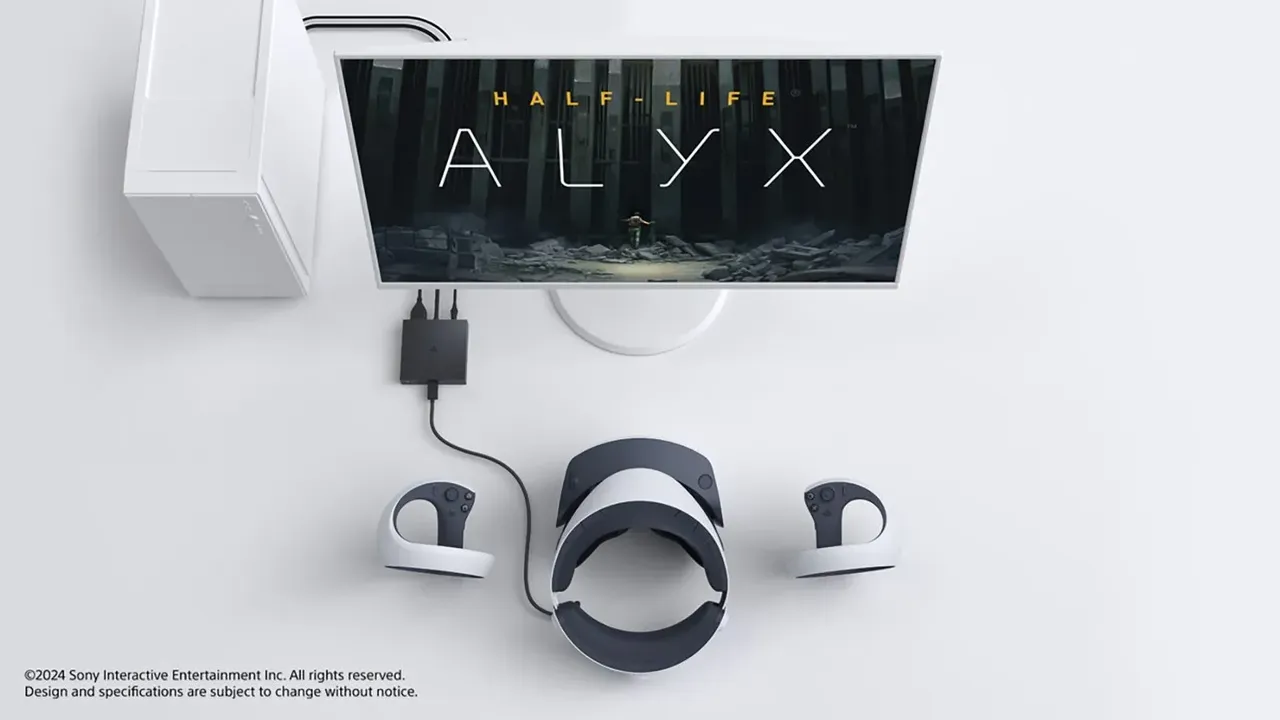
- Plug the adapter's USB cable into a USB 3.0 Type-A port on the PC. Connect it directly, not through a hub or extension cable.
- Connect the adapter to your graphics card's DisplayPort output with the DisplayPort 1.4 cable.
- Connect the AC adapter to the adapter's DC IN port, then plug the power cord into the wall last. The adapter's light turns solid red when it has power.
Step 2: Connect the headset
- Plug the PS VR2 headset cable into the adapter's USB-C port.
- Press the power button on the headset. The lights on the adapter and headset turn solid white.
Step 3: Install and open the software
- Install Steam, then install SteamVR and the PlayStation VR2 App from the Steam store.
- Open the PlayStation VR2 App and follow the on-screen setup.
Step 4: Pair the Sense controllers
- Unplug any USB cables from the controllers and make sure both are charged.
- Turn on Bluetooth on your PC.
- On the left controller, hold the PS button and the Create button until the light blinks. On the right controller, hold the PS button and the Options button.
- In Windows Bluetooth settings, add a device and select the controller. Pair the controllers one at a time. If a light stops blinking before pairing, repeat the button press.
Step 5: Fit the headset and set the play area
- Connect your headphones, clear the space around you and turn on the lights. Close curtains to block direct sunlight.
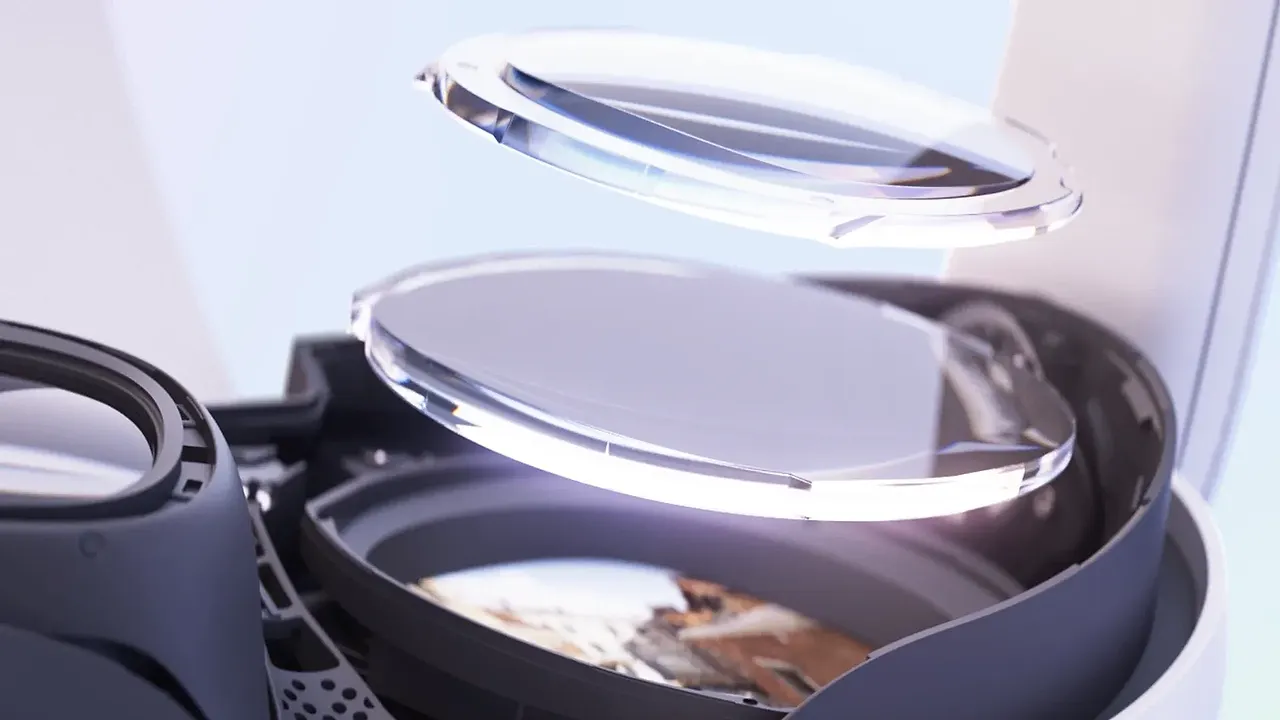
- Put on the headset, adjust the headband and scope, and turn the lens adjustment dial until your eyes are centered in the lenses. Press the function button when done.
- Look around to scan the room and set your play area. You can also adjust the floor height.
- To change the play area later, press the PS button to open the SteamVR dashboard, select the PS VR2 icon and choose Go to Play Area Setup for PS VR2.
Step 6: Update the firmware
- Open the PlayStation VR2 App.
- Select Update under any device that needs it and wait until it shows "Up to date."
- Restart SteamVR.
What does not work on PC
Sony lists these PS5 features as unsupported on PC: eye tracking, HDR, headset feedback (vibration in the headset), adaptive triggers and the Sense controllers' detailed haptic feedback, which falls back to basic rumble. Finger touch detection, see-through view and 3D audio in supported games do work. PS5 games cannot be played on PC; you play SteamVR games instead.
질문과 답변
Can I use a USB-C to DisplayPort connection?
No. Sony states that DisplayPort over USB-C is not compatible with the PS VR2 PC adapter. You need a real DisplayPort 1.4 output, standard or Mini DisplayPort.
Does eye tracking work on PC?
Not officially. Sony lists eye tracking, HDR, headset feedback, adaptive triggers and detailed controller haptics as unsupported on PC.
Can I play my PS5 VR games on PC?
No. The adapter lets you play SteamVR games on PC. PS5 games still require a PS5.
Do I need a USB hub or extension?
Sony says to connect the adapter directly to a USB 3.0 Type-A port on the PC, without a hub or extension cable.
My controllers will not pair. What should I do?
Charge them and unplug any USB cables, then hold PS + Create (left) or PS + Options (right) until the light blinks and pair them one at a time in Windows Bluetooth settings. Some Bluetooth adapters are not compatible, so check Sony's list.