How to set up PlayStation VR2 on PS5
How to connect PS VR2 to a PS5 and finish first-time setup: fit, lens adjustment, eye tracking, play area, controller charging, see-through view and cinematic mode.
- 초급
- 30분
- 마지막 확인 2026년 10월 28일
준비물
- PlayStation 5 console with the latest system software
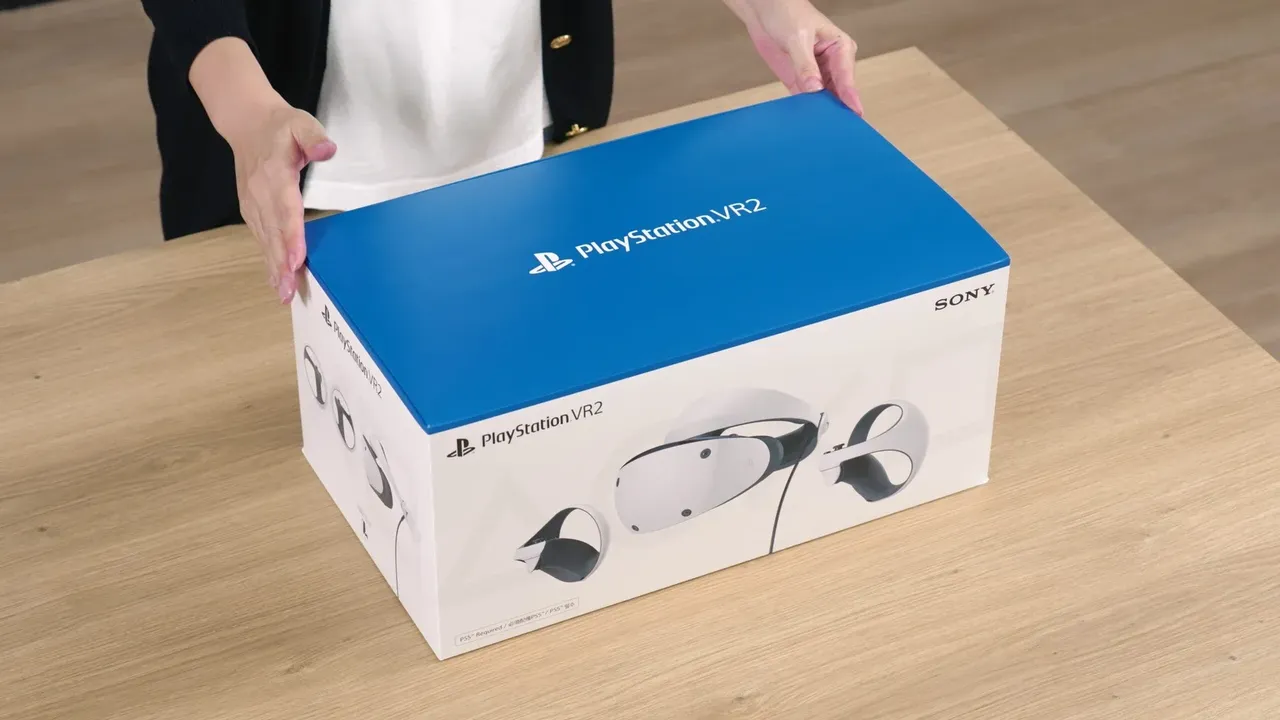
- PS VR2 headset and Sense controllers
- DualSense controller to navigate setup
- Clear, well-lit play space without direct sunlight
- Included USB cable for pairing and charging the controllers
PlayStation VR2 connects to a PlayStation 5 with a single cable, and the console walks you through the rest of setup on screen. This guide follows Sony's PS VR2 setup guide, its instructions for putting on and adjusting the headset, the PS VR2 product page and the cinematic mode guide.
What's in the box
- The VR headset
- PS VR2 Sense controllers (left and right) with attached straps
- A USB cable for pairing and charging the controllers
- Stereo headphones and three pairs of earpieces
- Printed materials
The PS5 is sold separately. PS VR2 works only with a PS5 and does not play PS4 or original PS VR content. Sony also sells an optional charging station that charges both Sense controllers without connecting them to the console.
Before you start
- Update your PS5 to the latest system software.
- Clear the area around you of furniture and other obstacles.
- Turn on the room lights and close curtains to block direct sunlight, which helps the headset cameras track.
- Keep your DualSense controller handy. You use it to move through the setup screens.
Step 1: Connect the headset
- Plug the headset's USB Type-C cable into the USB-C port on the front of the PS5.
- Turn on the PS5.
- Press the power button on the headset. Check that the cable between the scope (the front visor) and the headband is firmly seated.
- Follow the prompts on the TV. The first one asks you to plug headphones into the headset.
Step 2: Pair the Sense controllers
- When prompted, connect one Sense controller to the PS5 with the included USB cable, then repeat with the other.
- Once both are paired and charged, unplug the cable. Sony notes the cable should be removed while you play.
- Press the function button on the headset to continue.
Step 3: Put on the headset and adjust the lenses
- Press the scope adjustment button and pull the scope all the way out.
- Press the headband release button on the back of the headset, pull the band back and slide the headset over your head.
- Turn the headband adjustment dial clockwise to tighten the band and lock it in place.
- Press the scope adjustment button again and bring the scope closer to your face.
- Turn the lens adjustment dial to change the distance between the lenses. The setup screen helps you center your eyes in the lenses; when the image is clear, press the function button. This setting matches the headset to your IPD.
You can keep your glasses on. To repeat this step later, go to Settings > Accessories > PlayStation VR2 > VR Headset > Adjust Lens Distance and VR Headset Position.
Step 4: Calibrate eye tracking
Pick up the controllers and tighten the wrist straps. The headset then calibrates eye tracking: keep your head still and follow the dot on screen with your eyes. Supported games use eye tracking for foveated rendering and for gaze-based controls.
To turn it on or off, go to Settings > Accessories > PlayStation VR2 > Eye Tracking. If tracking seems off, choose Adjust Eye Tracking there to recalibrate.
Step 5: Set your play area
Look around the room so the headset cameras can scan it, then adjust the floor height if it looks wrong. The last screens cover power-saving options. Some games need more room than others: Horizon Call of the Mountain asks for at least 2 m × 2 m for roomscale play.
To change the play area later, go to Settings > Accessories > PlayStation VR2 > Play Area. There you can choose Set Play Area, Set Floor Height or Boundary Display Sensitivity. If games behave oddly after you reset the area, use Clear Play Area Data and then set the play area again.
Charging the Sense controllers
Charge each controller by connecting it to the PS5 with the included USB cable. The controller's status indicator slowly blinks white while it charges. To keep charging while the console is in rest mode, go to Settings > System > Power Saving > Features Available in Rest Mode and set Supply Power to USB Ports to Always or 3 Hours, as described in Sony's charging guide. The optional charging station lets you charge both without using the console's USB ports.
See-through view
Press the function button on the headset to switch to see-through view, which uses the headset cameras to show your surroundings without taking the headset off. It is a form of passthrough. You can also turn it on from the PS VR2 Quick Settings card: press the PS button to open the control center and select the card.
If you would rather use the function button to mute the microphone, change it under Settings > Accessories > PlayStation VR2 > VR Headset > Function Button Assignment.
Cinematic mode
Cinematic mode shows regular PS5 games and media apps on a large virtual screen inside the headset. With the headset on, start a non-PS VR2 game or app. The TV image is turned off while you use it.
- Change the Screen Size from the PS VR2 Quick Settings card or under Settings > Accessories > PlayStation VR2 > Cinematic Mode.
- Video Output for Cinematic Mode in the same menu lets you choose 120 Hz or HDR output.
- Press and hold the Options button on a Sense controller to move the screen back in front of you.
Your first games
Horizon Call of the Mountain is designed for PS VR2 and needs the Sense controllers. Gran Turismo 7 added a PS VR2 mode in a free update; it is played with a DualSense or a supported racing wheel rather than the Sense controllers.
Quick tips
- Set the headset to switch itself off when unused under Settings > System > Power Saving > Set Time Until Your PlayStation VR2 Turns Off.
- Set Boundary Display Sensitivity to High if you want the boundary to appear earlier as you near the edge of your space.
- Use the Quick Settings card to change screen brightness, headset vibration and other options without leaving a game.
- Start with short sessions and look for comfort settings in each game if you feel unwell. See motion sickness in VR for more.
Want to use the headset with a computer instead? See How to use PS VR2 on a PC with the official adapter.
질문과 답변
Which PS5 port does PS VR2 use?
The USB-C port on the front of the PS5. The headset connects with its single USB Type-C cable.
Can I wear glasses with PS VR2?
Yes. Sony says you can keep your glasses on while wearing the headset.
Does PS VR2 work with PS4 or original PS VR games?
No. PS VR2 requires a PS5 and is not compatible with PS4 or original PS VR content.
How do I see my room without taking the headset off?
Press the function button on the headset to switch to see-through view, or turn it on from the PS VR2 Quick Settings card in the control center.
Can I play regular PS5 games in the headset?
Yes. Cinematic mode shows non-VR games and media apps on a virtual screen inside the headset.