How to fix Meta Quest controller tracking problems
Step-by-step fixes for Meta Quest controllers that drift, jitter or lose tracking: batteries, lighting, camera cleaning, restarts, re-pairing and updates.
- 초급
- 15분
- 마지막 확인 2026년 10월 28일
준비물
- Meta Quest headset and its controllers
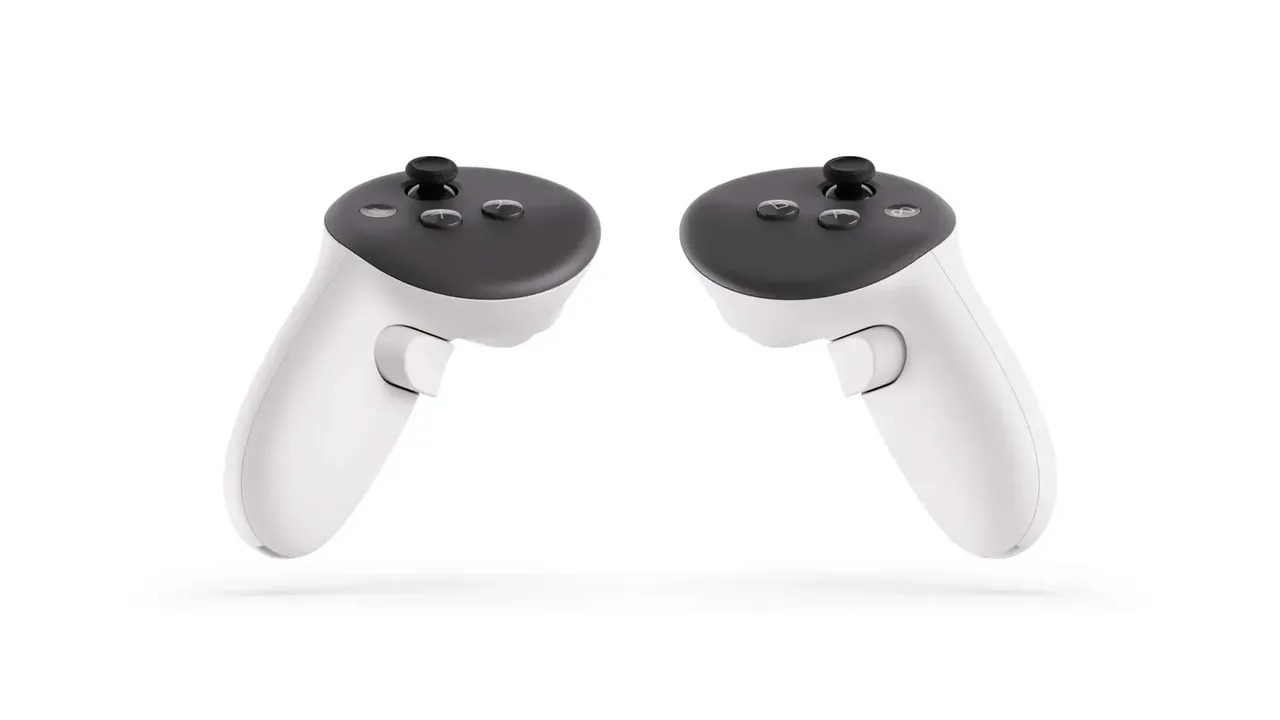
- Fresh AA batteries (Touch Plus) or charged Touch Pro controllers
- Dry optical lens microfiber cloth
- Phone with the Meta Horizon app, Bluetooth on, on the same Wi-Fi as the headset
Meta Quest headsets use inside-out tracking: cameras on the headset follow the controllers in your hands. When controllers drift, jitter or freeze in place, the cause is usually the room, the batteries or a pairing glitch, and most fixes take a few minutes. These steps follow Meta's controller tracking article, its guide to pairing controllers and its Touch Plus controller guide. Work through them in order and test after each one.
1. Remove covers and stickers
Third-party sleeves, covers and stickers on the controllers can cause pairing and tracking problems. Take them off and test again. Meta suggests using first-party accessories if you want a cover.
2. Check the batteries
- On Touch Plus controllers (Quest 3 and Quest 3S), one red dot on the controller's status lights in the headset means the battery is low. If the controller's light does not come on at all, the battery is dead.
- To replace it, press the battery cover release button near the thumbstick, remove the cover and the old AA battery, and insert a new one with the positive end pointing down toward the bottom of the controller.
- Touch Pro controllers, which come with Quest Pro, have built-in rechargeable batteries. Charge them fully before testing.
3. Fix the lighting and the room
The headset needs to see the controllers clearly. Meta recommends:
- Enough light to see clearly, but no direct sunlight. If the room is dim, turn on more lights.
- No small lights such as string lights or LED strips in the play space.
- No reflective surfaces such as mirrors, glass or polished marble in the play space. Cover them or play facing away from them.
- A clear line of sight between the headset's cameras and the controllers. Touch Plus controllers are tracked while you hold them in view of the headset's cameras.
Meta also says not to leave the headset near a window or anywhere direct sunlight can hit the lenses. If you changed rooms or moved furniture, it can help to set up your play area and boundary again.
4. Clean the tracking cameras
Meta lists cleaning the headset's tracking cameras as one of its tracking fixes.
- Use a dry optical lens microfiber cloth.
- Gently wipe each camera on the outside of the headset.
- Do not use water, alcohol or chemical cleaners.
The front camera plates on Quest 3 are glass, so avoid anything that could scratch them. For the inside lenses, see how to clean VR lenses safely.
5. Reset the controllers and restart the headset
- If your controllers have removable batteries, take the battery out for at least 30 seconds, then put it back.
- Press and hold the headset's power button until the Power off screen appears, then select Restart.
- If the headset is frozen, hold the power button for at least 30 seconds, wait another 30 seconds, then press the power button once if it does not turn back on by itself.
6. Install software updates
- Press the Meta button on the right controller to open the Navigator.
- Select Quick controls, then Settings.
- Select General, then Software update, and download any update shown.
7. Unpair and re-pair the controllers
You need the Meta Horizon app on your phone, with Bluetooth on and the phone on the same Wi-Fi network as the headset. Turn on the headset first.
- In the Meta Horizon app, tap the menu icon, tap Devices and select your headset.
- Tap Headset settings, then Controllers.
- Tap the controller with the problem, then tap Unpair controller.
- Back on the Controllers screen, tap Pair new controller and choose the controller.
- Put the controller in pairing mode: on the right controller, hold the Meta button and the B button; on the left, hold the Menu button and the Y button. Hold until the light blinks and then stays lit.
8. Rule out hand tracking
Quest headsets can also follow your bare hands with hand tracking. If the headset seems to switch between your hands and the controllers, turn hand tracking off for a test: open Settings, select Movement tracking and switch off Hand and body tracking. You can turn it back on the same way.
9. Factory reset or contact support
Meta lists a factory reset as a last resort. It erases everything on the headset, so only try it once the other steps have failed. If tracking is still poor after that, contact Meta Store Support.
질문과 답변
Why do my Quest controllers lose tracking near a window?
Direct sunlight can interfere. Meta recommends enough light to see clearly but no direct sunlight in the play area, and says not to leave the headset where sunlight can hit the lenses.
Can mirrors affect controller tracking?
Yes. Meta lists mirrors, glass and polished marble as reflective surfaces to keep out of the play space, along with string lights and LED strips.
How do I know if a Touch Plus controller battery is low?
The controller's status lights in the headset show one red dot when the battery is low. If the controller's light does not come on at all, the battery is dead.
Do controller covers cause tracking problems?
They can. Meta says third-party sleeves, covers and stickers may cause pairing or tracking issues and suggests removing them to test.
When should I contact Meta support?
After you have removed accessories, fixed the lighting, cleaned the cameras, restarted, updated and re-paired the controllers, and a factory reset has not helped.