Getting started in VRChat: account, avatars and safety settings
How to install VRChat from official stores, set up an account, change your avatar, pick comfort options and use Shield levels, Safe Mode, blocking and reporting.
- 초급
- 20분
- 마지막 확인 2026년 10월 28일
준비물
- A VR headset supported by VRChat, or a Windows PC for desktop mode, or an iOS or Android phone
- Internet connection
- A VRChat account or a Steam, Meta, Google, VIVE or PICO account
- Age 13 or older, with parent or guardian consent if under 18
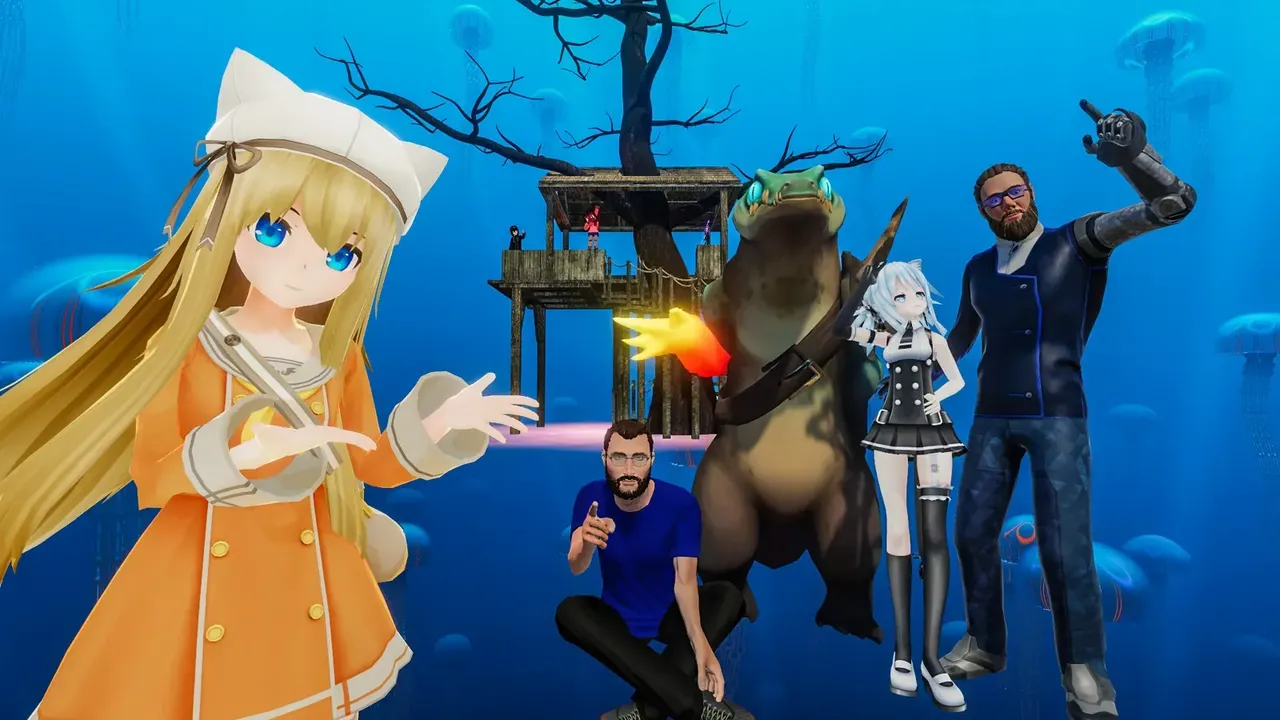
VRChat is a free social platform where you meet people as avatars in worlds built by other players. Because it is an open space full of strangers, the settings you choose in your first hour matter. This guide follows VRChat's welcome page, its Safety and Trust System documentation, the help article on blocking and reporting users and the Terms of Service.
Check the age rules first
- VRChat's Terms of Service say you must be at least 13 to use the platform. Children under 13 may not create an account.
- Users aged 13 to 17 may only use VRChat with a parent's or guardian's consent, and the parent must read the Terms before agreeing.
- VRChat advises younger users not to share personal details such as their real name, home address or school.
- Age verification is optional. Adults who verify can join Verified 18+ instances. In June 2026 VRChat announced a move to "Age Assurance" and a content filter for sexually suggestive material, starting in the UK.
Where to get VRChat
Install VRChat only from the official stores VRChat lists on its website:
- PC: Steam or Viveport. On SteamVR it works with PC VR headsets, and you can also play without a headset in desktop mode.
- Standalone headsets: the Meta Horizon Store for Meta Quest and the PICO Store for PICO headsets.
- Phones: the iOS App Store and Google Play.
The app itself is free. On a Windows PC without a headset, launch VRChat from Steam and choose Launch in Desktop (Non-VR) mode.
Create your account
You can sign in two ways:
- A VRChat account, made on VRChat's website. Fill in the form, then open the verification link VRChat emails you. This account works on every supported platform.
- A platform account, using Steam, Meta, Google, VIVE or PICO, for instant access.
A full VRChat account is needed to gain Trust Ranks and to upload your own avatars or worlds. If you start with a platform account, you can upgrade later:
- Open Settings in VRChat.
- Select Link Account.
- Choose whether to upgrade to a new VRChat account or link to an existing one, and follow the prompts.
VRChat notes that linking into an existing VRChat account is not available if you have made purchases through its Creator Economy or Shop.
Choose and change your avatar
- Open the menu and go to Avatars.
- Browse a category such as Public, Favorites or Recently Used.
- Select an avatar and confirm with Change into Avatar.
Many worlds also have avatar pedestals: select one to switch into the avatar it shows. VRChat suggests starting with its featured public avatars, which are optimized for performance and work across platforms. Not every avatar is available on standalone headsets and phones, because content has to be made for those devices. Avatars made by creators can also be bought on VRChat's Avatar Marketplace.
Moving around and comfort
- You can play seated or standing. On a PC without a headset you use a mouse and keyboard or a gamepad.
- Comfort Turning turns your view in steps (snap turning) instead of a smooth spin. Leave it on if smooth turning makes you queasy.
- Tunneling adds a vignette around your view while you move, with Light and Strong settings.
- On Meta Quest you can also use hand tracking instead of controllers.
Many worlds use smooth movement with the thumbstick. If you are new to VR, keep sessions short at first. Our guide to reducing motion sickness in VR and the comfort settings glossary entry explain more.
Understand the Safety and Trust system
VRChat gives every user a Trust Rank. Everyone starts as a Visitor and moves up to ranks such as New User and Known User by spending time in VRChat, visiting worlds and making friends. Ranks appear on nameplates while your Quick Menu is open.
The Safety settings use those ranks to decide what you see and hear from other people. VRChat moved them in 2025 so they now sit alongside the regular Settings. There are four Shield levels:
- Maximum: hides the most features from other users.
- Normal: the level VRChat says most users can stay on. Friends show all avatar features.
- None: shows almost everything.
- Custom: lets you choose, rank by rank, whether to show voice, avatars, user icons and emoji, avatar audio, lights and particles, shaders and custom animations.
Use Safe Mode when you need it fast
Safe Mode instantly turns off avatars, voices and other features for everyone around you.
- In VR: pull both triggers and press both system menu buttons at the same time.
- On desktop: press Shift+Esc.
Safe Mode switches your Safety setting to Custom with everything off. To leave it, set Safety back to the level you used before. If you had your own Custom settings, you need to set them again by hand.
Block, mute, hide and report
Block someone
- Open the Quick Menu and select the person, or pick them from the list in the Here tab.
- Choose Block User in the User Actions section.
For someone outside your instance, open their profile, choose Moderate User, then Block User. Blocked users stay in the instance but become invisible to you, and they cannot see or interact with you directly. To undo it, open the Social menu, go to the Blocked tab, select the person and choose Unblock.
Mute or hide
- In a user's User Actions you can turn off their voice or their chatbox. This only changes what you receive.
- Muting does not stop sounds played through their avatar. Hide Avatar replaces their avatar with a plain gray one if it is the avatar that bothers you.
Report someone
You do not have to block a person to report them. Report from the Quick Menu while they are in your instance, or from their profile with Moderate User, then Report User. Since January 26, 2026, VRChat asks players to use in-app reporting; its Help Desk form remains for appeals and reports that include screenshots or video. VRChat does not always reply to reports or share what action it took.
Turn on Personal Space
In the Comfort & Safety settings, turn on Personal Space. Other users then disappear when they come too close to you, though you can still hear them.
A safer first evening
- Start on the Normal Shield level and learn where Safe Mode, Block and Report are before you join a busy public world.
- Try instances run by groups, which their communities moderate.
- Keep personal details out of your display name and conversations.
Alternatives
If VRChat is not for you, Resonite and ChilloutVR are two other social platforms for PC VR.
질문과 답변
How old do you have to be to use VRChat?
VRChat's Terms of Service require users to be at least 13. Users aged 13 to 17 need a parent's or guardian's consent.
Do I need a VR headset to play VRChat?
No. You can play in desktop mode on a Windows PC, and VRChat is also available on iOS and Android phones.
What is the difference between a platform account and a VRChat account?
A platform account uses your Steam, Meta, Google, VIVE or PICO login for quick access. A full VRChat account is needed to gain Trust Ranks and upload content, and you can upgrade from Settings with Link Account.
How do I quickly hide everyone around me?
Use Safe Mode. In VR, pull both triggers and press both system menu buttons; on desktop, press Shift+Esc.
Do I have to block someone to report them?
No. You can report from the Quick Menu or from the user's profile via Moderate User, then Report User, without blocking them.