How to connect Bluetooth headphones and controllers to Meta Quest
Pair Bluetooth headphones, gamepads and keyboards with Meta Quest, cut audio lag, use LE Audio and turn Touch controllers into a gamepad.
- Débutant
- 10 min
- Vérifié le Meta Horizon OS 2.7 or later (Gamepad mode)
- Dernière vérification : 31 octobre 2026
Ce dont vous avez besoin
- A Meta Quest headset with its controllers
- A Bluetooth accessory you can put into pairing mode
- Meta Horizon OS version 2.7 or later on Quest 3 or 3S for Gamepad mode
This guide shows you how to pair Bluetooth headphones, gamepads and other accessories with a Meta Quest headset. It also covers the audio delay you may notice with ordinary Bluetooth earbuds, and how to use your Touch controllers as a gamepad when you don't have one. The steps follow Meta's help articles on connecting a Bluetooth device, setting up a game controller and using headphones, plus the Meta Quest release notes.
1. Check what you can connect
Meta lists these types of Bluetooth accessories for Quest headsets:
- Gamepads
- Keyboards
- Fitness accessories
- Bluetooth headphones
For gamepads, Meta says you can use Bluetooth 3.0 Class 2 game controllers, such as Xbox Wireless Controllers. Not every app supports every accessory, so check the app's store page if you plan to use a gamepad or keyboard in a specific game.
If you haven't set up your headset yet, start with our Quest 3/3S setup guide.
2. Pair Bluetooth headphones or another accessory
- Press the Meta button (or Oculus button on older controllers) on your right controller to open the Navigator.
- Select Quick controls.
- Select Bluetooth to open Bluetooth settings.
- Select the toggle next to Bluetooth to turn it on.
- Put your Bluetooth device in pairing mode. When it appears in the list of devices, select Connect.
You can also let the headset find accessories for you. Turn on Get nearby device notifications in Bluetooth settings. When supported headphones, keyboards, mice or gamepads are in pairing mode near your headset, you get a notification. Select it to pair.
3. Pair a gamepad
Gamepads have their own entry in the device settings:
- Press the Meta or Oculus button on your right controller to open the Navigator.
- Select Quick controls.
- Select Settings, then select Devices.
- Select Gamepad, then select Bluetooth settings next to Manage Bluetooth settings.
- Turn your gamepad on and put it into pairing mode.
- Select Pair when your gamepad appears in the available devices list, then select Pair again to confirm.
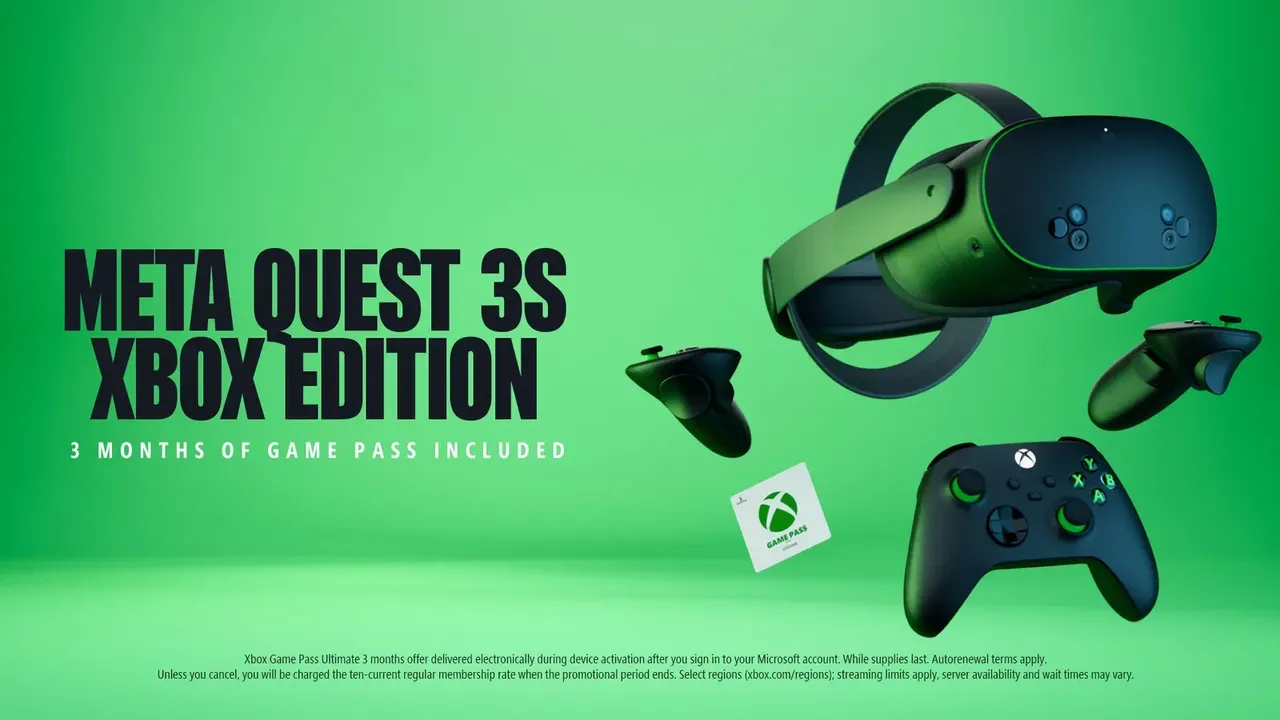
Your gamepad then appears under Paired devices. If you bought the Meta Quest 3S Xbox Edition, the included Xbox Wireless Controller is already paired to that headset. Use the same steps to re-pair it or pair it to a different headset.
4. Expect some delay with regular Bluetooth audio
Meta warns that a Bluetooth audio device may give you delayed audio, unless it is a product made specifically for Meta Quest. Meta names the Anker Wireless VR Earbuds as an example. According to Meta's store page, these earbuds use a 2.4GHz connection through an included dongle, and they work with Quest 3S, Quest 3 and Quest 2.
If lag matters to you, for example in rhythm games, wired headphones are another option on Meta Quest 3:
- Plug 3.5mm headphones into the audio port on the left side of the headset.
- Plug USB-C headphones into the charging port on the left side, just behind the audio port.
Keep these limits in mind on Quest 3:
- If you plug in two sets of headphones, only the ones in the 3.5mm port work.
- USB-C headphones don't work while the Elite Strap with Battery is plugged in.
- Headset microphones are not currently compatible through the 3.5mm jack.
Meta has tested USB-C earbuds from Pixel, Samsung and OnePlus, and USB-C to 3.5mm adapters from Google, Samsung and Apple. Other models may work, but Meta doesn't guarantee them.
5. Turn on LE Audio mode if your earbuds support it
Some newer headphones support Bluetooth Low Energy (LE) Audio. Meta says this can improve battery life on both the accessory and the headset.
- Connect the headphones using the steps in section 2.
- In Bluetooth settings, select the arrow next to your connected device to see more details.
- If the headset detects a compatible LE Audio device, turn on the toggle for LE Audio mode.
When you turn LE Audio on, you may hear a few seconds of silence before audio comes back. When you enter an immersive game, audio may drop briefly while the connection switches to a low latency mode. The headphones should reconnect within a couple of seconds.
If only one earbud connects or plays audio, turn Low Energy Audio off and back on for that accessory.
6. No gamepad? Use Gamepad mode on Quest 3 or 3S
Since Meta Horizon OS version 2.7, Quest 3 and Quest 3S can make the Touch controllers act like an Xbox gamepad. Meta says this works with the Xbox app and Steam Link.
- Open Settings, then go to Devices > Controllers and turn the feature on.
- To switch into Gamepad Mode, press the Meta and Menu buttons at the same time.
- To leave Gamepad Mode, press the Meta button.
Meta describes Gamepad mode as a short-term way to try games and recommends a physical gamepad for longer sessions.
7. Fix a gamepad that the Xbox app doesn't detect
If your gamepad is paired but the Xbox app ignores its buttons, check the gaze cursor setting:
- Open Settings and go to Devices > Gamepad.
- Make sure the toggle next to Use the gaze cursor is turned off.
If your Touch controllers themselves are acting up, see our guide to fixing Meta Quest controller tracking problems.
Questions et réponses
Why is the sound from my Bluetooth earbuds delayed on Quest?
Meta warns that Bluetooth audio devices may cause delayed audio unless they are made specifically for Meta Quest, such as the Anker Wireless VR Earbuds. On Quest 3 you can also use wired 3.5mm or USB-C headphones.
Which game controllers work with Meta Quest?
Meta says you can pair Bluetooth 3.0 Class 2 game controllers, such as Xbox Wireless Controllers. For Xbox Cloud Gaming, Meta has also tested the Xbox Elite Series 2, Xbox Adaptive Controller, DualShock 4, Switch Pro Controller and Backbone Pro.
Can I use my Quest controllers as a gamepad?
Yes, on Quest 3 and 3S with Meta Horizon OS 2.7 or later. Turn it on in Settings > Devices > Controllers, then press the Meta and Menu buttons together to enter Gamepad Mode. Meta says it works with the Xbox app and Steam Link.
Can I use USB-C headphones with the Elite Strap with Battery?
No. Meta says USB-C headphones won't work on Quest 3 while the Elite Strap with Battery is plugged in. Use 3.5mm or Bluetooth headphones instead.
Only one of my earbuds plays audio. What should I do?
If you use LE Audio mode, Meta suggests turning Low Energy Audio off and back on for that accessory in Bluetooth settings.