How to use Mac Virtual Display on Apple Vision Pro
Connect a Mac to Apple Vision Pro, choose Standard, Wide or Ultrawide sizes, share your keyboard and trackpad with visionOS, and route Mac audio to the headset.
- Débutant
- 10 min
- Vérifié le visionOS 27 user guide; Wide/Ultrawide and audio need visionOS 2.2+ and macOS Sequoia 15.2+
- Dernière vérification : 31 octobre 2026
Ce dont vous avez besoin
- Apple Vision Pro (visionOS 2.2 or later for Wide, Ultrawide and Mac audio)
- A Mac with macOS 14 Sonoma or later; Apple silicon and macOS Sequoia 15.2 or later for Wide, Ultrawide and audio
- Both devices on the same Apple Account with two-factor authentication and iCloud Keychain on
- Wi-Fi and Bluetooth on, with both devices within 10 meters (30 feet)
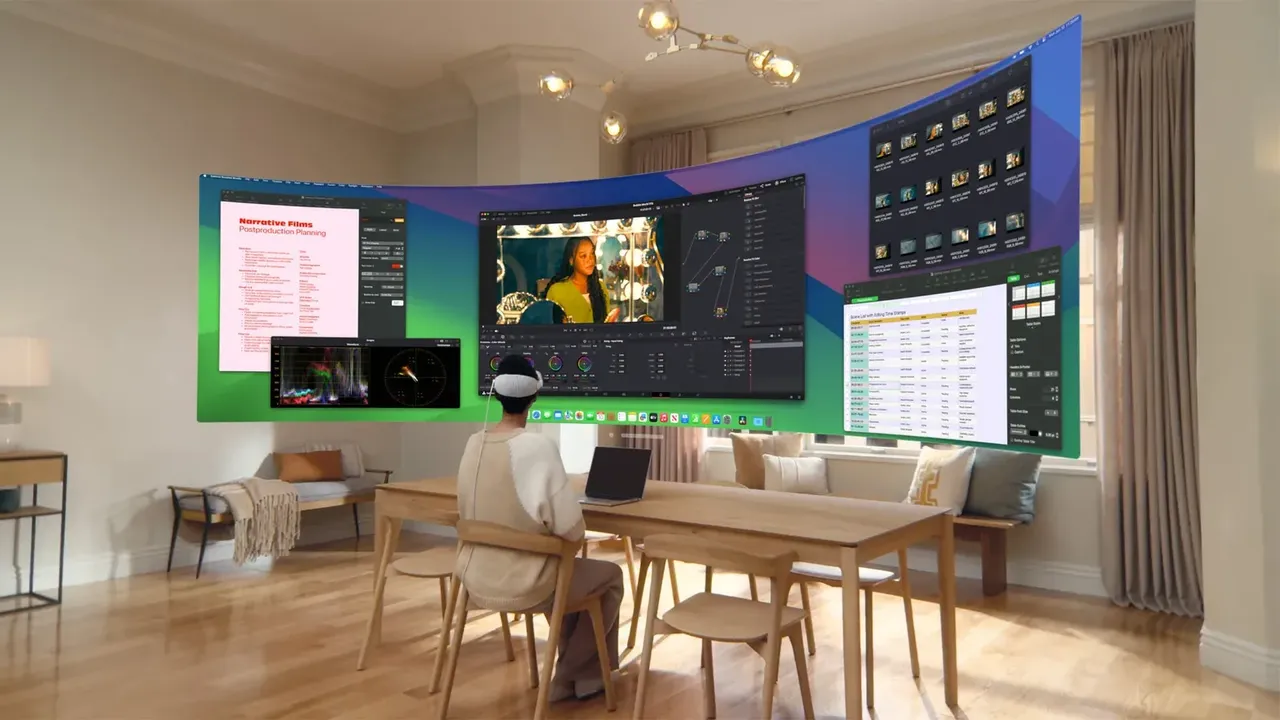
Mac Virtual Display puts your Mac screen inside Apple Vision Pro as a large window you can move, resize and stretch into a curved ultrawide display. This guide covers what you need, how to connect, the Standard, Wide and Ultrawide sizes, using your keyboard and trackpad, and Mac audio. The steps follow Apple's support article Use your Mac with Apple Vision Pro, the Apple Vision Pro User Guide page Use Mac Virtual Display and Apple's troubleshooting article. If the headset is new to you, start with our Apple Vision Pro getting-started guide.
1. Check that your Mac and Vision Pro qualify
- Mac Virtual Display works with any Mac running macOS 14 Sonoma or later.
- The Wide and Ultrawide sizes need a Mac with Apple silicon on macOS Sequoia 15.2 or later, and Apple Vision Pro on visionOS 2.2 or later. Mac audio in the headset has the same requirements.
- Both devices must be signed in to the same Apple Account with two-factor authentication.
- Both need Wi-Fi and Bluetooth turned on and must be within 10 meters (30 feet) of each other. Neither device can be sharing its internet connection.
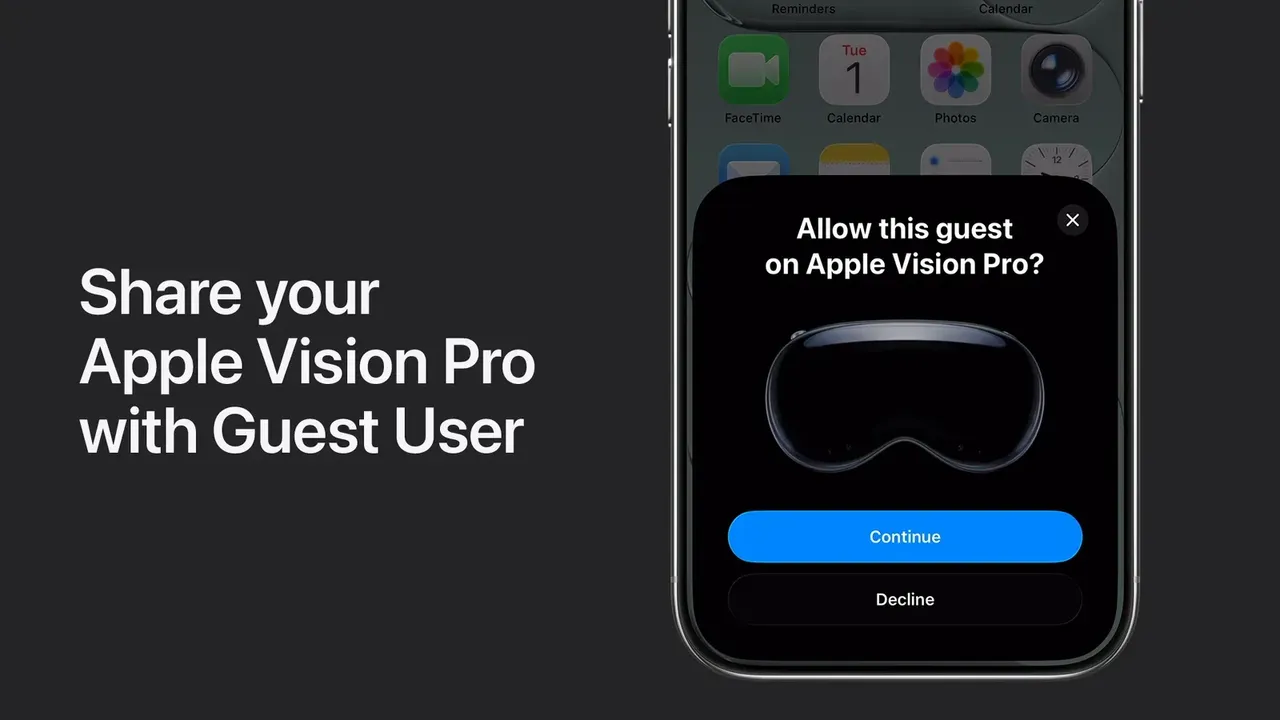
- It doesn't work while someone is using your Vision Pro as a Guest User.
2. Turn on iCloud Keychain and Handoff
Both devices need iCloud Keychain:
- Apple Vision Pro: open Settings, tap your name, tap iCloud, then under Saved to iCloud open Passwords (Apple's support article calls it Passwords & Keychain, under See All) and turn on Sync this Apple Vision Pro.
- Mac: open System Settings, click your name, click iCloud, open the passwords item under Saved to iCloud (click See All if you don't see it) and turn on Sync this Mac.
To share one pointer between your Mac and visionOS apps, turn on Handoff too. On Vision Pro go to Settings > General > AirPlay & Continuity and turn on Handoff. On the Mac go to System Settings > General > AirDrop & Handoff and turn on Allow Handoff between this Mac and your iCloud devices.
3. Connect to your Mac
With a Mac laptop: open the lid so the display is on, look at the Mac while wearing Vision Pro, then tap the Connect button that appears above it.
With a Mac desktop, or if Connect doesn't appear:
- Open Control Center on Vision Pro.
- Tap the Mac Virtual Display button.
- Choose your Mac from the list.
You can also start from the Mac: open Control Center on the Mac, click Screen Mirroring, then click Extend to Apple Vision Pro. In visionOS 27 you can add a Mac Virtual Display widget to your surroundings for quick access. If tapping it does nothing, unlock your Mac and try again. Vision Pro connects to only one Mac at a time.
4. Move and resize the Mac window
Your Mac screen appears as a window. Pinch and drag the window bar at the bottom to move it closer or farther away. Pinch and drag either bottom corner to resize it. For the best experience, Apple suggests making the window bigger, moving it farther away, or using an Environment to cut distractions. With visionOS 2 or later, your Mac keyboard is revealed in an Environment when you look at it.
5. Pick Standard, Wide or Ultrawide
- Once connected, tap Mac Virtual Display above the window. (Apple's support article describes this as tapping your computer's name.)
- Choose Standard (16:9), Wide (21:9) or Ultrawide (32:9).
The wider screens are curved and wrap around you as you make them bigger. To change the resolution, open System Settings > Displays on the Mac and turn on Show all resolutions to see every size. Apple lists these maximums:
- Standard, Apple silicon: up to 5K (5120 x 2880).
- Standard, Intel: up to 3K.
- Wide: up to 3360 x 1440 points (6720 x 2880 pixels).
- Ultrawide: up to 5120 x 1440 points (10240 x 2880 pixels).
If several displays are attached to your Mac, Mac Virtual Display shows only the main display.
6. Use your keyboard, trackpad and mouse
Use the Mac's built-in keyboard and trackpad, or its connected Bluetooth keyboard, trackpad or mouse, just as you normally would. They also work with visionOS apps:
- Look at another visionOS window.
- Touch the trackpad or move the mouse. A round pointer appears where you're looking.
- Scroll, select items, or click into a text field and type with your Mac keyboard.
You can also keep using gestures to work with your visionOS apps. For more ways to set up a virtual desk, see our guide to working in VR with multiple screens.
7. Hear your Mac through Vision Pro
With an Apple silicon Mac on macOS Sequoia 15.2 or later and Vision Pro on visionOS 2.2 or later, Mac audio such as music and videos plays through the audio pods on Apple Vision Pro. System sounds like notifications still play on the Mac. In apps that use a microphone, such as video calls, sound input still comes from the microphone built into or connected to your Mac.
8. Stay connected, disconnect and fix problems
- Stay Connected: tap the control above the window, tap Settings and turn on Stay Connected. The session then stays active when you take off Vision Pro.
- Disconnect: tap the close button at the bottom of the Mac window.
- iPhone Mirroring: you can't use iPhone Mirroring on the Mac during a Mac Virtual Display session.
If it won't connect, Apple suggests updating both devices, checking the same Apple Account and iCloud Keychain, turning Wi-Fi and Bluetooth on, moving closer to the Mac, and restarting both devices.
Questions et réponses
Does Mac Virtual Display work with an Intel Mac?
Yes, with macOS 14 Sonoma or later, in the Standard aspect ratio at up to 3K. Wide, Ultrawide and Mac audio need a Mac with Apple silicon on macOS Sequoia 15.2 or later.
How big is the Ultrawide Mac Virtual Display?
Ultrawide is a curved 32:9 screen at up to 5120 x 1440 points (10240 x 2880 pixels). Wide is 21:9 at up to 3360 x 1440 points.
Can I connect two Macs or see several Mac displays?
No. Vision Pro connects to one Mac at a time, and if the Mac has several displays attached, only the main display appears.
Where does the sound play?
With an Apple silicon Mac on macOS Sequoia 15.2 or later and visionOS 2.2 or later, Mac audio plays through the Vision Pro audio pods. Notifications and other system sounds still play on the Mac.
Why don't I see the Connect button above my MacBook?
Open Control Center on Vision Pro, tap the Mac Virtual Display button and choose your Mac. You can also start from the Mac with Screen Mirroring and Extend to Apple Vision Pro.