How to use the Apple Vision Pro Battery: charging, battery life and care
Connect, charge, check and care for the Apple Vision Pro Battery on the M2 and M5 models, with Apple's battery-life figures, light meanings and fixes.
- Principiante
- 10 min
- Comprobado en visionOS 27
- Última comprobación 29 de octubre de 2026
Qué necesitas
- Apple Vision Pro (M2) or Apple Vision Pro (M5) with its battery
- USB-C Charge Cable and an Apple USB-C power adapter rated for 30W or higher
- A power outlet
- Optional: a second Apple Vision Pro Battery
This guide shows you how to connect, charge, check and look after the battery that powers Apple Vision Pro, on both the original M2 model and the newer M5 model. The steps follow Apple's support article Connect and charge Apple Vision Pro battery, the Apple Vision Pro User Guide pages on connecting the battery and charging the battery, and Apple's important handling information. If the headset is new to you, start with our Apple Vision Pro getting-started guide.
1. Know what the battery is and what comes in the box
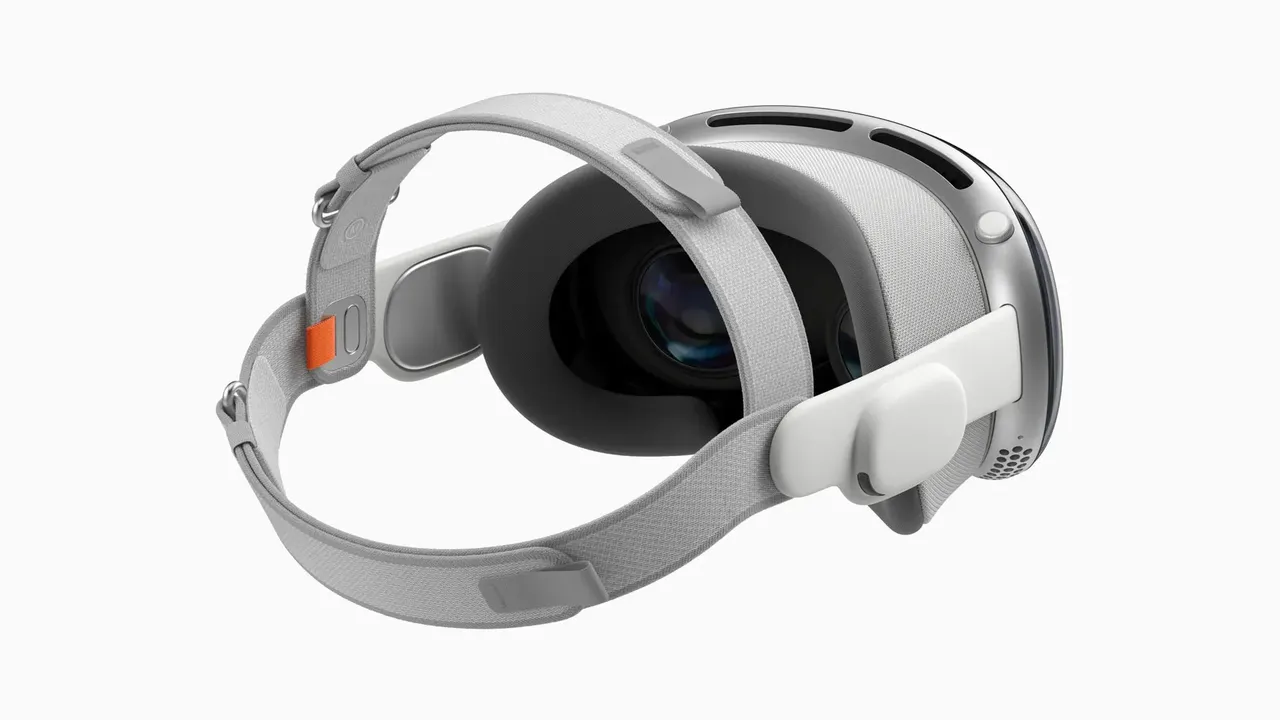
Apple Vision Pro is powered by an external, aluminum-encased battery that weighs 353 grams. A woven power cable runs from it to a round connector on the headset.
- Apple Vision Pro (M2): the box includes the battery, a 30W USB-C Power Adapter and a USB-C Charge Cable (1.5 m).
- Apple Vision Pro (M5): the box includes the battery, a 40W Dynamic Power Adapter with 60W Max and a USB-C Charge Cable (1.5 m).
Apple also sells the Apple Vision Pro Battery separately. It is compatible with both the M2 and M5 models.
2. Connect the battery and turn on the headset
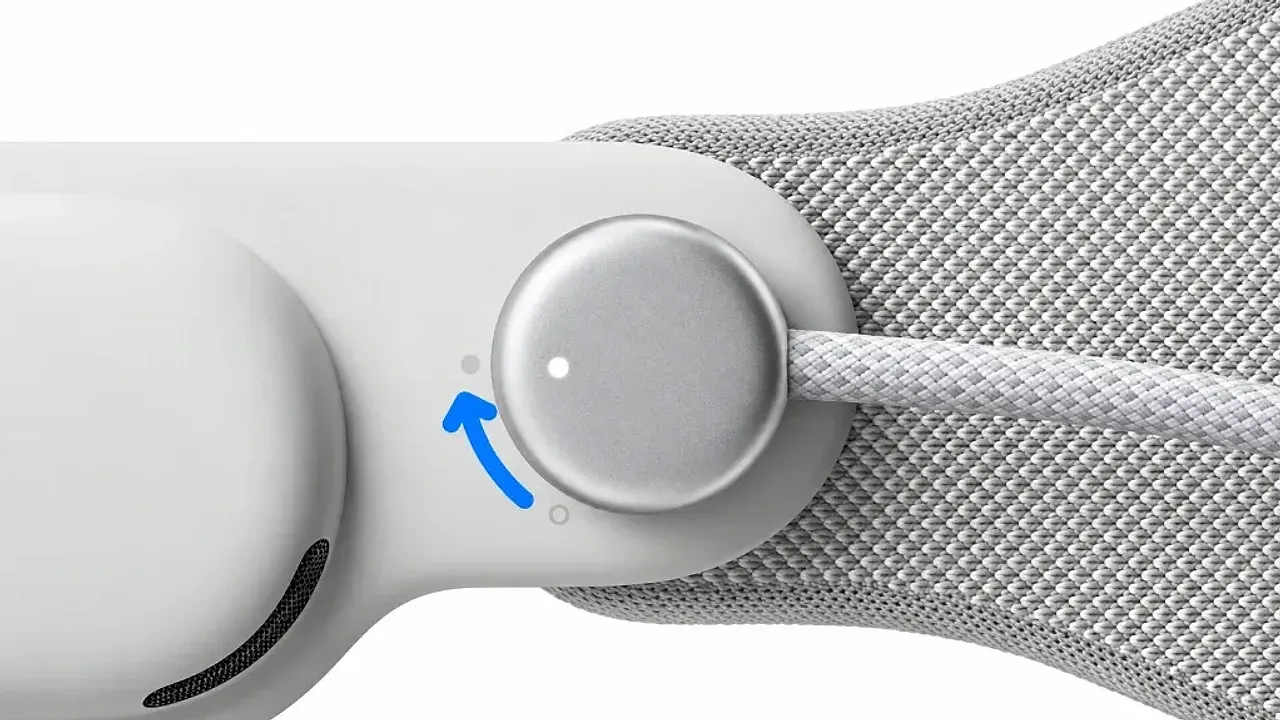
- Insert the power cable into the power connector on the left Audio Strap, angled slightly upward, so the dot on the cable lines up with the white outlined dot on the Audio Strap.
- Rotate the power cable clockwise one-quarter turn, until the dot on the cable lines up with the filled dot and the cable locks in.
- The light on the power cable pulses and Apple Vision Pro turns on. After about a minute you hear a tone, and the light stays solid. The headset is ready to wear.
- If you don't hear a tone after 30 to 45 seconds, press and hold the top button for a few seconds.
With the battery connected, the headset sleeps when you take it off and wakes when you put it on.
3. Charge the battery
Connect the battery to a power outlet using a USB-C Charge Cable and an Apple USB-C power adapter rated for 30W or higher. Keep the battery, cable and adapter in a well-ventilated area while charging.
You can use Apple Vision Pro while the battery charges, which gives you all-day use. Watch the cable as you move around. Charging can take longer while you use the headset.
The light next to the battery's USB-C port shows the charge for a few seconds when you plug the battery in, unplug it, or gently tap it:
- Connected to power: green means fully charged. Amber means below 100% but usable. Amber pulsing slowly means too low to power the headset; keep charging for 10 minutes, or until a tap shows steady amber.
- Not connected to power: green means 50% or higher. Amber means 5% to 49%. Amber pulsing slowly means too low; charge it for 10 minutes.
4. Check the battery level in visionOS
- Look at your palm and flip your hand over to see the battery level in the status bar.
- Open Control Center. The battery level appears at the top.
- To see the exact percentage, open Settings, tap Battery, then turn on Battery Percentage.
5. Know how long a charge lasts
- Apple Vision Pro (M2): up to 2 hours of general use and 2.5 hours of video playback.
- Apple Vision Pro (M5): up to 2.5 hours of general use and up to 3 hours of video playback.
Both models support all-day use when plugged in. Apple notes that battery life depends on settings, usage, network and environmental conditions.
When you aren't wearing the headset, Apple recommends keeping the battery connected to power, so the headset keeps syncing and the battery is full next time. If it is not charging, Apple Vision Pro shuts down after 48 hours of inactivity (24 hours in visionOS 26 and earlier).
6. Swap to a second battery and carry it safely
Disconnecting the battery turns off Apple Vision Pro, so you can't swap batteries while the headset is running. To change to a charged spare:
- Save any open documents.
- Take off Apple Vision Pro and place it on a secure surface, like a table or desk.
- Turn the power cable counterclockwise until it detaches from the Audio Strap.
- Connect the charged battery as in step 2. The headset turns on automatically.
While you wear the headset, keep the battery close to your body, for example in a pocket, and away from heat sources. Don't sit on it in a back pocket, pull it off your desk when you stand up, or let it fall between seats on a plane. If it comes off during use, take off the headset. Take it out of your pocket while it charges. Apple's store also sells the Belkin Battery Holder, which clips to a belt or uses a cross-body strap.
7. Care for, store and travel with the battery
- Temperature: use Apple Vision Pro between 0° and 30° C (32° to 86° F) and store it between -20° and 45° C (-4° to 113° F). If the battery gets too hot, it may stop charging until it cools.
- Liquid: the battery is not water resistant. If you suspect liquid in the charging port, don't plug the cable in.
- Cleaning: turn off the headset, disconnect the power cable, then wipe the battery with a dry, soft, lint-free cloth. Don't use cleaning products or compressed air.
- Long-term storage: disconnect the battery, keep it somewhere cool (ideally 22° C / 71° F) at about 50% charge, and recharge it to 50% every six months or so.
- Travel: use a protective case with no loose items, such as the Apple Vision Pro Travel Case. On a plane, use Travel Mode, and turn off the headset or use Airplane Mode when asked. Apple ships the standalone battery by ground only because of lithium battery shipping rules, so check your airline's rules for spare batteries.
- Damage: stop using a damaged battery. Only a trained technician should repair it.
8. Fix a battery that won't charge or a headset that won't turn on
If the battery light doesn't come on when you plug it in, make sure the adapter is rated for 30W or higher, try a different adapter or cable, and check that the outlet powers other devices. If it still won't charge, reset the battery:
- Disconnect the battery from Apple Vision Pro.
- With the battery connected to power, disconnect it from power and reconnect it.
- Connect the battery to Apple Vision Pro again.
If the headset won't turn on, follow Apple's article If your Apple Vision Pro is frozen or won't turn on:
- Disconnect and reconnect the battery. The light on the power cable should pulse as the headset starts, then glow steadily.
- Make sure the battery has charge, using an Apple USB-C power adapter of at least 30W.
- Press and hold the top button for three seconds. The Apple logo appears on the front display within about five seconds.
- If the display is frozen, press and hold the top button and the Digital Crown until the displays turn black, then turn it back on. If nothing works, contact Apple Support.
Preguntas y respuestas
Can I use Apple Vision Pro while the battery is charging?
Yes. Apple says you can use Apple Vision Pro while the battery charges, which gives all-day use. Charging can take longer while you use the headset.
Which power adapter should I use to charge the Apple Vision Pro battery?
Apple says to use a USB-C Charge Cable and an Apple USB-C power adapter rated for 30W or higher. The M2 model ships with a 30W USB-C Power Adapter and the M5 model with a 40W Dynamic Power Adapter with 60W Max.
Does disconnecting the battery turn off Apple Vision Pro?
Yes. Disconnecting the battery turns off the headset, so save open documents first. Reconnecting a charged battery turns it on automatically.
How long does the Apple Vision Pro battery last on M2 and M5?
Apple quotes up to 2 hours of general use and 2.5 hours of video playback for the M2 model, and up to 2.5 hours of general use and up to 3 hours of video playback for the M5 model. Both support all-day use when plugged in.
What does a slowly pulsing amber light on the battery mean?
The charge is too low to power Apple Vision Pro. Charge the battery for 10 minutes, or until the light shows steady amber when you tap it.