How to set up SteamVR base stations for room-scale tracking
Mount, power and configure SteamVR Base Station 1.0 or 2.0 units for room-scale tracking with a Valve Index, VIVE Pro 2 or Bigscreen Beyond 2.
- Intermedio
- 30 min
- Última comprobación 29 de octubre de 2026

Por vrblogs.net
Actualizado · Lectura de 6 min
Qué necesitas
- One or more SteamVR base stations, all the same version (1.0 or 2.0)
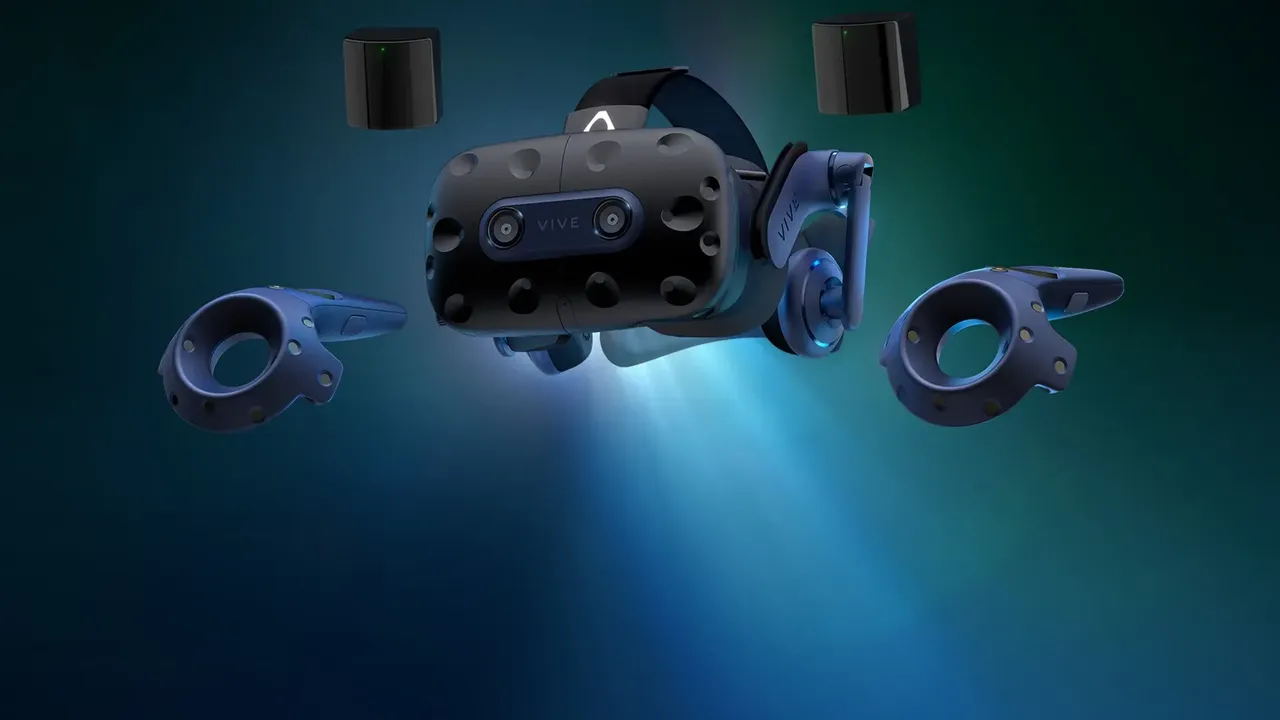
- A Valve Index, HTC VIVE Pro 2 or Bigscreen Beyond 2/2e connected to a VR-ready PC with SteamVR installed
- A power outlet near each base station
- The mounting kit, tripods or light stands; a drill and Phillips-head screwdriver for wall mounting
This guide gets a set of SteamVR base stations mounted, powered, configured and tracking a room-scale play area for a Valve Index, HTC VIVE Pro 2 or Bigscreen Beyond 2/2e. These steps follow Valve's Valve Index Setup Guide and Index Base Station & Lighthouse Tracking article, plus HTC's VIVE Pro 2 articles on setting up Base Station 2.0 and installing Base Station 1.0.
1. Check which base stations you have
There are two generations. Valve describes 1.0 as the HTC-branded stations and 2.0 as the Valve-branded stations. They use different syncing methods and do not work together in the same setup, so use only one version in your play area.
- Valve Index works with both 1.0 and 2.0 stations.
- VIVE Pro 2 works with both 1.0 and 2.0 stations, according to HTC.
- Bigscreen Beyond 2 and 2e list SteamVR Base Stations (Version 1.0 or 2.0) as a requirement. Base stations are not included, and at least one is needed for the headset to be tracked.
2. Decide how many stations you need
Valve recommends two base stations for most room-scale play areas. For a seated or standing-only area one station can be enough, but Valve still recommends two so the stations do not lose sight of your devices.
If your area is larger than 5 x 5 m (about 16 x 16 ft), you can add more stations for extra coverage and accuracy. HTC states that up to four Base Station 2.0 units can cover a single room of 10 x 10 m, as long as the headset and controllers stay within 7 m (23 ft) of a base station.
For room-scale, Valve and HTC both give a minimum free area of 2 x 1.5 m (6.5 x 5 ft).
3. Place and angle the stations
Put the stations diagonally, in opposite corners of the play area, with the front panels facing the centre. Valve's ideal setup is:
- Above head height, at least 2 m (6.5 ft) off the floor.
- Angled down by 30 to 45 degrees.
- No more than 5 m (16 ft) apart. HTC gives the same 5 m maximum between two Base Station 1.0 units.
HTC's Base Station 2.0 guidance is slightly different: mount them above 2 m with an angle of 25 to 35 degrees. Each 2.0 station has a 150-degree horizontal and 110-degree vertical field of view, while each 1.0 station has a 120-degree field of view. Do not mount a 2.0 station lower than 0.5 m (1.6 ft), and keep tracked devices at least 0.5 m away from it.
Lower placements also work. If a station sits at head height or lower, angle it to suit. A station on a coffee table should point slightly upward, while one between waist and shoulder height does not need to be angled. Keep them out of bright light and clear of anything that blocks their view of the headset.
4. Mount and power the stations
Use a solid mount that will not vibrate or get bumped. HTC lists the included mounting kit, tripods, light stands, cargo poles and stable bookcases as options. To wall-mount with the kit, Valve's guide uses these steps:
- Remove the cosmetic hole covers from the wall mount and unscrew the ball and socket from the wall plate.
- Hold the plate against the wall and mark the holes with a pencil.
- Drill with a 1/4 inch or 6 mm bit. Use the anchors in drywall, but not if you drilled into a stud.
- Screw the wall plate to the wall with a Phillips-head screwdriver.
- Screw the ball and socket joint into the back of the station, plug in the power cable, then screw the joint into the wall mount and aim the station at the play area.
Peel the protective film off the front panel, because Valve says it can interfere with tracking. Plug each station into a power outlet using only the cables and adapters that came with it. The front LED should light up. HTC notes that a 2.0 status light may be white or green depending on the hardware variant, and 1.0 lights should be green. Once the stations are on, do not move or re-angle them, or you will need to run Room Setup again.
5. Set the channels
Base Station 1.0: use the Channel button on the back of each station. Without a sync cable, set one station to channel b and the other to c. With the optional sync cable, set one to A and the other to b. HTC says the cable is only needed if objects hang from the ceiling or the stations sit low enough that you could block their view of each other.
Base Station 2.0: SteamVR handles channels for you. Valve ships kit stations on channels 1 and 2, and individually bought stations use a channel between 3 and 16. If you add a fourth station, share the space with another play area, or see a Base Station Setup Error, open the SteamVR menu and go to Devices > Base Station Settings > Configure Base Station Channels. Wait for the scan, then choose Automatic Configuration, or click a station, pick an unused channel and select Apply. HTC notes that Bluetooth must be enabled first, under Devices > Bluetooth Settings.
6. Turn on power management and update firmware
Base Station Power Management is off by default, so the stations stay powered whenever they are plugged in. When it is on, they go into standby when SteamVR is not in use and wake up when it starts. Valve recommends turning it on unless you share a tracking space with other SteamVR PCs, where it can cause power state conflicts. Valve's help page places the option at SteamVR > Settings > Base Station > Power Management.
To update firmware, keep the headset connected, enable Bluetooth, then open the SteamVR menu, choose Devices > Update Device and select the base stations. You can also hover over a device icon that shows an update badge and click Update Device. Do not unplug the power cable during an update. If a 1.0 station will not update over Bluetooth, HTC's fallback is to connect it to the PC with a micro-USB cable, hold the Channel button while plugging in its power adapter, and let SteamVR start the update automatically.
7. Run Room Setup
Launch SteamVR and wait until every device turns green in the status window. Open the menu and choose Room Setup, then pick Room-scale to walk around a traced area, or Standing only for seated and standing games. Follow the on-screen prompts. When tracing room-scale boundaries, keep the floor clear and do not trace across furniture such as a table or chair.
8. Fix tracking problems
- Drifting or floating: cover or remove mirrors, windows, TVs and monitor screens in the play area, check the film is off, and check the stations still point at the centre.
- A station was bumped or moved: make sure it is secure, then rerun Room Setup.
- LED flashing blue: the station is not stable or is vibrating, and its laser will not run. Move it to a steadier mount.
- LED flashing red: the station has an error. Contact Steam Support or your headset maker.
- No LED: the station has no power. Try the other station in the same outlet to see whether the outlet or the station is at fault.
- Not sure which station is which: hover over a station icon in SteamVR and choose Identify Base Station. Its light flashes white rapidly.
If a station shows as disabled, HTC suggests power-cycling it, checking the installation, restarting SteamVR and then restarting the PC.
Preguntas y respuestas
Can I mix Base Station 1.0 and 2.0?
No. Valve and HTC both say 1.0 and 2.0 base stations do not work together in the same setup, so use only one version in your play area.
How high and how far apart should base stations be?
Valve's ideal setup is at least 2 m (6.5 ft) high, angled down 30 to 45 degrees, in opposite corners and no more than 5 m (16 ft) apart. HTC recommends a 25 to 35 degree angle for Base Station 2.0.
Do I need to set channels on Base Station 2.0?
Usually not. SteamVR assigns channels automatically, and kit stations ship on channels 1 and 2. If you see a channel conflict, go to Devices > Base Station Settings > Configure Base Station Channels and choose Automatic Configuration.
What does a flashing blue light on a base station mean?
Valve says the station is not stable or is vibrating, which stops the laser from working. Move it to a steadier mount or location.
Does Bigscreen Beyond 2 need base stations?
Yes. Bigscreen lists SteamVR Base Stations (Version 1.0 or 2.0) as a requirement. They are not included, and at least one is needed for the headset to be tracked.