How to play VR seated and set up accessibility options on Meta Quest
Play Meta Quest seated and set up accessibility: Stationary boundary, floor level, Adjust Height, button re-mapping, vision and hearing options and comfort ratings.
- Beginner
- 10 min
- Last checked October 31, 2026
What you need
- A Meta Quest headset with up-to-date software
- Its Touch controllers
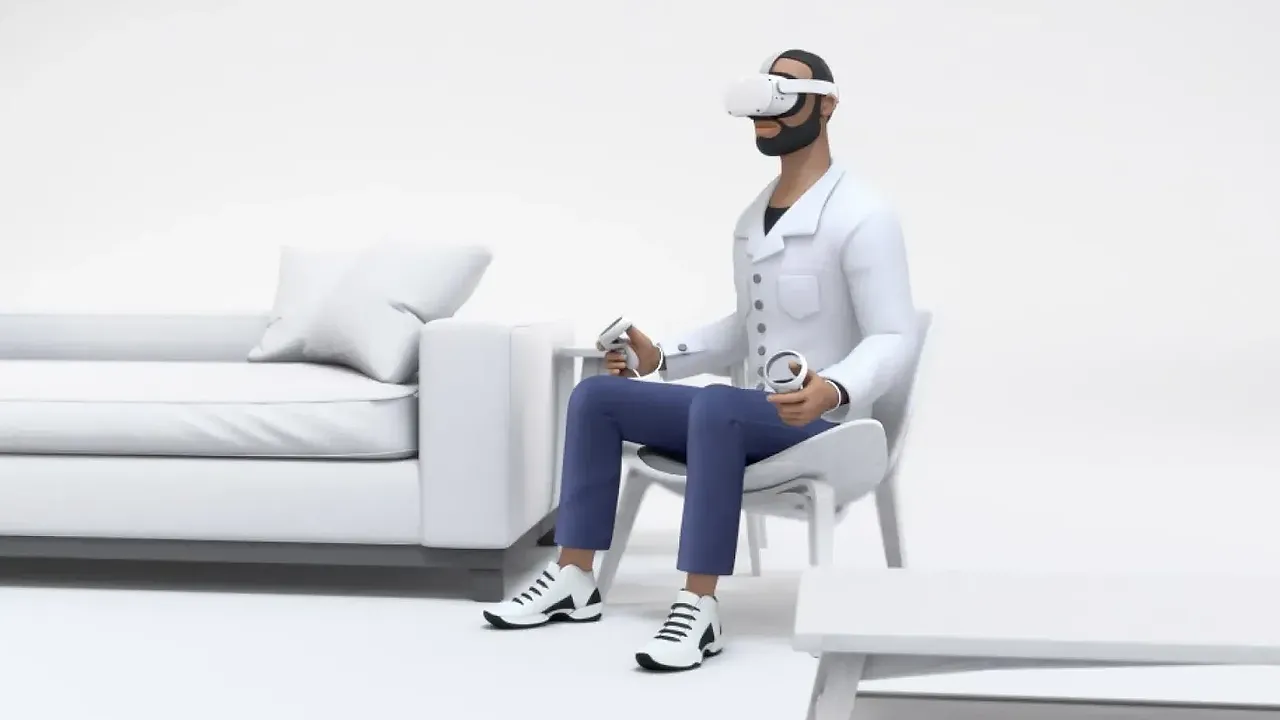
- A chair with at least 1 m by 1 m (3 ft by 3 ft) of clear space around it
- Optional: the Meta Horizon app on your phone to check comfort ratings
This guide shows you how to set up a Meta Quest for comfortable seated play and how to turn on its built-in accessibility options for mobility, vision and hearing. The steps follow Meta's article on accessibility features for Meta Quest, its boundary help article and its guide to comfort ratings. Most settings live under Settings > Accessibility, which is split into Vision, Mobility and Hearing.
1. Open the accessibility settings
You can reach the accessibility settings at any time:
- Press the Meta button (or Oculus button) on your right controller to open the Navigator.
- Select Quick controls, then Settings.
- Select Accessibility.
If you are still setting up a new headset, Meta says you can triple-press the Meta button on your right controller after the initial update to open the vision, mobility and hearing settings straight away. For the rest of first-time setup, see our Quest 3 and 3S setup guide.
2. Use a Stationary boundary for seated play
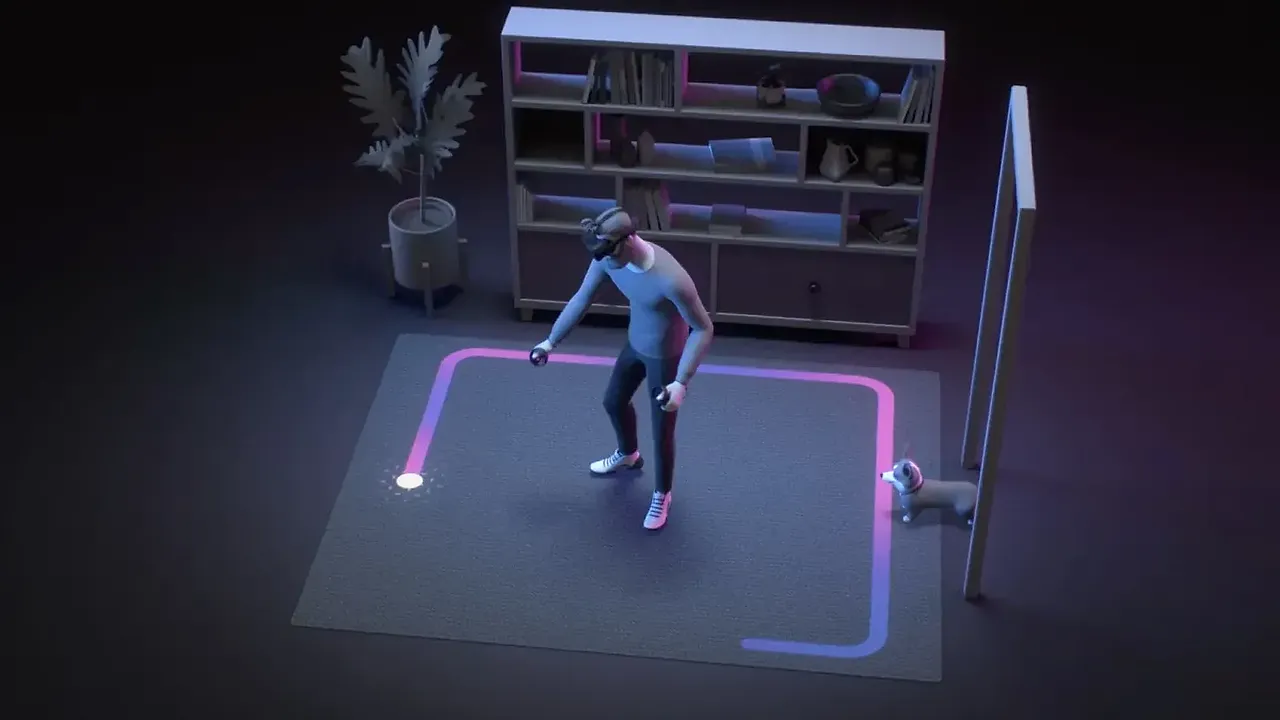
Meta's Stationary boundary mode is designed for using the headset while sitting or standing in place. It creates a default area of 1 m by 1 m (3 ft by 3 ft) centred on you, so a clear space around your chair is enough. Roomscale is for moving around and needs at least 2 m by 2 m.
To switch modes or adjust the boundary:
- Open Quick controls > Settings > Environment setup.
- Select Boundary, then Adjust boundary.
- Choose to adjust your Stationary boundary.
In the same Boundary settings, Stationary boundary size lets you match the boundary to the cleared space around you. Meta says your VR Home uses a Stationary boundary by default, and the first time you open an immersive app you are asked to pick Stationary or Roomscale. If an app needs more room, select Boundary and then Switch to Roomscale from inside the app. Our play area and boundary guide explains the boundary in more depth.
3. Check the floor level
When you play seated, a wrong floor height can make virtual objects sit too high or too low. Under Environment setup > Boundary, the Set floor level option lets you adjust the floor level of your boundary. Meta notes that floor height is set again every time the boundary is created automatically, so check it if the floor looks wrong after you move.
4. Turn on Adjust Height
Adjust Height lets you change your height within the virtual environment. Meta presents it as a way to make the virtual environment more comfortable and personal, for example when you play from a chair.
- Open Quick controls > Settings > Accessibility.
- Select Mobility, then turn on Adjust Height.
5. Re-map buttons and calibrate the thumbsticks
If a button is hard to reach, you can move it. In Accessibility, select Mobility, then Re-map controller, and follow the on-screen instructions. Meta says you can create different button layouts, including moving buttons from one controller to the other.
For precise thumbstick control, go to Settings > Devices > Controllers and select Calibrate Left or Calibrate Right, then follow the prompts.
6. Set up vision options
Under Accessibility > Vision you will find:
- Text Size: choose a size from the dropdown. It applies to the universal menu and supported apps.
- Contrast: move the slider for a higher-contrast, bolder look.
- Color Correction: turn it on and choose a colour filter.
Two more options help people who are blind, have low vision or find text hard to read. The screen reader reads out button text, describes images and assists with audio-cued navigation. Meta describes it as an experimental feature you opt into, then turn on under Vision, and it needs Touch controllers rather than hand tracking or a gamepad. With text to speech, hovering your hand or controller cursor over text plays a tone and then reads the text aloud. Meta says it only works in Meta Horizon menus and some 2D window apps, not in immersive apps or games. If the image itself looks blurry, our IPD and lens fit guide is the place to start.
7. Set up hearing options
Under Accessibility > Hearing:
- Live Captions: shows a text version of what people are saying. Captions are available in several languages and work in supported apps.
- Mono Audio: combines the stereo channels into one source.
- Audio balance: use the slider to set the level from the left and right speakers.
8. Pick comfortable apps
Every app in the Meta Horizon Store has a comfort rating. Comfortable experiences generally avoid camera movement, player motion and disorienting effects. Moderate ones may include some, and Intense ones include significant movement and are not suited to most people, especially newcomers. Meta recommends starting with Comfortable content before trying Moderate, Intense or Unrated apps, and notes that the rating judges the default experience.
In the headset, open Store, select an app and scroll down to More Information to see its rating. In the Meta Horizon app, search for the app and swipe down to find the rating below the ESRB rating. Many games also include options such as snap turning. For more ways to stay comfortable, read our guide to reducing motion sickness in VR.
Questions & answers
Which boundary should I use when I play sitting down?
Use Stationary. Meta designed it for sitting or standing in place, and it creates a default 1 m by 1 m (3 ft by 3 ft) area centred on you.
Where is the Adjust Height setting on Meta Quest?
Open Quick controls, then Settings, then Accessibility. Select Mobility and turn on Adjust Height.
Can I move a button to the other controller?
Yes. In Settings > Accessibility > Mobility, select Re-map controller and follow the on-screen instructions. Meta says you can move buttons from one controller to the other.
Can I change accessibility settings before setup is finished?
Yes. Meta says that after the initial update you can triple-press the Meta button on your right controller to change vision, mobility and hearing settings during setup.
How do I know if a game is comfortable to play?
Check its comfort rating in the Meta Horizon Store. Meta suggests starting with Comfortable apps before trying Moderate, Intense or Unrated ones.