How to turn on developer mode and sideload apps on Meta Quest
Set up a Meta developer account, turn on developer mode in the Meta Horizon app, allow USB debugging and sideload an APK with MQDH or ADB.
- Intermédiaire
- 30 min
- Dernière vérification : 31 octobre 2026
Ce dont vous avez besoin
- A Meta Quest 2, Pro, 3 or 3S paired to the Meta Horizon app
- A Meta account owned by someone 18 or older, verified by phone number or payment method
- A Windows or macOS computer and a USB-C data cable
- Meta Quest Developer Hub or ADB (plus Meta's ADB driver on Windows)
Developer mode lets a Meta Quest install apps from your computer instead of only from the Meta Horizon Store. Installing an app this way is usually called sideloading. This guide covers the developer account you need, how to switch developer mode on in the Meta Horizon app, how to allow USB debugging and how to install an APK with Meta Quest Developer Hub or ADB. The steps follow Meta's developer documentation on device setup, getting started with Meta Quest Developer Hub and deploying a build.
1. Understand what developer mode is for, and the risks
Meta says that by default a Quest only runs apps installed from the Meta Horizon Store. Developer mode authorizes the headset to install and debug apps from outside the Store. Before you turn it on, know what Meta says about it:
- It is meant for development. Meta states that developer mode is intended for running, debugging and testing apps, and that engaging in other activities may result in account limitations, suspension or termination. See Meta's Content Guidelines.
- Sideloaded apps are not reviewed by Meta. Meta notes that content from outside the Store is not reviewed for security, comfort, content, or health and safety. Only install files from developers you trust.
- Cloud backup may not cover them. Meta's ADB documentation says apps installed with adb install bypass the normal Quest install route, and Cloud Backup will not register them.
2. Check that you meet the requirements
Meta lists these prerequisites for enabling developer mode:
- You are a registered Meta developer with a verified Meta account.
- You are at least 18 years old.
- Your headset does not have any device-level restrictions that prevent enabling developer mode.
Meta Quest Developer Hub supports the Quest 2, Quest Pro, Quest 3, Quest 3S and Quest 3S Xbox Edition. You also need a USB-C data cable and a Windows or macOS computer. If a teen also uses your headset, our guide to parental supervision with Family Center covers the controls Meta offers parents.
3. Join or create a developer team
Meta requires you to belong to a developer team (an organization on the Meta Horizon Developer Dashboard) before you can verify your account and enable developer mode.
- To create a team: go to the Create New Team page of the Meta Horizon Developer Dashboard and fill in the information.
- To join a team: ask the team admin to add your developer account, then accept the email invitation.
4. Verify your account
Verification is a one-time step. Go to the verification tab of the Developer Dashboard, log in with your Meta account if prompted, and choose one option:
- Confirm your mobile number to set up SMS two-factor verification.
- Add a payment method to your account. Meta says PayPal is excluded.
5. Turn on developer mode in the Meta Horizon app
- On your phone, open the Meta Horizon app.
- Tap the headset icon in the toolbar.
- Tap your paired headset at the top of the screen. It shows the model and status of the headset.
- Tap Headset Settings beneath the image of your headset.
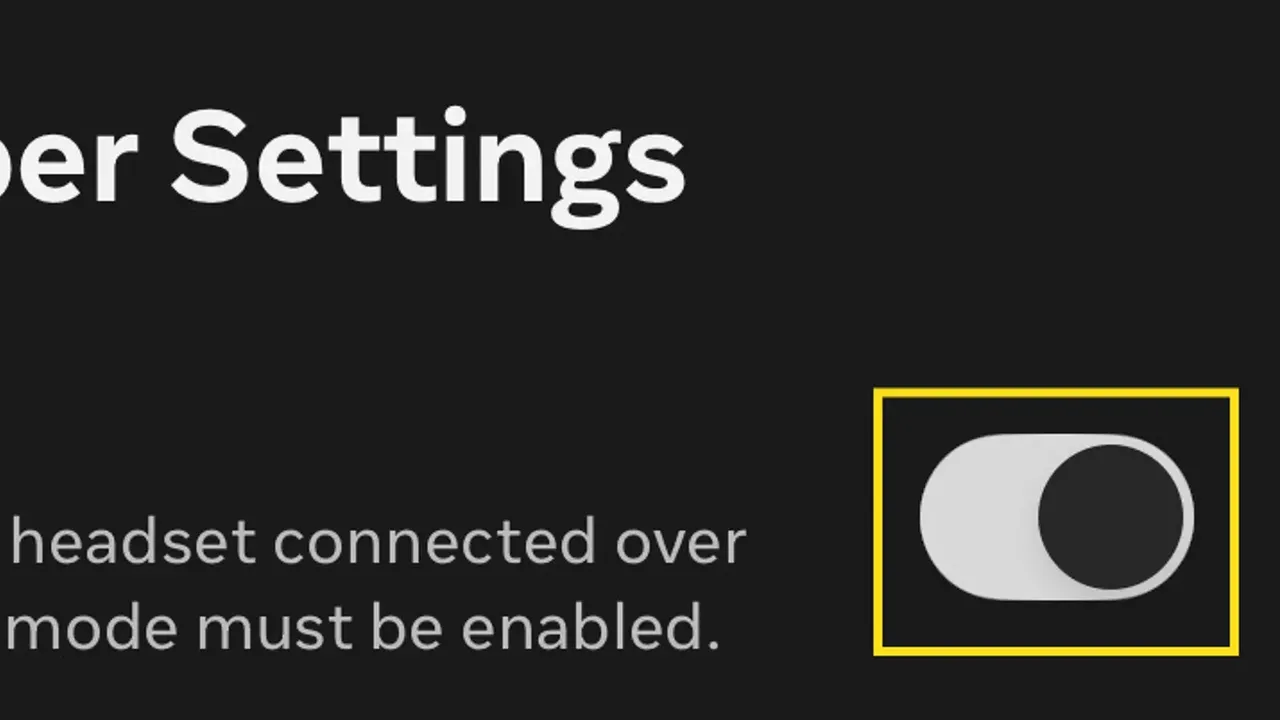
- Tap Developer Mode.
- Turn the Developer Mode toggle on.
6. Connect the headset and allow USB debugging
- Connect the headset to your computer with a USB-C data cable.
- Put on the headset and open the Quick Control menu.
- Select Open Settings (the gear icon), open the Developer tab and turn on MTP Notification.
- When the headset asks you to allow USB debugging, select Always allow from this computer.
On Windows, ADB also needs Meta's driver. Download it from the Oculus ADB Drivers page, unzip it, right-click the .inf file and select Install.
7. Install an APK with Meta Quest Developer Hub
Meta Quest Developer Hub (MQDH) is Meta's desktop app for Windows and macOS. It manages headsets, shows logs and installs builds.
- Download MQDH from Meta's developer site (Windows or macOS), open it and log in with your Meta developer account.
- Select Device Manager in the left pane. Your headset should be listed as Active.
- In the Apps section of Device Manager, drag and drop the APK file, or click Add Build and choose the APK.
You can also drop the APK anywhere over MQDH onto the Connected Device section. If an OBB expansion file with a matching package name sits in the same folder, MQDH installs it too. A new build overwrites any installed APK with the same app ID.
8. Or install with ADB from the command line
If you already use Android tools, you can skip MQDH. Run adb devices to check that the headset is listed, then adb install followed by the path to the APK. Add -r (adb install -r) to replace an app that is already installed. Remember that Cloud Backup will not register apps installed this way.
9. Find and launch sideloaded apps
Sideloaded apps do not appear with your Store apps. Open your Library in the headset and select Unknown Sources in the left navigation bar to find them. If you want to stream PC games rather than install Android apps, see our guide to playing PC VR games on Meta Quest.
Questions et réponses
Why is there no Developer Mode option in my Meta Horizon app?
Meta requires you to belong to a developer team and to verify your account before you can enable developer mode. You must also be at least 18, and the headset must not have device-level restrictions that prevent it.
How do I verify my Meta developer account?
On the verification tab of the Meta Horizon Developer Dashboard, either confirm your mobile number for SMS two-factor verification or add a payment method. Meta says PayPal is excluded.
Where do sideloaded apps show up on a Quest?
Open your Library in the headset and select Unknown Sources in the left navigation bar.
Is it safe to sideload apps?
Meta notes that content from outside the Meta Horizon Store is not reviewed for security, comfort, content or health and safety. It also says developer mode is for development, and other activities may lead to account limitations, suspension or termination.
Will cloud backup save progress in sideloaded apps?
Meta's ADB documentation says apps installed with adb install bypass the normal Quest install route, and Cloud Backup will not register them.