How to subscribe to or cancel Meta Horizon+
What Meta Horizon+ includes in 2026, how to start it and claim monthly games, and how to cancel it on your Quest, phone or the web.
- Principiante
- 5 min
- Última comprobación 31 de octubre de 2026
Qué necesitas
- A Meta Quest headset (Rift is not supported)
- A Meta account with a payment method
- The Meta Horizon app or a web browser (optional)
- A Microsoft account for Xbox Game Pass (optional)
Meta Horizon+ is Meta's paid game subscription for Quest headsets. It gives you monthly games to claim, a rotating catalog of VR games and, since July 2026, a starter edition of Xbox Game Pass. This guide covers what you get, how to start a subscription, how to claim games and how to cancel without surprises. The steps follow Meta's help article on the Meta Horizon+ subscription service, its article on cancelling app and game subscriptions, the Meta Horizon+ terms and Meta's Xbox Game Pass announcement.
1. Know what Meta Horizon+ includes
According to Meta, a subscription includes:
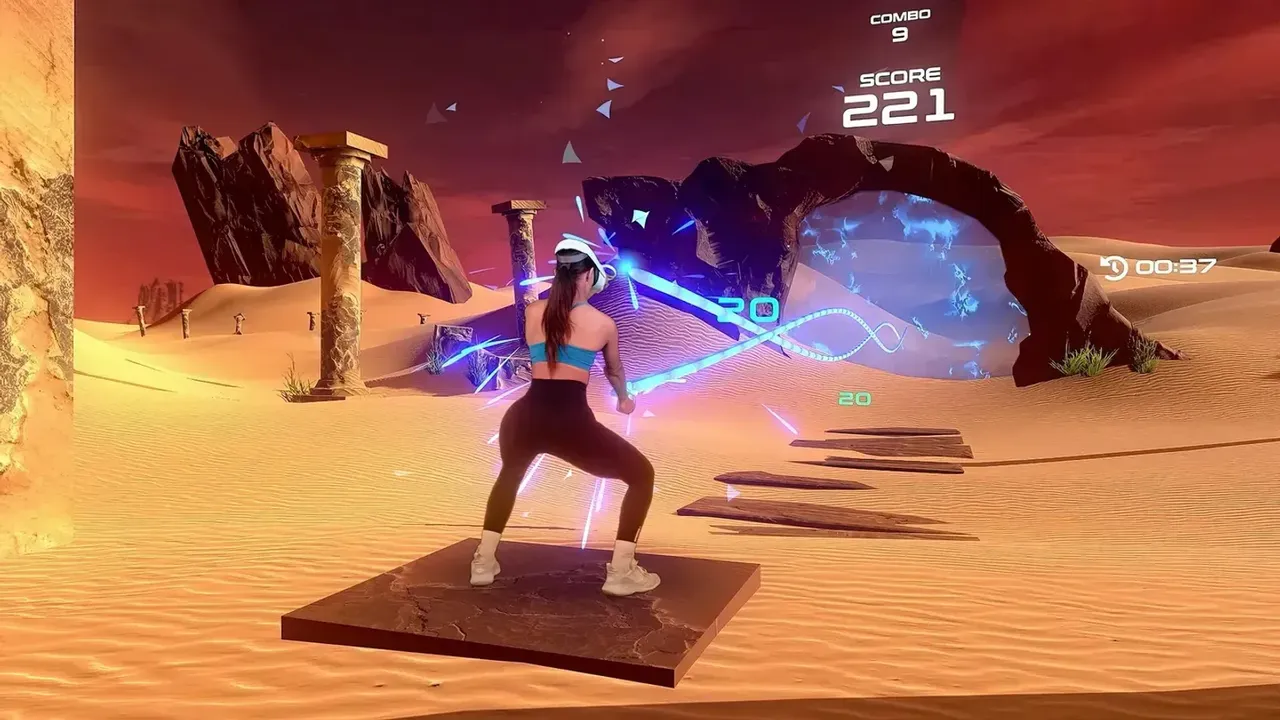
- Two monthly apps picked by Meta. You can redeem them during the month they are offered.
- A catalog of apps curated by Meta. Meta says it holds 100+ VR games, and titles change over time as new ones join and others leave.
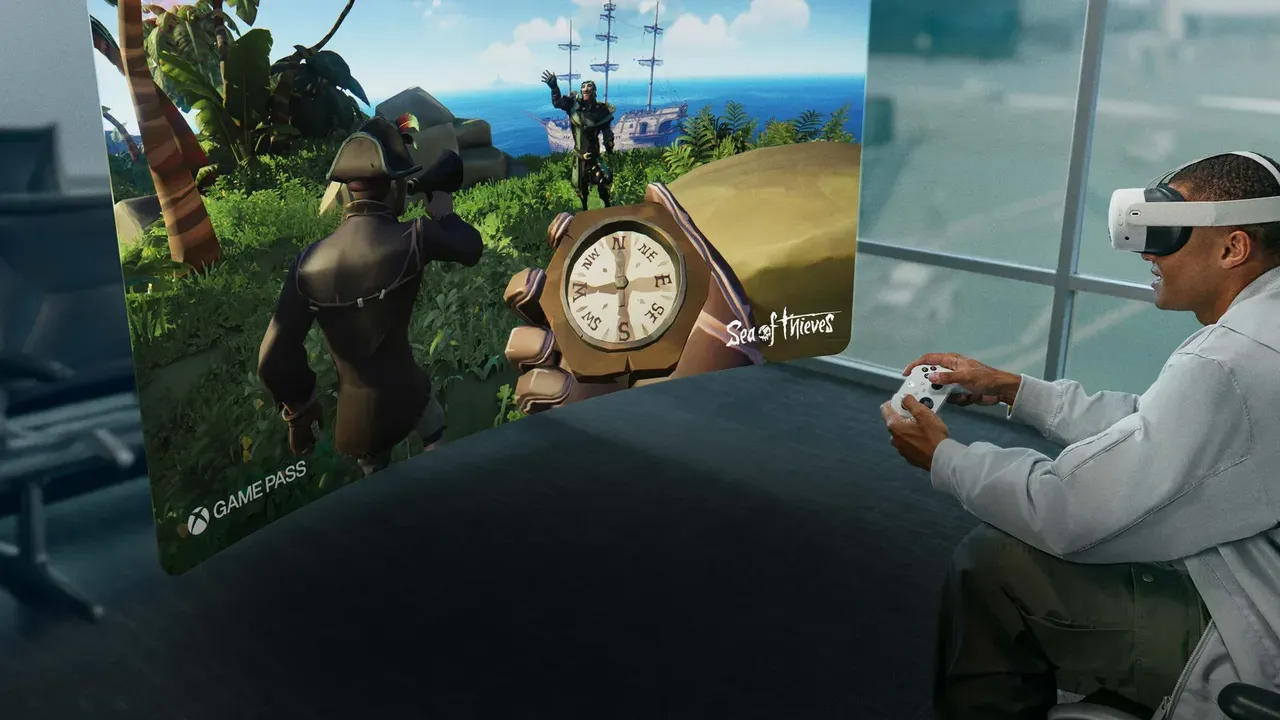
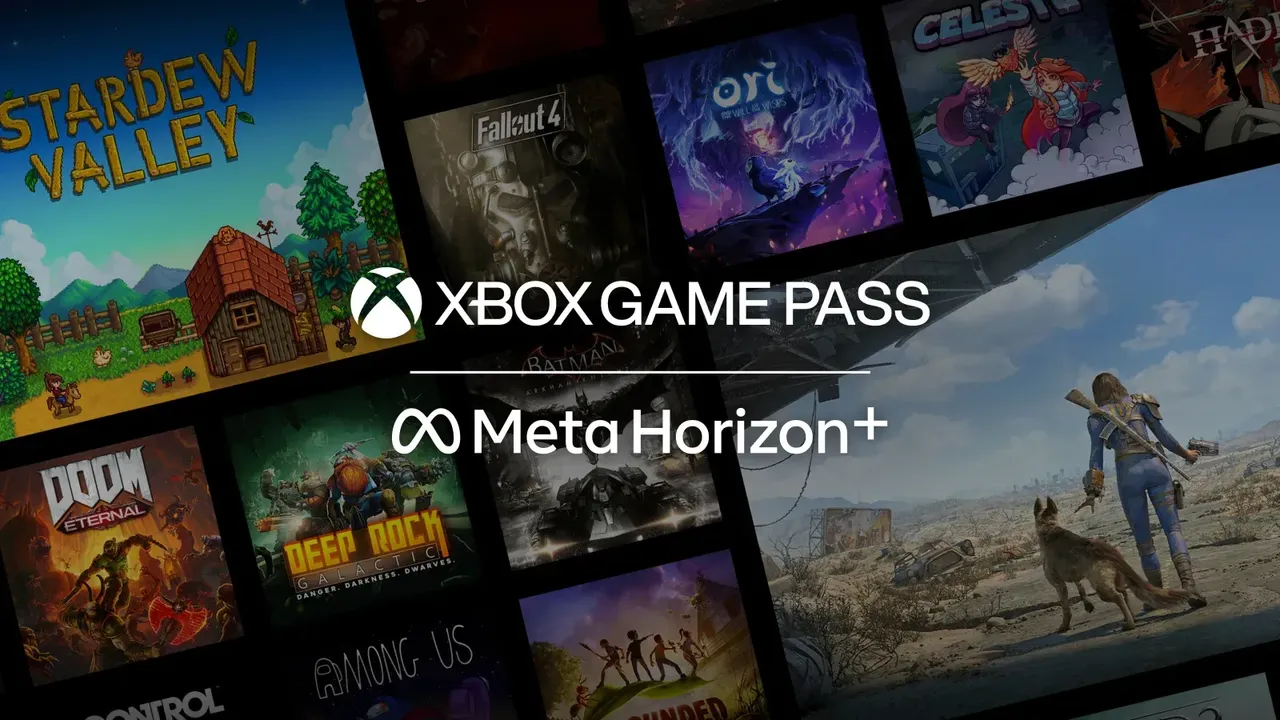
- A starter edition of Xbox Game Pass with 50+ console and PC games and 10 hours of cloud gaming each month, where available.
Meta Horizon+ works on Meta Quest headsets such as the Meta Quest 3 and Meta Quest 3S. Meta says it is not supported on Rift devices.
2. Check the price and billing
Meta lists Meta Horizon+ at $7.99 USD per month or $59.99 USD per year, with a one-month free trial. Prices in other countries may differ. The terms say the subscription renews automatically each month or year until you cancel. If you switch to a paid plan during a free trial, you lose the rest of the trial time.
3. Start a subscription
In your headset:
- Press the Meta button on your right controller to open the Navigator.
- Select Meta Horizon Store, then select Horizon+.
- Select Start 1-month trial and follow the on-screen instructions.
On your phone, open the Meta Horizon app, tap Menu, scroll down and tap Horizon+ below Payment and subscriptions, then tap Start 1-month trial. On the web, sign in to the Meta Horizon+ page and click Start 1-month trial.
4. Claim your monthly games
Monthly apps must be redeemed during the month they are offered. In your headset:
- Press the Meta button to open the Navigator.
- Select Meta Horizon Store.
- Select Horizon+ from the top menu.
- Select Redeem next to the app you want.
In the Meta Horizon app, tap Horizon+ below Payment and subscriptions, then tap Redeem below the app. On the web, click Redeem next to the app. Once claimed, the app shows up in your Library as long as you stay subscribed. If you are new to VR, our list of best VR games for beginners can help you decide what to try first.
5. Set up Xbox Game Pass
To use the Xbox Game Pass starter edition, you need to link your Meta account to a Microsoft account. Meta says you do this through the XBOX app, which is free in the Meta Horizon Store. Availability depends on your region; Microsoft lists supported regions at xbox.com/regions. Meta also says Touch controllers can emulate an Xbox gamepad, and compatible gamepads work too.
6. Cancel Meta Horizon+
In your headset:
- Press the Meta button on your right controller to open the Navigator.
- Select Meta Horizon Store.
- Select Settings, then Horizon +.
- Select Manage Subscription, then Cancel Subscription.
- Select a reason for cancelling, then select Confirm.
In the Meta Horizon app, tap Menu, tap Horizon+ below Payment and subscriptions, tap Manage subscription, then Cancel Subscription, pick a reason and tap Confirm. On the web, sign in to the Meta Horizon+ page, click Manage subscription, then Cancel, pick a reason and click Confirm.
7. Know what happens after you cancel
- Access until the period ends: Meta's subscription article says that if you cancel at least 24 hours before the next billing date, you keep access until the current billing cycle ends and are not charged again.
- No refunds: Meta says you can't request a refund for a subscription unless the law requires it. Subscriptions are also excluded from Meta's content refund policy.
- Redeemed games lock: when you unsubscribe, you lose access to all titles you redeemed through Meta Horizon+. Catalog games stop working too.
- Coming back: if you subscribe again, Meta says you regain access to all the titles you redeemed before.
Monthly games you did not redeem while subscribed can't be claimed later, so redeem each month's picks before you cancel if you might return.
Preguntas y respuestas
How much does Meta Horizon+ cost?
Meta lists it at $7.99 USD per month or $59.99 USD per year, with a one-month free trial. It renews automatically until you cancel.
Do I keep my Meta Horizon+ games if I cancel?
No. Meta says you lose access to all titles you redeemed through Meta Horizon+ when you unsubscribe. If you subscribe again, you regain access to them.
Can I get a refund for Meta Horizon+?
Meta says subscriptions can't be refunded unless the law requires it. If you cancel at least 24 hours before the next billing date, you keep access until the current cycle ends.
What Xbox games come with Meta Horizon+?
Eligible subscribers get a starter edition of Xbox Game Pass with 50+ games and 10 hours of cloud gaming each month, where available. You link a Microsoft account through the free XBOX app in the Meta Horizon Store.
Does Meta Horizon+ work on Rift?
No. Meta says Meta Horizon+ is intended for Meta Quest devices only and is not supported on Rift.