How to capture and watch spatial photos and videos on Apple Vision Pro
Capture spatial photos and videos on Apple Vision Pro or a supported iPhone, then watch, convert and share them in the Photos app.
- Anfänger
- 10 Min.
- Geprüft mit visionOS 27 and iOS 27 (Apple user guide pages current as of October 2026)
- Zuletzt geprüft am 31. Oktober 2026

Was du brauchst
- Apple Vision Pro
- Optional: a supported iPhone (iPhone 15 Pro or later Pro models, iPhone 16 or iPhone 17 lineups, iPhone 18 Pro or Pro Max)
- iCloud Photos turned on with the same Apple Account to sync iPhone captures to Vision Pro
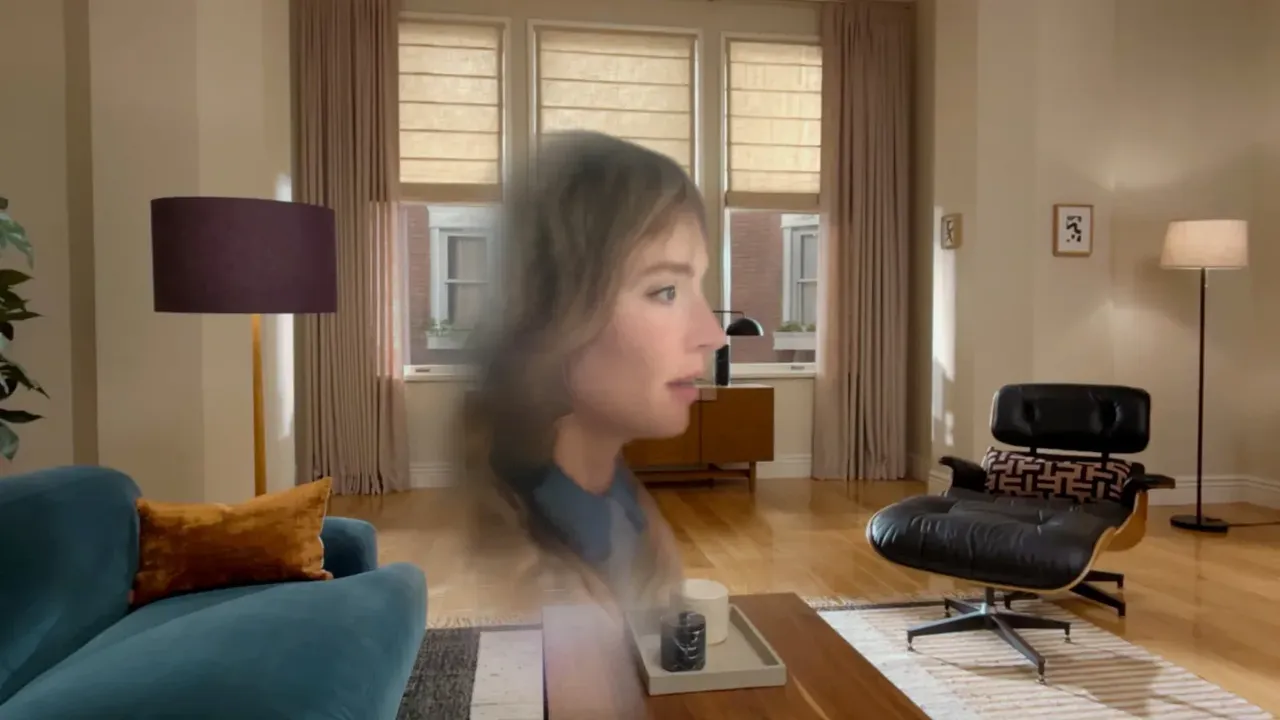
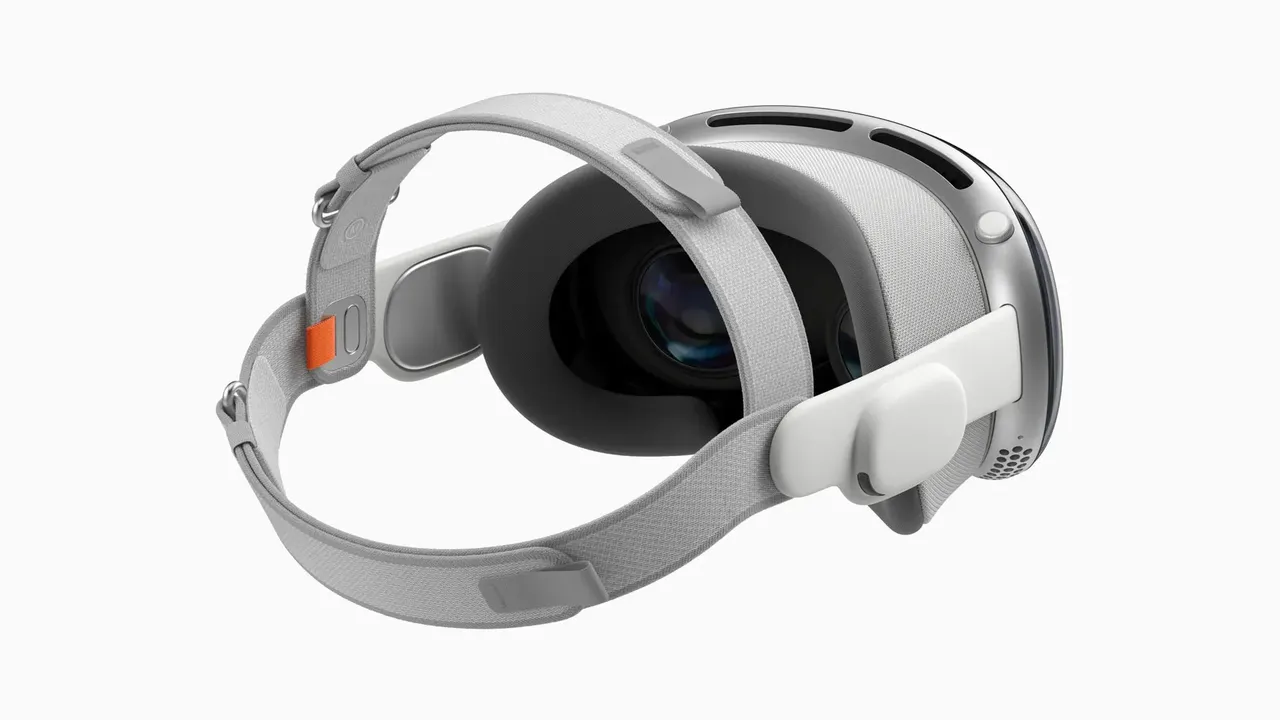
Spatial photos and videos are 3D captures you relive on Apple Vision Pro. This guide shows you how to take them on the headset or a supported iPhone, watch them in the Photos app, turn older 2D photos into spatial ones, and share them. These steps follow Apple's user guide pages on capturing spatial photos and videos on Apple Vision Pro, taking spatial photos and videos with your iPhone camera and viewing photos and videos in Photos. New to the headset? Start with our Apple Vision Pro getting started guide.
1. Check which devices can capture spatial content
You can capture spatial photos and videos on Apple Vision Pro itself. Apple's list of iPhone models that capture spatial photos and videos currently includes:
- iPhone 15 Pro and iPhone 15 Pro Max
- iPhone 16, iPhone 16 Plus, iPhone 16 Pro and iPhone 16 Pro Max
- iPhone 17, iPhone 17 Pro and iPhone 17 Pro Max
- iPhone 18 Pro and iPhone 18 Pro Max
Spatial photos and videos look 3D on Apple Vision Pro. On other devices they appear in 2D.
2. Take a spatial photo or video on Apple Vision Pro
- Press the top button to open the Capture app.
- Tap Photo or Video at the bottom to choose what you want to capture.
- Press the top button to take a spatial photo or start recording a spatial video.
- To stop recording, press the top button again, or tap the Stop Recording button.
To check a capture straight away, tap the thumbnail image in the lower-left corner of Capture.
3. Get steadier, more comfortable captures on the headset
- Keep your head as still as you can while recording spatial video.
- A crosshair appears in the center of your view while you record. If you move too much, it drifts outside a circle. Keep the crosshair inside the circle for the most comfortable viewing later.
- If you tilt your head before you start, a level appears through the shutter button. Use it to keep photos and videos level.
- Avoid subjects that are very close to you.
Shaky spatial video can be uncomfortable to watch. If that is a problem for you, see our tips to reduce motion sickness in VR.
4. Take a spatial photo or video on iPhone
- Open Camera on your iPhone.
- Swipe right on the screen to select Spatial mode.
- Rotate your iPhone to landscape orientation.
- Tap the Spatial Photo button or the Spatial Video button.
- Tap the Shutter button to take a photo, or the Record button to start a video.
For best results, Apple suggests you:
- Keep your iPhone steady and level.
- Frame your subjects 3 to 8 feet from the camera.
- Use lighting that is even and bright.
5. Get your iPhone captures onto Vision Pro
Spatial photos and videos sync to all your devices that are signed in to the same Apple Account with iCloud Photos turned on. Once synced, they show up in the Photos app on your Apple Vision Pro, ready to view in 3D. On your other Apple devices you can view and share them like regular photos and videos.
6. Watch spatial photos and videos in Photos
- Open the Photos app on your Apple Vision Pro.
- Tap Spatial in the tab bar. This shows all your spatial photos and videos in one place, including ones created from 2D photos.
- Choose a photo or video. To immerse yourself in it, tap the Immersive button.
If a video contains excess motion, an alert warns you that watching it could cause discomfort. To see a 2D version instead, tap Spatial in the bottom-left corner and turn Spatial off. Your view is dimmed automatically while you look at photos. To change that, tap the Actions button while viewing a photo, then tap Auto Dimming.
7. Turn 2D photos into spatial photos and scenes
Older photos can get depth too:
- Create a spatial photo: open a 2D photo, tap the Actions button at the top, then tap Create Spatial Photo. It also appears in the Spatial tab. Tap Spatial in the bottom-left corner to switch between Spatial On and Spatial Off. To remove it from the Spatial tab, tap the Actions button, then Undo Create Spatial.
- View a spatial scene: open a 2D or spatial photo and tap the Spatial Scene button at the top. Spatial scenes make it feel like you can lean in and look around. Tap the button again to remove the effect.
8. Share your spatial captures
- Open the Photos app on Apple Vision Pro.
- Tap the More button next to the spatial photo or video, then tap the Share button.
- Choose an option such as AirDrop, Mail or Messages.
To share several items, tap Select while viewing thumbnails, choose them, then tap the Share button. With iCloud Photos on, you can share full-quality photos with an iCloud link that stays available for 30 days. People with Apple Vision Pro see your spatial captures in 3D; everyone else sees them in 2D. You can also look at photos together using SharePlay in a FaceTime call with other Vision Pro owners. For other ways to watch 3D content, see our guide on watching movies and videos in VR.
Fragen und Antworten
Which iPhones can take spatial photos and videos?
Apple lists iPhone 15 Pro, iPhone 15 Pro Max, iPhone 16, iPhone 16 Plus, iPhone 16 Pro, iPhone 16 Pro Max, iPhone 17, iPhone 17 Pro, iPhone 17 Pro Max, iPhone 18 Pro and iPhone 18 Pro Max.
How do I take a spatial photo on Apple Vision Pro?
Press the top button to open Capture, tap Photo at the bottom, then press the top button again to take the photo.
Where do I find my spatial photos and videos on Vision Pro?
Open the Photos app and tap Spatial in the tab bar. Tap the Immersive button to view a capture in Immersive view.
Can people without Apple Vision Pro see my spatial videos?
Yes, but only in 2D. Spatial photos and videos look 3D on Apple Vision Pro and appear 2D on other devices.
Can I make old photos spatial?
Yes. Open a 2D photo in Photos on Apple Vision Pro, tap the Actions button, then tap Create Spatial Photo. You can also view any photo as a spatial scene with the Spatial Scene button.